Showing posts with label WAP. Show all posts

Wednesday, October 21, 2009

How to ensure placeholder folders are created during VS 2010 Web Deployment

During many web deployment scenarios developers want to be able create place holder folders where eventually their log files or runtime generated files like XMLs, Images etc will be stored…

With VS 2010 Web Deployment there will be a small work around required for you to be able to deploy place holder folders…  Before I go about explaining the work around let me call out that if you do not know about VS 2010 Web Deployment features it might be worth while to check out the blog series about VS 2010 Web Deployment at Overview Post for VS 2010 Web Deployment

Anyways, as VS 2010 Web Deployment is completely based on MSBuild based Web Publishing Pipeline (WPP) lot of deployment depends upon the MSBuild constructs…  One of the key features which is also supported using MSBuild based constructs is the ability to exclude Files and Folders from deployment.  I am hoping to write blog posts on both of these topics at some point but currently without going into the details consider following:

There is a file/folder structure like C:\MyWeb\Foo\Bar\myfile.htm…  VS 2010 will allow you to exclude or include myfile.htm or folder “Foo” from Web Deployment… If you now chooses to include myfile.htm but chooses to exclude “Foo” folder then the WPP will get into unwanted complex state for potentially trivial gains…

That is the reason most of the include, exclude, delete etc operations are done at the File level rather than at Folder level… So when you are excluding a folder from deployment  behind the scenes a bunch of files under that folder are getting excluded and the end result is the folder being excluded too… The above explanation is not exactly how it translates into code but is more for understanding purposes…

Anyways, this design decision causes the side effect that if there are no files in a folder then the folder does not get deployed as well… By now I imagine you must have figured out the work around too :-) Ya! just put a place holder file even if it is empty.txt in your place holder folder and it will get deployed too !!

If this causes you a lot of grief then do write back with your scenarios so that we can try to understand and analyze them individually…

Also do note that whether you are creating a web package or doing 1-Click Publish the same rationale applies as ultimately same WPP is executed behind the scenes for both…

-Vishal

Wednesday, August 12, 2009

Fix-It: Multiple instances of Visual Studio Development server getting created

Sometimes while developing some of you might notice a lot instances of Visual Studio Development Server (aka Cassini) in your system tray… Many of these icons when clicked on land up just vanishing away and at times these icons may flood the system tray causing frustration…  Sorry for that :-(

One of the reasons for this happening is that ASP.NET Development server is set up to use dynamic port allocation as shown below:

WAP (Right Click Project –> Properties –> Web)

Auto-assign Port

Web Sites (Select Web Sites –> F4 to see properties)

image

Sometimes on some developer boxes either Windows firewall or custom firewall blocks a bunch of ports… In this situation Web Development Server tries to hook to one of the blocked ports port and is not allowed to… In the process the Development Server lands up crashing… Next time it tries to assign itself to another dynamic port and the same thing happens…  As a result there are various tray icons created even though the Web Development Server exe has actually crashed…  That is the reason when you hover over the icons in the system tray they vanish away…

Firstly, let me call out that this is a bug, I just verified it with our key dev Bill Hiebert and he confirmed that this is now fixed in VS 2010…  For the time being the work around for

VS 2008 developers is to go ahead and turn off the Auto-assign Port/Use Dynamic ports option and actually set a fixed port which you know is not blocked by one of your firewalls…  Hopefully with this the multiple icons in the system tray should no longer appear…

If you still face problem then do write back…

-Vishal


Multiple instances of Visual Studio Development server getting created

Sometimes while developing some of you might notice a lot instances of Visual Studio Development Server (aka Cassini) in your system tray… Many of these icons when clicked on land up just vanishing away and at times these icons may flood the system tray causing frustration…  Sorry for that :-(

One of the reasons for this happening is that ASP.NET Development server is set up to use dynamic port allocation as shown below:

WAP (Right Click Project –> Properties –> Web)

Auto-assign Port

Web Sites (Select Web Sites –> F4 to see properties)

image

Sometimes on some developer boxes either Windows firewall or custom firewall blocks a bunch of ports… In this situation Web Development Server tries to hook to one of the blocked ports port and is not allowed to… In the process the Development Server lands up crashing… Next time it tries to assign itself to another dynamic port and the same thing happens…  As a result there are various tray icons created even though the Web Development Server exe has actually crashed…  That is the reason when you hover over the icons in the system tray they vanish away…

Firstly, let me call out that this is a bug, I just verified it with our key dev Bill Hiebert and he confirmed that this is now fixed in VS 2010…  For the time being the work around for VS 2008 developers is to go ahead and turn off the Auto-assign Port/Use Dynamic ports option and actually set a fixed port which you know is not blocked by one of your firewalls…  Hopefully with this the multiple icons in the system tray should no longer appear…

If you still face problem then do write back…

-Vishal

Saturday, August 08, 2009

Web Application Project Vs Web Site

Few days back I summarized the difference between a project system and a project templates; today I want to focus on key differences between different project systems available for web developers in Visual Studio…

You might be aware of the fact that we have two different types of project systems for Web developers i.e Web Application Projects (WAPs) and Web Site Projects (WSPs)…  Often time I get asked this question on which type of project should to use for web development…  Sometimes web developers even start a religious war on the two choices, honestly here you have an option to choose the god of your own choice and this post is my attempt to help you make an informed decision…

Most of the time I land up asking questions to people before actually recommending a particular project system.  I will try to keep the format of this post in that similar fashion as it typically works out easier to come to a conclusion…  If you are in a hurry and do not care of about the inner workings then feel free to just read the questions (in bold) and the highlighted winning project system name in the answer :-)

Q1. Do you intend to deploy source code on your production server and edit it right on the server if there was a time sensitive bug reported ?

If you answered Yes to the above question, you want to use Web Site projects (WSPs)…  In case of Web Site projects Visual Studio does not really compile your source code on your dev box, it merely uses aspnet_compiler to validate that your source code will actually compile and run on the server…  Hence when you try to deploy a web site people typically also deploy the source code on the server which allows them to edit the source right on the production server if there was a time sensitive bug reported…

Q2. Conversely, are you sensitive about not having your source code openly available on production servers?

If you answered Yes then you want to use Web Application Projects (WAPs)… In case of WAPs the .aspx.cs or .aspx.vb files are actually compiled via VS and converted into a .dll which actually resides in the BIN folder of your project…  The generated dll is named as MyProject.dll by default (but you can change the name and also potentially strong name sign it if you care)… Hence in case of WAP projects you do not need to deploy you .aspx.cs or .aspx.vb files which prevents exposure of your source code, in case of WSP you need to deploy these files… The subtlety to note here is that Visual Studio in this case is actually calling C# or VB compilers to compile your .aspx.cs or .aspx.vb files whereas in case of Web Sites the ASP.NET RUNTIME compiler calls the C# and VB compilers internally on production servers...

Q3. Do you care to unit test your source code which is present in your .aspx.vb/.aspx.cs files?

I know this is a politically flaming question, don’t answer it aloud :-)… If you answered Yes then you want to use WAPs… As WAPs generate a DLL out of your .aspx.cs and .aspx.vb files you can very easily create a Unit Test project using MBUnit, NUnit, VS Unit Test etc and add a reference to the WAP DLL…  In case of WSPs there is no DLL generated on developer box hence it is difficult to reference that code and write unit tests for them…  Not that it is not doable but it is not very intuitive and easy as in case of WAPs…

Also additionally if you have factored your C#/VB source code in a class library and are unit testing that library then WSP projects will work just fine…

Q4. Do you want many developers editing the deployed site as and when required by going to the server ?

If you answered Yes then refer to Q1. the rationale is simple WAP does not give you an option to edit .aspx.cs or .aspx.vb files on the server directly hence you need to use WSP in this case…

Q5. Do you use Source Code Control like VSS or Team Foundation Server to store your sources ?

This question was just for fun and clarity… :-) It does not matter whether you are using WAP or WSP… There is full source code control integration available with both project types so this is not really a deciding factor…   Similarly debug, run, view in browser etc all work no matter which project system you choose…

Q6. Do you intend to use Team Build/Cruise Control.NET etc to create a nightly/rolling builds or set up Continuous Integration?

If you answered Yes then ideally you are better off with WAP…  WAP is actually a MSBuild based project system and as you may be aware MSBuild is the basis of most command line build/test/deploy model for projects created by Visual Studio...  It contains .csproj or .vbproj file which contains all the MSBuild semantics to be able to build/compile/deploy your web project, hence it is very easy to set up command line builds, deployments etc with WAPs.  WSPs on the other hand have no .csproj or .vbproj files, we provided rudimentary support for WSP to use command line build using Solution Files (.sln)…  It is not rocket science to have WSP projects build in Team Build/CC.NET but the fact is that when WSPs were designed back in VS 2005 continuous integration (CI) was not the primary scenario rather quick easy editing of web pages was a higher priority… 

A different way of thinking about this is that there can be a lot of generic MSBuild based plug-ins (tasks/targets) which can out of the box work for WAPs but will need your own manual tweaking around to get them to work with WSP…  Essentially this decision point is not as black n white but without doubt WAPs will be way easier when it comes to MSBuild/Team Build support…

Q.7 Do you intend to remotely connect to your web and edit it via FTP?

Many people create their web sites and deploy it to a remote server… Eventually, they want to be able to connect to these LIVE sites from Visual Studio and edit them live by adding more features to them, fixing bugs etc…  If you are one of these folks then WSP is a better bet for you as WSP allow you to open a Web Site on the server and edit it right inside of Visual Studio… Again it boils down to the fact that the server actually has your source code so it is possible to edit it via FTP or FPSE and as WAPs do not have source code it does not really make sense to try to edit them…

While we are on this topic, let me mention  “please try to avoid using FPSE, it is a deprecated technology on the server side and sooner or later Visual Studio will stop supporting it”…

Q.8 Is there a possibility that you might ever loose your source code from your dev box if your hard disk crashed and you never had source code control back up?

Sounds like a silly question right, but many times for my personal web sites I do land up in this bucket… Recently I lost the source code for a portion of KritZu project, well it was a windows app but the point is that for my tiny home grown projects I sometimes do not have a proper source control repository…

Anyways in this scenario if you had a WSP and had deployed it with source code on the server then you might be better off… But then honestly this is a silly reason, please create back up of your source code somewhere and don’t use this as a differentiating factor…  Additionally in VS 2010 you can also create source package of your project and potentially save them somewhere, it makes creating back ups for source code in WAPs much easier, so in case of VS 2010 you can also use WAP equally well for this scenario…

Q.9 Do you intend to update just few .aspx and .aspx.cs/.aspx.vb files and do not want to recompile your project?

If you answered Yes you want to use WSPAgain as described in Q.1, 2, and 4 above Web Site project has source code on the server and it gets compiled there so if you just want to update one file and push it on the server then you do not need to recompile your project.  This is the very reason why “Copy Web Site” feature is available only with WSP and not with WAP… In case of WAP as all the .aspx.vb/.aspx.cs files are actually compiled into a DLL if you want to just change one of it you have to recompile….

NOTE:  If you just want to change .aspx files and not .aspx.vb/.aspx.cs then WAP is equally good… 

Q.10 Do you intend to leverage Web Deployment features of VS 2010 and MsDeploy?

If you answered Yes then you want to use WAPs…  There are tons of Web Deployment features available in VS 2010 for WAPs, some of them are:

Not that the above features will be supported in Web Site someday but we initially implemented the entire feature set on MSBuild so that it can be supported in a CI model on CC.NET/Team Build and as it is very straightforward to hook MSBuild WAPs was the de-facto choice… WSPs do not have a project file and hence trying to implement this for WSP will require a major changes in WSPs which we are not able to accommodate within VS 2010 box

Q.11 Have you heard of Web Deployment Projects for VS 2005 and VS 2008?

Web Deployment Projects (WDP) are an add on to VS 2005 (Download WDP 2005)and VS 2008 (Download WDP 2008)… WDP is a MSBuild based project and it has its own project file… It essentially takes the output of WAP or WSP and pre-compiles/merges it into DLLs which are ready to be deployed… Essentially WDP does the compilation that ASP.NET Compiler would do at RUNTIME and so if you use them during build time then your web pages’ FIRST TIME load performance will significantly improve (as ASP.NET will not have to compile the pages on the server)…

For WSP this means that you get some of MSBuild benefits of integration with Team Build/CC.NET but then you loose the flexibility of having your source code on the server and editing it anytime you want…  In any case WDP in my opinion should NOT be one of the deciding points while choosing WAP or WSP, in fact  WDP works just fine with both the project systems… 

Many people try to use WDP to get Team Build style benefits on WSPs but then I would recommend pausing and asking yourself a question “Why are you using WSP if you are about to loose many of the advantages of WSP like being able to edit code files anytime, etc?

So from WDP standpoint either WAP or WSP is equally ok…

Q.12. Do you write inline C# or VB code in .aspx files (in addition to / instead of writing it in .aspx.cs or .aspx.vb)?

People sometimes do write <script runat=”server”> int i;</script> or <%= %> style code inside the .aspx pages… If you do so you should note that WSP provide better intellisense and refactoring here… But most of the times the difference is not very noticeable in WAPs either (at least not many people are screaming about  it :-))…  So if you leave that part alone both WAP or WSP work the same from this standpoint…

The code written in .aspx pages EVEN IN CASE OF WAP does not get compiled by VS… The code in .aspx pages is left as is and is compiled by ASP.NET compiler on the server… So essentially even if you are using WAPs you can also edit the code written in .aspx on the production server… Certainly, you can do this with WSP too…

So when it comes to writing inline C# & VB code WSP and WAPs are more or less the same…

Q.13 Do you aspire to write both VB and C# code in a single Web Project?

What if people who love VB could write VB code and people who love C# could write C# code and they both can work on the same project at the same time… Interesting idea right…?  You can imagine that in some community project people may decide to do this… In enterprises or formal companies I have never seen this happen due to maintainability reasons…  Anyways, even for kicks if you want to write both VB and C# code in the same Web Project it is way more simpler to do so in WSP than in WAP… 

Again it is not impossible to do it in WAPs but slightly more convoluted…  The reason why it is complicated to do this in WAP is coz WAP compiles everything based on the project file which is either vbproj or csproj… WSP on the other hand is just a folder and ASP.NET RUNTIME can call any compiler based on the file extension… There are some ifs and buts and maybe someday I will write about them but for now WSP is more preferred in this scenario…

Q.14 Have you heard of ASP.NET MVC projects?

In  my Project template vs. Project system post I had mentioned that ASP.NET MVC Projects are a type of WAP…  To further explain it MVC Projects are essentially what we call as “Flavor” of WAP…  Flavor is a special little “lingo” of VS :-) think of it as a special type of inheritance i.e. MVC Projects flavor WAP Projects who in turn flavor Class Library projects and all along the line you keep getting more an more features while the child projects can hide features of the parent as well…  For e.g. MVC projects hide “View in Browser” command while adding “Add a View” command…We can talk more about this some other time but in nutshell MVC projects have got controllers and model classes which all get compiled into DLLs and the Views get deployed as they are on to the server…

MVC projects also are pro on Unit Testing so in lines with Q3. we just decided to avoid any confusion and just created MVC projects for WAPs… So if you are using ASP.NET MVC you are most likely using WAPs… Again using ASP.NET MVC with WSP is possible, it is just not straightforward option and some IDE features may not be available out of the box if you were using MVC with WSP today…

Q.15 Do you want to edit your code while debugging (w/o stopping debugging)?

Edit & Continue feature is supported only in WAP projects and not WSP hence if you care about Edit & Continue then WAP is your option of choice…

In conclusion, there are more subtle things to look out for… e.g. Few days back I explained why App_Code does not work all that well with WAPs…  But other things should be hopefully minor issues and the above decision points should hopefully allow you to make an informed decision when WAP vs WS discussion comes up again…:-)

There are more subtle differences between WAP and WSPs and some of them are discussed in the white paper on MSDN

Hope this discussion helps and do not hesitate to reach out if you would like to know anything in more details…

-Vishal

Wednesday, August 05, 2009

VS Project Template Vs Project System

You might many times hear the words “project templates” and “project system” from time to time, I though it would be worth while to talk about the differences between the  two from a web developer stand point…

Web developers using Visual Studio use either File –> New –> Project or File –> New –> Web site as shown below to create new Web projects as shown below:

File-New-Project

The new project dialog for Web Developers looks as below:

new project

and the new web site dialog looks as below:

new web site

What is probably interesting to note is that all the options that you see inside any of these dialog boxes above are just “Project Templates” and what that really means is that they are underlying the same project system but just wrapped with different set of start up files for easy project development…

In reality there are only two major Project Systems for Web Developers

  1. Web Application Projects (WAPs) which are accessible via File –> New –> Project –> Web
  2. Web Site Projects (WSPs) which are accessible via File –> New –> Web Site

What is also interesting to note is that WAPs and WSPs have different code bases (with reasonable set of shared components)… I will eventually write a post on real differences between WAPs and WSPs but today let us focus on Project Systems vs Templates…

A Project system like WAP or WSP actually takes care of building, compiling, debugging, managing source control, deploying, hooking up references, intellisense etc etc  for a project…  In essence the major code for functionality of the web project like commands, hot keys, content menus, toolbars etc are all specific to a project system and they remain the same across all the project templates of a single project system…

A Project template on the other hand is simply a bunch of files bundled together to allow a person to easily start developing a certain type of project…   The project templates can have specific files like .svc or .aspx with boiler plate code in it… Each project template can choose to include its own set of references or code files… Behind the scene the project system invoked to do all the magic remains the same… For example ASP.NET Web Application and WCF Service Application are just two different templates for “Web Application Project System”…  Similarly there are a bunch of project templates for “Web Site Project System”…

The key Project templates for Web Application Projects (WAP) are:

  • ASP.NET Web Application
  • Empty ASP.NET Web Application
  • ASP.NET Web Service Application
  • WCF Service Application
  • Dynamic Data Linq to SQL Web Application
  • ASP.NET MVC Web Application (MVC is a customized Web Application Project system, we call it Flavor of WAP, so it is not necessarily a project template only…)
  • Dynamic Data Entities Web Application

Similarly, the key Project templates for Web Site Project (WSP) are:

  • ASP.NET Web Site
  • Empty Web Site
  • WCF Service
  • ASP.NET Reports Web Site
  • Dynamic Data Linq to SQL Web Site
  • Dynamic Data Entities Web Site

Hence many a times there are features which work for one project system but do not work for other… A classic example is App_Code directory which works great with Web Site projects but not as seamlessly with Web Application Projects…  Recently I wrote a blog post on Why App_Code does not work as well with WAPs

Anyways, I hope this gives an idea on how the project systems and project templates for Web Developers work within Visual Studio…

-Vishal

Tuesday, August 04, 2009

Replacing your old DB with new one using VS 2010

Earlier in the below blog posts we had talked about how to Deploy your DB using VS 2010…

Today I wanted to share how you can replace your old DB with a new one using VS 2010 DB Deployment.

Before we get into it please note that using this method you are essentially going to get rid of your old DB schema as well as data and replace it with the new one…  You should make sure that you do not turn this setting on accidentally as there will be no way to revert it back if you accidentally drop your DB content… !!

So with that understanding and with the assumption that you have already, configured your DB for deployment for use with Web Packaging OR 1-Click Publish; let us proceed:

After configuring your DB for Deployment your “Deploy SQL” Property tab should look something like below:

Deploy SQL Tab

If you look at the above UI, you will notice that there is no UI option to drop your database objects during Packaging or Publishing… This was an intentional decision as we did not want anyone to accidentally check that box and regret later… Although you can do this by manually by editing your project file…

To do that you will have to Right Click on your project and click “Unload Project” as shown below:

Unload Project

Once you unload your project you will have an option to Edit your project file as shown below:

image

Alternatively you can also open your project folder and edit the project file in notepad…

If you have your DB deployment configured in “Deploy SQL” tab (shown above) of your project properties then you should find following XML schema in the project file:

<PublishDatabaseSettings>
      <Objects>
        <ObjectGroup Name="MyDB" Order="1" Enabled="False">
          <Destination Path="" />
          <Object Type="dbFullSql">
            <PreSource Path="your connectionString value" ScriptDropsFirst=”True” ScriptSchema="True" ScriptData="False" SchemaQualify="False" CopyAllFullTextCatalogs="False" />
            <Source Path="obj\Debug\AutoScripts\MyDB_SchemaOnly.sql" />
          </Object>
        </ObjectGroup>
      </Objects>
</PublishDatabaseSettings>


If you notice carefully you should see that in the “PreSource” node above I have


additionally inserted a special attribute called ScriptDropsFirst=”True”, this attribute will tell the Web Publishing Pipeline (WPP) to insert DROP statements while scripting your DB…


In nutshell the PreSource node tells VS 2010 about your source DB and the options you would like to use while script it… ScriptDropsFirst is only one of the options but there are several others properties that you can set to control the scripting of your DB which are mentioned in SMO Scripting Options.


The option of ScriptDropsFirst will not drop your Database it will simply drop the objects inside the Database… If you would also like to drop the Database and recreate it you should use the option dropDestinationDatabase=”True”. If you are deploying to a hoster like DiscountASP or OrcsWeb you should NOT use dropDestinationDatabase option as most likely you will not have the permission to do so and even if you did the chances are that you will not have an option to recreate it and you might have to land up calling the support center…  Hopefully if you are deploying to a hosted server then you will not need to drop the DB and just dropping the schema and data inside it will be sufficient…


Anyways, once you have set these attributes  on your preSource node you can now save the project file and reload it… After that next time you Package or Publish your deployment will first drop all the tables, columns and data in your destination DB and then recreate it using the newly generated SQL script…


-Vishal

Thursday, July 09, 2009

10 + 20 Reasons why you should Create a Web Package

Before we talk about the reasons why you should create a Web Package let us first understand what is a web package… Web Package is an atomic, transparent, self describing unit representing your web application which can be easily hydrated into any IIS Web server to reproduce your web…  It is a .zip file which not only contains your content but also contains its dependencies like IIS Settings, Databases, GAC DLLs, Registry Keys etc…

The concept of creating Web Packages for deploying your web application to an IIS Web Server is recently introduced with Microsoft Web Deployment Tool (MsDeploy) and towards the end of this post I will talk about how you can create a Web Package for your web app… But before going there let me talk about the 10 reasons why you should consider creating web packages for your web application:

  1. Having all your web content and dependencies like IIS Settings & DB into a single .zip file allows you to easily transport it anywhere…
  2. If the web package actually contains source code then you can replicate your dev environment to another box relatively easily…  Imagine being able to recreate a project on your home machine by simply emailing yourself a .zip file…
  3. If you are deploying in a web farm environment then deploying the web package to various server boxes will allow you to very easily recreate your load balanced web servers…
  4. If you are creating software for community to use then sharing web package .zip files with world creates a common handshake model…
  5. Web Application Gallery, which will be common home to find reusable Web Applications also uses the same Web Package format… So you will have an opportunity to put up your web app into Web Application Gallery if you create a Web Package…
  6. Most of the Package creation process is very automated so you do not need to write custom actions like you would have to do in case of MSIs…
  7. Creation of Web Packages can be automated along with your nightly builds really easily using MsBuild with systems like Team Build…
  8. You can create a web package for various versions of your web application and easily use the versioned packages to roll back to any version you like…
  9. You get free standardized UI to install the Web Packages in IIS Manager which hopefully will become pretty standard and easy for everyone to understand…  If you do not like to use the UI the package can be installed via commandline as well…:-)
  10. Most of the automated tools (providers) required for packaging  your web application and its dependencies are available out of the box (few of which are IIS Settings, SQL DBs, Web Content, GAC assemblies, COM components, Registry keys etc)… 

Finally let me mention the out of the box providers which can be invoked when you want to package your web application…  You actually have a choice to call any of these providers depending on what parts of your Web Application you like to be packaged… These are my other +20 reasons why you should create a web package…

  1. File System Directory to move a files & folder which contains your web application files like .aspx, .config, images, .js, .css, .master etc – contentPath
  2. Creating a new IIS Web Application for your web– iisApp
  3. Moving IIS7 and above (read Vista, Win2k8, Win7, Win2k8 R2 and above) Configuration Settings associated with your web (e.g. Default Document, ApplicationPool Mapping etc) – appHostConfig
  4. IIS5.1 & 6 (read XP, Win2K3 compatibility)  Metabase Configuration Settings (parallel to IIS7+ settings above) - metakey
  5. Pulling data & schema from existing SQL Server Database or custom generated .SQL files which your web uses– dbfullSQL
  6. Any Security Certificates (e.g. SSL & ClientAuth) that your web depends upon- cert
  7. Any GACed assemblies like 3rd party controls or libraries that your web uses – gacAssembly
  8. Any custom IIS7+ Application Pool that your web has created– appPoolConfig
  9. Registry key associated with your webs – regkey
  10. 32 bit COM Object – comObject32
  11. 64 bit COM Object – comObject64
  12. Security ACLs associated with folder – setAcl
  13. Granular control by pulling just a registry value - regValue
  14. ASP.NET root web configuration file on 32 bit machine – rootWebConfig32
  15. ASP.NET root web configuration file on 64 bit machine – rootWebConfig64
  16. Similar type of support for packaging MySQL DB – dbMySQL
  17. Packaging Machine.Config of 32 bit machine – machineConfig32
  18. Packaging Machine.Config of 64 bit machine – machineConfig64
  19. If there is still a provider missing then you can very easily create one – yourCustomProvider
  20. A secret provider which I am not allowed to talk about just yet :-), but trust me it is really a killer provider - secretProvider

So now that you have 10 +20 reasons to create a web package let us talk about how to create one… From end developer/IT pro standpoint you can create Web Packages from various different avenues, some of which are:

Please follow the links above to create a web package using your preferred method… I hope you are jazzed about being able to archive and deploy your web applications using Web Packaging…

Friday, June 26, 2009

Unload Web Site and WAP in Visual Studio

Inside Visual Studio many times people want to be able to unload a projects without having to completely close them…

Web Application Projects (WAPs)/ Class Libraries Unload

WAPs or Class Libraries unloading the project allows you to open the .csproj or .vbproj within an XML editor and modify the properties… This is by far the biggest reason why unloading WAPs, Class Libraries etc is used…  You can Unload most of the VS projects by Right Clicking on the project node and clicking “Unload Project” as shown below:

image

After Unloading the project looks as below and you can again Right Click on it to edit the project file.

image

Web Site Project Unload

Web site project on the other hand are different, firstly cause they do not have a project file and hence unloading them to edit the project file is not a motivation…  People still do want the ability to unload Web Site project and the scenario around it is that when you unload a project then on Solution build the unload project does not get built… This way if you are in middle of writing some code in that project and have existing errors then you can still unload it and continue with solution build…  Also Reloading the project will be faster than opening a closed project…  With that said if you Right Click on Web Site project you won’t find the “Unload Project” option… 

The right Click context menu is already very long for Web Site and as Unloading Web Site is not as common the command for “Unload Web Site” actually sits in the “Web Site” menu on top of Visual Studio as shown below:

image

After unloading the project you can then right click on the unavailable node (just like WAP above) and ask VS to “Reload Project”…

Also FYI unloading and reloading of project resets a lot of in memory objects associated with the project so in VS 2010 we explicitly load and unload WAP as well Web Site when you change your project’s target .NET framework version (e.g. move from 3.5 to 4.0)… This allows VS to hook in the correct intelligence, toolbox etc etc associated with the correct .NET Framework version…

Hope this small tip & trick  will help you…!!

Thursday, June 25, 2009

Disabling Script Debugging with VS 2010, Silverlight & IE 8

This is a quick post to cover few items related to Script Debugging and the way it is impacted by Silverlight, Internet Explorer 8 and Visual Studio 2010…

With IE 8 there is no longer option to disable script debugging… When VS 2010 will launch IE 8 then script debugging will be enabled by default… This will help people debug scripts flawlessly without having to go and change script debugging features within IE 8… While this is a good feature for most users it might at times create problem when you do not really want script debugging to be enabled for performance reasons (i.e. if you do not want to debug scripts and have lot of scripts in your pages)…

On separate note Silverlight is a special debugging option for Web Projects…  You can view that by going to Project –> Properties –> Web…  Check the screenshots below for Web Application Projects (WAP):

WAP Silverlight Debugger

for Web Sites you can view those options by going to Web Site—> Properties –> Start Options as shown in the figure below

Web Site Silverlight Debugger

Now Silverlight debugging is mutually exclusive with Script Debugging as Debugger at a time can attach to only one of the two, so when you turn on Silverlight debugging then VS has to turn Script Debugging Off…  If you have bunch of Client side scripts in your Silverlight project which needs to be debugged then in that case you will have to go to the above option and turn off Silverlight debugging to have Script Debugging enabled… 

Now a side effect of all this is that if you want to turn off Script Debugging on your regular projects then your easiest work around is to go and turn on Silverlight debugging and your script debugging will get turned off by itself…

GreggM on our Debugger team has got some further detailed work around via modifying the registry at http://blogs.msdn.com/greggm/archive/2009/04/06/disabling-script-debugging-in-vs-2008-ie8.aspx, it is a great post take a look at it…

Hope this workaround helps you!!…

Thursday, June 11, 2009

How to make Content Web Pages to use existing Master Page

Let us say you want to add a new page Page1.aspx to use Site.Master…  Lets say that Site.Master already exists in your project…

If you were to add Page1.aspx as a simple .aspx page then you will have to make manual change to the <%@ Page directive of the page to make sure Inherits property is set correctly… But generally you will not need to do this if you add the file in the below fashion…

WEB SITE PROJECTS: If you are using a Web Site Project (i.e. below)

new web site

Then in that case you can Right click on your project –> Add New Item and “Select Master Page”

new web form

On the next page you will get an option to select the master page as shown below:

Web Site Master

WEB APPLICATION PROJECTS (WAPs):   If  you are using a WAP (i.e. File –> New Project as shown below)

new WAP

Then while adding a new page, right click on your project—> Add –> New Item and instead of selecting “Web Form” select “Web Content Form” as shown below:

web content form

When you now click the “Add” button you will get to select the Site.Master page that you had previously added to your project… Check the figure below…

web form site master

Hope this helps…

- Vishal | Twitter: @VishalRJoshi |

Tuesday, May 26, 2009

VS 2010 Project Conversion+ Upgrade

Visual Studio 2010 will allow you to move your projects from previous versions of Visual Studios  to VS 2010 with ease, I will call this process as “Converting” the project from VS 200X to VS 2010… 

VS 2010 will also allow you to change your project’s Target Framework Version to .NET 4.0 from .NET 2.0, 3.0 or 3.5…  I will call this process as “Upgrading”…

The reason why VS allows you to deal with these two concepts separately is due to various reasons, some of which can be:

  • You might be ready to use the latest and greatest tooling features of VS 2010 even if you are not yet ready to move to .NET 4.0 just yet…
  • You might have a big solution with various projects and you might want to move few of the project to .NET 4.0 first and then take a staged approach to the rest of the projects…  Obviously you would not want to open various projects in different versions of VS…

Project Conversion-  When you are using projects with .csproj/.vbproj files (e.g. Class Library, Web Application Project etc) then these files typically contain some type of information about VS IDE version example in .csproj file you can see below:

<Project ToolsVersion="3.5" DefaultTargets="Build" xmlns="http://schemas.microsoft.com/developer/msbuild/2003">
<PropertyGroup>
<Configuration Condition=" '$(Configuration)' == '' ">Debug</Configuration>
<Platform Condition=" '$(Platform)' == '' ">AnyCPU</Platform>
<ProductVersion>9.0.30729</ProductVersion>
<SchemaVersion>2.0</SchemaVersion>


  In the above example  you can notice that there is msbuild/2003 in the schema namespace… There is also ProductVersion 9.0 in the sample above.  If you examine your project file in further depth you will also find references to the .targets files for the Web Application Projects like below:


 <Import Project="$(MSBuildExtensionsPath)\Microsoft\VisualStudio\v9.0\WebApplications\Microsoft.WebApplication.targets" />


Notice that the location of the targets file is in above example is in “V9.0” directory in the above piece of xml…  This all needs to be changed to Visual Studio 2010 references (i.e. “V 10.0”) to allow your pre VS 2010 project to use new features of VS 2010. 


The process by which pre VS 2010 (e.g. VS 2008, VS 2005)  project and solution files are modified to move to VS 2010 format is what I am referring to as Project Conversion.


VS 2010 conversion wizard is very similar to how VS 2003/VS 2005 to VS 2008 conversion Wizard use to look like…  To convert pre VS 2010 project to VS 2010 you can double click the project or solution file on a box which has VS 2010 and the conversion wizard will kick off… Following will be the steps that you will see:


Step 1: UI describing that your project will be converted


VS Conversion Wizard


Step 2: Option to back up your project (I would encourage you to create a back up of your project before converting so that you have a copy of your project in case there are any errors in conversion)


VS conversion wizard back up option


Step 3: Summary before the conversion begins


VS Conversion Wizard Summary


Note that so far you have not been asked about your .NET Framework Version.  Do not worry about it just yet and hit the “Finish” button above… You will be allowed to make a decision on whether or not you would like to “Upgrade” your project to .NET 4.0 in the next step.


As soon as you click Finish, the project conversion will kick in the Project Upgrade dialog.


Project Upgrade-  Step 3 of project conversion step is pretty much common to any VS project or solution file, by this what I mean is that some of the things like Product Version, Target File Paths etc are typically required to be changed for most projects including Web Projects… Apart from this step there are certain .NET Framework specific steps required to be done e.g. changes to the project file to indicate which .NET Framework version should be used for the project, similar type of changes in the solution file if need be and additionally for web projects changing the web.config file correctly based on the the framework version you are targeting… These changes are what I am referring to as “Project Upgrade”…


Once you click “Finish” button in Step 3 above you should see the below  Framework Version dialog


Step 4:  Choose whether or not to upgrade to .NET 4.0


choose to upgrade to 4.0


I will click “Yes” on the button above but you can choose to click “No” if you are not yet ready to move to ASP.NET 4.0 on the server.   As the dialog specifies you can change the target framework of your project eventually when you are ready by going to the project properties…


If I click “Yes” my web.config file will be modified to conform to ASP.NET 4.0 format...  None of the additional items that you have added to your web.config file (e.g. appSettings, connectionStrings etc) will be altered but rather most of the assembly references in the web.config file will be modified to 4.0…


In addition with ASP.NET 4.0 there is a need for a new attribute on the compilation tag as shown below:


<compilation debug="true" targetFrameworkMoniker=".NETFramework,Version=v4.0">
<assemblies>
<add assembly="System.Core, Version=4.0.0.0, Culture=neutral, PublicKeyToken=B77A5C561934E089"/>
<add assembly="System.Data.DataSetExtensions, Version=4.0.0.0, Culture=neutral, PublicKeyToken=B77A5C561934E089"/>
<add assembly="System.Web.Extensions, Version=4.0.0.0, Culture=neutral, PublicKeyToken=31BF3856AD364E35"/>
<add assembly="System.Xml.Linq, Version=4.0.0.0, Culture=neutral, PublicKeyToken=B77A5C561934E089"/></assemblies>
</compilation>


The targetFrameworkMoniker attribute allows VS 2010 to identify that the web is a 4.0 web.  This allows VS 2010 to customize the intellisense, toolbox, references etc to 4.0 for your project. 


As part of this project upgrade VS will automatically inject targetFrameworkMoniker attribute into your web.config file.   For a 4.0 web in VS 2010 and ASP.NET 4.0 this attribute is required, if you try to run a 4.0 web without this attribute in the web.config file then you will get an error  At this point you should get below screen after the conversion is successful.


Step 5: Conversion Complete + Logs Screen


VS 2010 Conversion Wizard Complete


You can choose to open the conversion logs at this time or hit Close…  At this point your project should be ready to be used…


Eventually I will write more about Conversion, Upgrade and details about it but in the meantime I hope this will help…


-Vishal

Monday, March 23, 2009

Web Deployment: Web.Config Transformation

We have earlier discussed about Web Deployment and Web Packaging quite a bit, today I wanted to dive into web.config transformation. If you would like to check out the other topics please read through the earlier blog posts below:

Usually web applications go through a chain of server deployments before being finally being deployed to production environment. Some of these environments can be Developer box (Debug), QA Server, Staging/Pre-Production, Production (Release). While transitioning between these environments various settings of the web application residing in web.config file change, some of these settings can be items like application settings, connection strings, debug flags, web services end points etc.

VS10’s new web.config transformation model allows you to modify your web.config file in an automated fashion during deployment of your applications to various server environments. To help command line based deployments, Web.Config transformation is implemented as an MSBuild task behind the scene hence you can simply call it even outside of deployment realm.

I will try to go through below steps to explain web.config transformation in detail

  1. Creating a “Staging” Configuration on your developer box

  2. Adding a “Staging” Web.Config Transform file to your project

  3. Writing simple transforms to change developer box connection string settings into “Staging” environment settings

  4. Generating a new transformed web.config file for “Staging” environment from command line

  5. Generating a new transformed web.config file for “Staging” environment from VS UI

  6. Understanding various available web.config Transforms and Locators

  7. Using Web.config transformation toolset for config files in sub-folders within the project

Step 1: Creating a “Staging” Configuration on your developer box

Debug and Release build configurations are available by default within Visual Studio but if you would like to add more build configurations (for various server environments like “Dev”, “QA”, “Staging”, “Production” etc then you can do so by going to the Project menu Build --> Configuration Manager… Learn more about creating build configurations.

Step 2: Adding a “Staging” Web.Config Transform file to your project

One of the goals while designing web.config transformation was to make sure that the original runtime web.config file does not need to be modified to ensure that there would be no performance impacts and also to make sure that the design time syntax is not mixed with runtime syntax. To support this goal the concept of Configuration specific web.config files was introduced.

These web.config files follow a naming convention of web.configuration.config. For example the web.config files for various Visual Studio + Custom configurations will look as below:
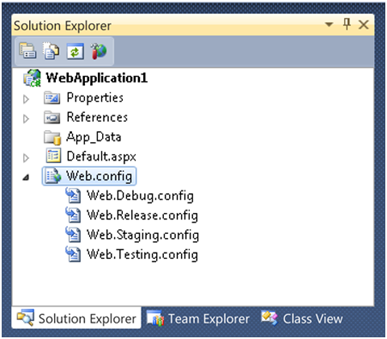
web.config transform

Any new Web Application Project (WAP) created in VS10 will by default have Web.Debug.Config and Web.Release.config files added to the project. If you add new configurations (e.g. “Staging”) or if you upgrade pre-VS10 projects to VS10 then you will have to issue a command to VS to generate the Configuration specific Transform files as needed.

To add configuration specific transform file (e.g. Web.Staging.Config) you can right click the original web.config file and click the context menu command “Add Config Transforms” as shown below:

Add Config Transforms

On clicking the “Add Config Transform” command VS10 will detect the configurations that do not have a transform associated with them and will automatically create the missing transform files. It will not overwrite an existing transform file. If you do not want a particular configuration transform file then you can feel free to delete it off.

Note: In case of VB Web Application Projects the web.configuration.config transform files will not be visible till you enable the hidden file views as shown below:

VB.net web.config Transform

The transform files are design time files only and will not be deployed or packaged by VS10. If you are going to xCopy deploy your web application it is advised that you should explicitly leave out these files from deployment just like you do with project (.csproj/.vbproj) or user (.user) files…

Note: These transform files should not be harmful even if deployed as runtime does not use them in any fashion and additionally ASP.NET makes sure that .config files are not browsable in any way.

Step 3: Writing simple transforms to change developer box connection string settings into “Staging” environment settings

Web.Config Transformation Engine is a simple XML Transformation Engine which takes a source file (your project’s original web.config file) and a transform file (e.g. web.staging.config) and produces an output file (web.config ready for staging environment).

The Transform file (e.g. web.staging.config ) needs to have XML Document Transform namespace registered at the root node as shown below:

<?xml version="1.0"?>
<configuration xmlns:xdt="http://schemas.microsoft.com/XML-Document-Transform">
</configuration>

Note: The transform web.config file needs to be a well formed XML.

Inside the XML-Document-Transform namespace two new attributes are defined. These attributes are important to understand as they drive the XML Transformation Engine.

Transform – This attribute inside the Web.Staging.config informs the Transformation engine the way to modify web.config file for specific configuration (i.e. staging). Some examples of what Transforms can do are:

  • Replacing a node

  • Inserting a node

  • Delete a node

  • Removing Attributes

  • Setting Attributes

Locator – This attribute inside the web.staging.config helps the Transformation engine to exactly pin-point the web.config node that the transform from web.staging.config should be applied to. Some examples of what Locators can do are:

  • Match on value of a node’s attribute

  • Exact XPath of where to find a node

  • A condition match to find a node

Based on the above basic understanding let us try to transform connection string from original web.config file to match Staging environment’s connection string

Let us examine the original web.config file and identify the items to replace... Original Web Config file’s connection string section looks as below:

<?xml version="1.0" encoding="UTF-8"?>
<configuration>
  <connectionStrings>
    <add name="personalDB"
     connectionString="Server=DevBox; Database=personal; User Id=admin; password=P@ssw0rd" providerName="System.Data.SqlClient" />
    <add name="professionalDB"
     connectionString="Server=DevBox; Database=professional; User Id=admin; password=P@ssw0rd" providerName="System.Data.SqlClient" />
</connectionStrings>
....
....
</configuration>


NOTE: It is not advisable to keep connection string unencrypted in the web.config file, my example is just for demonstration purposes.

Let us assume that we would like to make following changes to web.config file when moving to staging environment

  • For “personalDB” we would like to change the connectionString to reflect Server=StagingBox, UserId=admin, passoword=StagingPersonalPassword”

  • For “professionalDB” we would like to change the connectionString to reflect Server=StagingBox, UserId=professional, passoword=StagingProfessionalPassword”

To make the above change happen we will have to open web.Staging.Config file and write the below piece of code

<?xml version="1.0"?>
<configuration xmlns:xdt="http://schemas.microsoft.com/XML-Document-Transform">
     <connectionStrings>
        <add name="personalDB"
          connectionString="Server=StagingBox; Database=personal; User   

          Id=admin; password=StagingPersonalPassword"
          providerName="System.Data.SqlClient" xdt:Transform="Replace"    

          xdt:Locator="Match(name)" />
        <add name="professionalDB"
         connectionString="Server=StagingBox; Database=professional; User  

         Id=professional; password=StagingProfessionalPassword"
         providerName="System.Data.SqlClient" xdt:Transform="Replace"

         xdt:Locator="Match(name)"/>
      
</connectionStrings>
</configuration>

The above syntax in web.staging.config has Transform and Locator attributes from the xdt namespace. If we analyze the connection string node syntax we can notice that the Transform used here is “Replace” which is instructing the Transformation Engine to Replace the entire node

Further if we notice the Locator used here is “Match” which is informing Transformation engine that among all the “configuration/connectionStrings/add” nodes that are found, pick up the node whose name attribute matches with the name attribute of <add> node in web.Staging.config.

Also if you notice web.Staging.config does not contain anything else but the connectionStrings section (i.e. it does not have <system.web> and various other sections that web.config file usually has, this is because of the fact that the Transformation Engine does not require a complete web.config file in web.staging.config. It does the merging for you thus saving you duplication of all the rest of the sections in web.config file.

Simplest Approach: If you do not mind replicating the entire web.config file in web.staging.config then you can certainly do so by copying the entire web.config content into web.staging.config and change the relevant nodes inside web.staging.config. In such a situation you will just have to put xdt:Transform="Replace" attribute on the topmost node (i.e. configuration) of web.staging.config. You will not need xdt:Locator attribute at all as you are replacing your entire web.config file with web.staging.config without Matching anything.

So far we have seen one Transform (i.e. Replace) and one Locator (i.e. Match), we will see various other Transforms and Locators further in the post but first let us understand how we can produce the Transformed web.config file for the Staging environment after using original web.config and web.staging.config.

Step 4: Generating a new transformed web.config file for “Staging” environment from command line

Open Visual Studio Command prompt by going to Start --> Program Files –> Visual Studio v10.0 –> Visual Studio tools –> Visual Studio 10.0 Command Prompt

Type “MSBuild “Path to Application project file (.csproj/.vbproj) ” /t:TransformWebConfig /p:Configuration=Staging" and hit enter as shown below:

commandline web.config transformation

Once the transformation is successful the web.config for the “Staging” configuration will be stored under obj -->Staging folder under your project root (In solution explorer you can access this folder by first un-hiding the hidden files) :

transformed web.config

  • In the solution explorer click the button to show hidden files
  • Open the Obj folder

  • Navigate to your Active configuration (in our current case it is “Staging”)

  • You can find the transformed web.config there

You can now verify that the new staging web.config file generated has the changed connection string section.

Step 5: Generating a new transformed web.config file for “Staging” environment from VS UI

Right Click on your project and click Package –> Create Package

Create Package

The Create Package step already does web.config transformation as one of its intermediate steps before creating a package and hence you should be able to find the transformed web.config file in the same place as described in Step 4

Step 6: Understanding various available web.config Transforms and Locators

xdt:Locators

The inbuilt xdt:Locators are discussed below.

  • Match - In the provided syntax sample below the Replace transform will occur only when the name Northwind matches in the list of connection strings in the source web.config.Do note that Match Locator can take multiple attributeNames as parameters e.g. Match(name, providerName) ]

<connectionStrings>
     <add name="Northwind" connectionString="connectionString goes    here" providerName="System.Data.SqlClient" xdt:Transform="Replace"          xdt:Locator="Match(name)" />
</connectionStrings>

·         Condition - Condition Locator will create an XPath predicate which will be appended to current element’s XPath. The resultant XPath generated in the below example is “/configuration/connectionStrings/add[@name='Northwind or @providerName=’ System.Data.SqlClient’ ]”

This XPath is then used to search for the correct node in the source web.config file

<connectionStrings>
      <add name="Northwind" connectionString="connectionString goes here"

        providerName="System.Data.SqlClient" xdt:Transform="Replace"

        xdt:Locator="Condition(@name=’Northwind or @providerName=’

        System.Data.SqlClient’)" />
</connectionStrings>

·         XPath- This Locator will support complicated XPath expressions to identify the source web.config nodes. In the syntax example we can see that the XPath provided will allow user to replace system.web section no matter where it is located inside the web.config (i.e. all the system.web sections under any location tag will be removed.)

<location path="c:\MySite\Admin" >
    <system.web xdt:Transform="RemoveAll" xdt:Locator="XPath(//system.web)">
    ...
    </system.web>
</location>

xdt:Transform

  • Replace - Completely replaces the first matching element along with all of its children from the destination web.config (e.g. staging environment’s web.config file). Do note that transforms do not modify your source web.config file.
    <assemblies xdt:Transform="Replace">
        <add assembly="System.Core, Version=3.5.0.0, Culture=neutral, PublicKeyToken=B77A5C561934E089" />
    </assemblies>

·         Remove - Removes the first matching element along with all of its children
<assemblies xdt:Transform="Remove"></assemblies>

·         RemoveAll - Removes all the matching elements from the destination’s web.config (e.g. staging environment’s web.config file).

<connectionStrings>
    <add xdt:Transform="RemoveAll"/>
</connectionStrings>

·         Insert - Inserts the element defined in web.staging.config at the bottom of the list of all the siblings in the destination web.config (e.g. staging environment’s web.config file).

<authorization>
     <deny users="*" xdt:Transform="Insert"/>
</authorization>

·         SetAttributes - Takes the value of the specified attributes from the web.staging.config and sets the attributes of the matching element in the destination web.config. This Transform takes a comma separated list of attributes which need to be set. If no attributes are given to SetAttributes transform then it assumes that you would like to Set all the attributes present on the corresponding node in web.staging.config
<compilation batch="false"

xdt:Transform="SetAttributes(batch)">

</compilation>

·         RemoveAttributes - Removes the specified attributes from the destination web.config (i.e. staging environment’s web.config file). The syntax example shows how multiple attributes can be removed.

<compilation
xdt:Transform="RemoveAttributes(debug,batch)">
</compilation>

  • InsertAfter (XPath) - Inserts the element defined in the web.staging.config exactly after the element defined by the specified XPath passed to “InsertAfter()” transform. In the syntax example the element <deny users="Vishal" />will be exactly inserted after the element <allow roles="Admins" /> in the destinationXML.

<authorization>
     <deny users="Vishal" xdt:Transform="InsertAfter(/configuration/system.web/authorization/allow[@roles='Admins'])” />

</authorization>

  • InsertBefore (XPath) - Inserts the element defined in the web.staging.config exactly before the element defined by the specified XPath passed to “InsertBefore()” transform. In the syntax example the element <allow roles="Admins" />will be exactly inserted before the element <deny users="*" />in the destinationXML.

<authorization>
      <allow roles=" Admins" xdt:Transform="InsertBefore(/configuration/system.web/authorization/ deny[@users='*'])" />
</authorization>

Some advanced points to note:

  • If the Transformation Engine does not find a xdt:Transform attribute specified on a node in web.staging.config file then that node is ignored for Transformation and the Tranformation engine moves ahead traversing the rest of the web.staging.config.

  • A xdt:Transform attribute on a parent can very easily impact child elements eve if there is no Transform specified for child e.g. If xdt:Transform=”Replace” is put on <system.web> then everything underneath <system.web> node will be replaced with the content from web.staging.config

  • It is completely valid to place xdt:Locators attributes on arbitrary nodes inside web.staging.config just for filtering purposes. xdt:Locator does not need to be accompanied with xdt:Transform attribute. (great example here is <location> tag which might just be used for filtering… The example code here would be:

<location path="c:\MySite\Admin" xdt:Locator="Match(path)">>
       
<system.web>
          ... Bunch of transforms written under here will
          .... only apply if location path = C:\MySite\Admin
       
</system.web>
</location>

Step 7: Using Web.config transformation toolset for config files in sub-folders within the project

All of the above discussion directly applies to any web.config file present in sub folders of your project (e.g. if you have a separate web.config file for say “Admin” folder then VS 10 will support transforms for them too). You can add transform files within sub-folders and use the same packaging functionality mentioned in all of the above steps to create transformed web.config files for web.config files specific to the sub folders within your project.

I think this has become a rather long post; but I hope it helps!!