Showing posts with label Web Deployment Projects. Show all posts

Wednesday, July 13, 2011

Documenting Key End-to-End Deployment Scenarios


The IIS Web Deployment Tool (Web Deploy) and the deployment features introduced in Visual Studio 2010 enable you to automate many deployment tasks, but we have heard you all that many common scenarios not yet documented fully. We are addressing this need by creating step-by-step walkthroughs that will guide you from beginning to end through scenarios that address common real-world needs.

UPDATE:  We just published the Enterprise Deployment Series which can be found at:

Interestingly, remaining of this blog post is not the documentation of the solution but actual articulation of problem statements. This post presents the first set of scenarios that we have identified and solicit your feedback to help us determine they are representative enough or not. If you have any feedback as usual you can post them here as comments or feel free to send me an email at Vishal.Joshi@Microsoft.com.

Scenario 1: Enterprise Deployment with Continuous Integration

In this scenario, a solution that includes multiple web application projects is deployed to test, staging, and production environments, using a continuous integration process for staging and production.

Target Environments

The TESTING environment consists of a server that runs IIS 7.5 and a server that runs SQL Server 2008 R2. The developer machine has a network connection to the test servers, and the developer uses one-click publish to deploy to testing environment.

STAGING consists of a web farm (2 servers running IIS 7.5) and a database server that runs SQL Server 2008 R2. The developer machine has network access to a TFS server that acts as a source code repository, and the TFS server has network access to the staging servers. (The developer machine does not have direct access to the staging environment, and the developer does not have administrative rights on the staging servers.) Team Build builds the Visual Studio solution, runs unit tests, and publishes to staging. Each time that Team Build performs build and deployment, it simultaneously creates a deployment package (web deploy .zip file) for use in deploying to production.

The PRODUCTION environment mirrors staging except that a firewall (or perhaps even different domains) prevents direct access for publishing from the TFS server to production. When a build is approved for production, the IT department uses the package created when TFS publishes to staging to deploy to the production servers.

The diagram below illustrates this scenario:

Enterprise_Scenario_Diagram

Enterprise scenarios may have a QA environment set up in a manner similar to staging; however, for the purposes of demonstrating how to set up deployment it's not necessary to include that here, because the process would be similar to the process for setting up staging.

Visual Studio Solution

The Visual Studio solution to be deployed consists of multiple web application projects, a class library project, and a unit test project. Deployment must take into account the following considerations:

  • One of the projects uses ASP.NET membership functionality, and the membership database must be deployed. Account information can be deployed to test but not to staging or production.
  • One of the projects uses a SQL Server database that is accessed using the Entity Framework (Database First, using an .edmx file). On initial deployment to any environment, only the structure (schema) should be deployed. For any database deployment after the initial deployment, data already entered online in that environment must be preserved.
  • The class library project creates an assembly for a custom control that is used in one of the projects. This assembly needs to be installed in the GAC as part of the deployment process.
  • The custom control gets a default value from the registry. The registry value needs to be different in each environment and needs to be updated when the solution is deployed. (This particular use of registry settings is not common, but updating the registry is a common need, and this provides a simple way of integrating a registry update into the scenario.)
  • The Web.config file contains settings that must be different for debug vs. release builds, and settings that must be different for different target environments.
  • One of the web projects includes a folder for log files. The deployment process must not copy files in this folder from source to destination and must not delete files from the folder on the target server.
  • IIS settings for error handling and authentication must be set up on the target server during deployment. For the test environment these can be the same as the settings on the developer machine, but for staging and production the settings are different.

Some additional deployment considerations apply only to the automated deployment from TFS for staging and production:

  • Deployment should occur only if the unit tests are successful.
  • The web projects need to be precompiled before deployment.
  • The IIS settings for staging and production are taken from IIS on the TFS server. (This is a limitation of the current release of Visual Studio and Web Deploy; when the walkthroughs are updated for the next release of the software, hopefully IIS will not be required on the TFS server (keeping fingers crossed Smile)
  • App_offline.htm must be set up at the start of deployment and removed at the end.
  • Deployment activities should be logged. When deployment completes or fails, email notifications should be sent to designated recipients.
  • If deployment fails, the previous deployment's package should be redeployed, or the current deployment should be retried.
Tasks Illustrated

The walkthroughs for this scenario would guide you through the following tasks"

  • Downloading the Visual Studio solution to be deployed.
  • Setting up the test server.
  • Using one-click publish to deploy to testing servers:
    • Initial deployment.
    • Redeployment without a database change (for example, an update to code in a web page).
    • Redeployment after making a database schema change.
  • Setting up staging and production servers.
  • Setting up the build server.
  • Three deployments to staging (initial, web page change, database change).
  • Three deployments to production (initial, web page change, database change).

For the Visual Studio 2010 version of the walkthrough, database updates will involve running custom SQL scripts as part of the deployment. The scripts will be created manually; tools such as TSData and Red Gate can be used to generate such scripts, but those tools will not be covered in these walkthroughs. Eventually we will look at smoothing this flow as well.

Scenario 2: Enterprise Deployment for MVC and Entity Framework Code First

This is a variant of the first scenario that differs from it in the following ways:

  • The web projects are MVC instead of Web Forms.
  • Entity Framework Code First is used instead of Database First (no .edmx file).
  • TeamCity is used instead of TFS.

Scenario 3: Enterprise Deployment for Web Site Projects

This is another variant of the first scenario that differs from it in the following ways:

  • The web projects are web site projects instead of web application projects or MVC.
  • Web Deployment Projects (WDP 2010) are used.
  • One-click publish is not available for web site projects, so a web deployment package is used for deploying to test.

For those of you who work in enterprise environments, do these scenarios adequately represent the kinds of challenges you face in deploying ASP.NET web applications? Are any key pieces missing? We cannot answer every question in these walkthroughs, but if there are other issues commonly faced by your team, we can add solutions for them to the walkthroughs as well.

Your thoughts and feedback are welcome.  Also I want to thank Tom Dykstra, Bilal Aslam & Sayed Hashimi on our team who will be helping on putting together a lot of this content for you.

FEB 2012 UPDATE:  The work on these scenario documentation has started happening.  The tutorials are still being written but the sample app with an initial draft of the first part of the tutorials is available on MSDN:

http://code.msdn.microsoft.com/ASPNET-Enterprise-Web-6b2ad7cf

(The tutorials are in Word docs in a folder in the sample project.)

They’ll be published on the ASP.NET site most likely in the next couple of months.

Thanks for reading!!

-Vishal

Wednesday, September 22, 2010

Web Deploy: IIS6 to IIS7 Migrations + Link Extensions

Recently I was having a conversation with one of Web Deploy (MSDeploy) users and an interesting scenario came up.  He essentially wanted to move his site from IIS 6.0 to IIS 7 and wanted to consider Web Deploy to do this.  In addition he actually was fine with just xCopy-ing the site’s content from IIS6 server to IIS7 server as it was almost 6GB+ in size and trying to create a zip package for it was not most the optimal way of using resources, nevertheless creating a zip package using Web Deploy for just the IIS configuration is what was certainly desirable due to ease of portability & use.

I thought this would be a good opportunity to write a quick note to share with you that migration from IIS 6 to IIS 7 was one of the original scenarios of Web Deploy and so if you are considering the migration from IIS 5.1 to IIS 7 & above then for sure you should consider Web Deploy to help you with it.

Now as you know IIS 6 configuration is based on Metabase and IIS 7 configuration is based on new XML based configuration system so even trying to migrate just the configuration part might be challenging to do manually.  Web Deploy does a fantastic job with this configuration migration and more.

In IIS 7 there is a great UI for you to use to export a Web Site, Web Site or Web Application package from IIS Manager but in IIS 6 there was no way to introduce any UI without servicing IIS 6 which when you consider the impact worldwide is not most ideal thing to do. But anyways the long and short of it is that you will have to use msdeploy.exe command line in IIS 5.1/IIS6 to create a package. When you get the package on to IIS 7+ box then you can of course use the “Import Application” UI on the IIS7 Action pane (right column) even if the package was generated by IIS 5.1 or 6…

One other interesting area to know about is Web Deploy Link Extensions coz they will come very handy when you go about migrating your IIS 6 sites & servers to IIS 7.  Earlier I have talked about how Web Deploy works and what Web Deploy providers are. In addition to Web Deploy providers it is useful to understand the concept of Link Extensions. Well as the name suggests a “Link Extension” is some artifact which Web Deploy can decipher from a parent provider based on some kind of meta data or link which might be present in the parent. Some of the notable link extensions are:

· AppPoolExtension - Application Pool configuration which resides outside the contained site configuration, but again the site configuration points to which Application Pool it uses.

· CertifacteExtension - Certificates which are external artifacts associated to the site but something which site’s IIS configuration links to.

· ContentExtension - Site’s content which resides on the disk but again technically only a pointer to it exists in the site’s IIS configuration.

· FrameworkConfigExtension - The root web.config associated with each .NET Framework (stored C:\Windows\Microsoft.NET\Framework\v4.0.30319\Config) which some IT Admins customize and IIS configuration knows which ASP.NET version you are using so technically that can be deciphered too.

The meta point is that these are all the above link extensions can be turned on or off from Web Deploy command line when you are trying to migrate your IIS 5.1/IIS6 sites and servers to IIS 7 and above… There are more link extensions and it is likely that more might be added in the future, you can keep a link to this TechNet article as that is where we might update the information if it changes.

Finally for the scenario that we started talking about in the beginning of this blog the command line to create a package of all of IIS 6 configuration for a Site (with Site id 1) without including the content of the site would be:

MsDeploy.exe -verb:sync -source:metakey=lm/w3svc/1 -disableLink:Content -dest:package=c:\mySite1Package.zip

If you would like to sync up the entire server then the command line would be:

Msdeploy.exe -verb:sync -source:webserver60 -dest:package=c:\mySite1Package.zip -disableLink:Content

Now the generated MsDeploy package can be easily transported to IIS 7 or IIS 7.5 and configuration can be easily replicated without the content being touched in anyway.

Hope this helps,

Vishal

Friday, April 16, 2010

Web Deployment Projects Released to Beta (WDP for VS 2010)


Our team recently released WDP for VS 2010… The key features to note for WDP for VS 2010 are:

  1. All the core features of WDP 2008
  2. Migration from WDP 2008 to WDP 201o
  3. Multi-Targeting support in WDP 2010
  4. Support Web Deploy Packages in the WDP project..

You can read more about the above features on our team blog at Visual Web Developer Team Blog

Download WDP 2010 Beta by clicking here!!

The guidance around using WDP 2010 is

  • Use it if you want to migrate to VS 2010 and are currently using WDP for VS 2008
  • Use it for TeamBuild/MSBuild based deployment of Web Site Projects in VS 2010…
  • Use them for Web Application Projects (WAPs) if you feel it is extremely important for you to pre-compile/merge your projects… If not then you can use Web Deployment features built into VS 2010

Hope this helps!!

-Vishal

Monday, October 12, 2009

Server specific Web.config sections replacement with WDP

In this post I am hoping to explain how you can change your web.config settings per different server environment using Web Deployment Projects (WDP) for VS 2005 or VS 2008…

First of all let me start with the fact that WDP for VS 2005 as well as WDP for VS 2008 are build configuration aware… In fact, special effort was made in WDP 2005 & WDP 2008 to allow configuration specific settings…

That is the reason when you look at the WDP UI you can see configuration specific dropdowns as shown below:

WDP Property Page

You can create one build configuration per your server environment eg. “Testing”, “Staging” , “Production” etc and configure all of your WDP settings per build configuration pretty easily… Learn more how to manage configurations per build environment

Next I want to change connectionStrings section in side the web.config for “Testing” server and “Release” server… The original connection String section in my web.config file looks as below:

<connectionStrings>
<add name="vishal-db" connectionString="Data Source=vijoshi-DevBox; Initial Catalog=vishal-db; Integrated Security=True"/>
</connectionStrings>


  • For “Testing” environment I would like to change my Data Source to be vijoshi-Testing


  • For “Release” environment I would like to change my Data Source to be vijoshi-Release


To accomplish this I am going to add two configuration files to my project named connectionString.Testing.config and connectionString.Release.config… After adding the two files my solution explorer should look as below:


image


The content of connectionString.Testing.config file will look as below:


<connectionStrings>
<add name="vishal-db" connectionString="Data Source=vijoshi-Testing; Initial Catalog=vishal-db; Integrated Security=True"/>
</connectionStrings>

Notice that the connectionString.Testing.config only contains connectionStrings section (as opposed to original web.config which may contain many other sections) … Similar to the above example in connectionString.Release.config file I will only change the Data Source to vijoshi-Release…


After these two files are added I can now open my WDP configuration and go to the “Deployment” node and check the “Enable Web.config file replacement”…  After this the only thing I need to do is write connectionStrings=connectionString.Testing.config  as shown below…


connectionStrings=connectionString.Testing.config


After this when I build my WDP project the connectionStrings section will be replaced by the content of the connectionString.Testing.config…


Also now I can modify the Configuration from “Testing” to “Release” and set the Web.config file section replacements section to look as below


connectionStrings=connectionString.Release.config 


This way you can also modify the other config sections each in a new line of the text box shown above…


Hope this will help…


-Vishal

Saturday, August 08, 2009

Web Application Project Vs Web Site

Few days back I summarized the difference between a project system and a project templates; today I want to focus on key differences between different project systems available for web developers in Visual Studio…

You might be aware of the fact that we have two different types of project systems for Web developers i.e Web Application Projects (WAPs) and Web Site Projects (WSPs)…  Often time I get asked this question on which type of project should to use for web development…  Sometimes web developers even start a religious war on the two choices, honestly here you have an option to choose the god of your own choice and this post is my attempt to help you make an informed decision…

Most of the time I land up asking questions to people before actually recommending a particular project system.  I will try to keep the format of this post in that similar fashion as it typically works out easier to come to a conclusion…  If you are in a hurry and do not care of about the inner workings then feel free to just read the questions (in bold) and the highlighted winning project system name in the answer :-)

Q1. Do you intend to deploy source code on your production server and edit it right on the server if there was a time sensitive bug reported ?

If you answered Yes to the above question, you want to use Web Site projects (WSPs)…  In case of Web Site projects Visual Studio does not really compile your source code on your dev box, it merely uses aspnet_compiler to validate that your source code will actually compile and run on the server…  Hence when you try to deploy a web site people typically also deploy the source code on the server which allows them to edit the source right on the production server if there was a time sensitive bug reported…

Q2. Conversely, are you sensitive about not having your source code openly available on production servers?

If you answered Yes then you want to use Web Application Projects (WAPs)… In case of WAPs the .aspx.cs or .aspx.vb files are actually compiled via VS and converted into a .dll which actually resides in the BIN folder of your project…  The generated dll is named as MyProject.dll by default (but you can change the name and also potentially strong name sign it if you care)… Hence in case of WAP projects you do not need to deploy you .aspx.cs or .aspx.vb files which prevents exposure of your source code, in case of WSP you need to deploy these files… The subtlety to note here is that Visual Studio in this case is actually calling C# or VB compilers to compile your .aspx.cs or .aspx.vb files whereas in case of Web Sites the ASP.NET RUNTIME compiler calls the C# and VB compilers internally on production servers...

Q3. Do you care to unit test your source code which is present in your .aspx.vb/.aspx.cs files?

I know this is a politically flaming question, don’t answer it aloud :-)… If you answered Yes then you want to use WAPs… As WAPs generate a DLL out of your .aspx.cs and .aspx.vb files you can very easily create a Unit Test project using MBUnit, NUnit, VS Unit Test etc and add a reference to the WAP DLL…  In case of WSPs there is no DLL generated on developer box hence it is difficult to reference that code and write unit tests for them…  Not that it is not doable but it is not very intuitive and easy as in case of WAPs…

Also additionally if you have factored your C#/VB source code in a class library and are unit testing that library then WSP projects will work just fine…

Q4. Do you want many developers editing the deployed site as and when required by going to the server ?

If you answered Yes then refer to Q1. the rationale is simple WAP does not give you an option to edit .aspx.cs or .aspx.vb files on the server directly hence you need to use WSP in this case…

Q5. Do you use Source Code Control like VSS or Team Foundation Server to store your sources ?

This question was just for fun and clarity… :-) It does not matter whether you are using WAP or WSP… There is full source code control integration available with both project types so this is not really a deciding factor…   Similarly debug, run, view in browser etc all work no matter which project system you choose…

Q6. Do you intend to use Team Build/Cruise Control.NET etc to create a nightly/rolling builds or set up Continuous Integration?

If you answered Yes then ideally you are better off with WAP…  WAP is actually a MSBuild based project system and as you may be aware MSBuild is the basis of most command line build/test/deploy model for projects created by Visual Studio...  It contains .csproj or .vbproj file which contains all the MSBuild semantics to be able to build/compile/deploy your web project, hence it is very easy to set up command line builds, deployments etc with WAPs.  WSPs on the other hand have no .csproj or .vbproj files, we provided rudimentary support for WSP to use command line build using Solution Files (.sln)…  It is not rocket science to have WSP projects build in Team Build/CC.NET but the fact is that when WSPs were designed back in VS 2005 continuous integration (CI) was not the primary scenario rather quick easy editing of web pages was a higher priority… 

A different way of thinking about this is that there can be a lot of generic MSBuild based plug-ins (tasks/targets) which can out of the box work for WAPs but will need your own manual tweaking around to get them to work with WSP…  Essentially this decision point is not as black n white but without doubt WAPs will be way easier when it comes to MSBuild/Team Build support…

Q.7 Do you intend to remotely connect to your web and edit it via FTP?

Many people create their web sites and deploy it to a remote server… Eventually, they want to be able to connect to these LIVE sites from Visual Studio and edit them live by adding more features to them, fixing bugs etc…  If you are one of these folks then WSP is a better bet for you as WSP allow you to open a Web Site on the server and edit it right inside of Visual Studio… Again it boils down to the fact that the server actually has your source code so it is possible to edit it via FTP or FPSE and as WAPs do not have source code it does not really make sense to try to edit them…

While we are on this topic, let me mention  “please try to avoid using FPSE, it is a deprecated technology on the server side and sooner or later Visual Studio will stop supporting it”…

Q.8 Is there a possibility that you might ever loose your source code from your dev box if your hard disk crashed and you never had source code control back up?

Sounds like a silly question right, but many times for my personal web sites I do land up in this bucket… Recently I lost the source code for a portion of KritZu project, well it was a windows app but the point is that for my tiny home grown projects I sometimes do not have a proper source control repository…

Anyways in this scenario if you had a WSP and had deployed it with source code on the server then you might be better off… But then honestly this is a silly reason, please create back up of your source code somewhere and don’t use this as a differentiating factor…  Additionally in VS 2010 you can also create source package of your project and potentially save them somewhere, it makes creating back ups for source code in WAPs much easier, so in case of VS 2010 you can also use WAP equally well for this scenario…

Q.9 Do you intend to update just few .aspx and .aspx.cs/.aspx.vb files and do not want to recompile your project?

If you answered Yes you want to use WSPAgain as described in Q.1, 2, and 4 above Web Site project has source code on the server and it gets compiled there so if you just want to update one file and push it on the server then you do not need to recompile your project.  This is the very reason why “Copy Web Site” feature is available only with WSP and not with WAP… In case of WAP as all the .aspx.vb/.aspx.cs files are actually compiled into a DLL if you want to just change one of it you have to recompile….

NOTE:  If you just want to change .aspx files and not .aspx.vb/.aspx.cs then WAP is equally good… 

Q.10 Do you intend to leverage Web Deployment features of VS 2010 and MsDeploy?

If you answered Yes then you want to use WAPs…  There are tons of Web Deployment features available in VS 2010 for WAPs, some of them are:

Not that the above features will be supported in Web Site someday but we initially implemented the entire feature set on MSBuild so that it can be supported in a CI model on CC.NET/Team Build and as it is very straightforward to hook MSBuild WAPs was the de-facto choice… WSPs do not have a project file and hence trying to implement this for WSP will require a major changes in WSPs which we are not able to accommodate within VS 2010 box

Q.11 Have you heard of Web Deployment Projects for VS 2005 and VS 2008?

Web Deployment Projects (WDP) are an add on to VS 2005 (Download WDP 2005)and VS 2008 (Download WDP 2008)… WDP is a MSBuild based project and it has its own project file… It essentially takes the output of WAP or WSP and pre-compiles/merges it into DLLs which are ready to be deployed… Essentially WDP does the compilation that ASP.NET Compiler would do at RUNTIME and so if you use them during build time then your web pages’ FIRST TIME load performance will significantly improve (as ASP.NET will not have to compile the pages on the server)…

For WSP this means that you get some of MSBuild benefits of integration with Team Build/CC.NET but then you loose the flexibility of having your source code on the server and editing it anytime you want…  In any case WDP in my opinion should NOT be one of the deciding points while choosing WAP or WSP, in fact  WDP works just fine with both the project systems… 

Many people try to use WDP to get Team Build style benefits on WSPs but then I would recommend pausing and asking yourself a question “Why are you using WSP if you are about to loose many of the advantages of WSP like being able to edit code files anytime, etc?

So from WDP standpoint either WAP or WSP is equally ok…

Q.12. Do you write inline C# or VB code in .aspx files (in addition to / instead of writing it in .aspx.cs or .aspx.vb)?

People sometimes do write <script runat=”server”> int i;</script> or <%= %> style code inside the .aspx pages… If you do so you should note that WSP provide better intellisense and refactoring here… But most of the times the difference is not very noticeable in WAPs either (at least not many people are screaming about  it :-))…  So if you leave that part alone both WAP or WSP work the same from this standpoint…

The code written in .aspx pages EVEN IN CASE OF WAP does not get compiled by VS… The code in .aspx pages is left as is and is compiled by ASP.NET compiler on the server… So essentially even if you are using WAPs you can also edit the code written in .aspx on the production server… Certainly, you can do this with WSP too…

So when it comes to writing inline C# & VB code WSP and WAPs are more or less the same…

Q.13 Do you aspire to write both VB and C# code in a single Web Project?

What if people who love VB could write VB code and people who love C# could write C# code and they both can work on the same project at the same time… Interesting idea right…?  You can imagine that in some community project people may decide to do this… In enterprises or formal companies I have never seen this happen due to maintainability reasons…  Anyways, even for kicks if you want to write both VB and C# code in the same Web Project it is way more simpler to do so in WSP than in WAP… 

Again it is not impossible to do it in WAPs but slightly more convoluted…  The reason why it is complicated to do this in WAP is coz WAP compiles everything based on the project file which is either vbproj or csproj… WSP on the other hand is just a folder and ASP.NET RUNTIME can call any compiler based on the file extension… There are some ifs and buts and maybe someday I will write about them but for now WSP is more preferred in this scenario…

Q.14 Have you heard of ASP.NET MVC projects?

In  my Project template vs. Project system post I had mentioned that ASP.NET MVC Projects are a type of WAP…  To further explain it MVC Projects are essentially what we call as “Flavor” of WAP…  Flavor is a special little “lingo” of VS :-) think of it as a special type of inheritance i.e. MVC Projects flavor WAP Projects who in turn flavor Class Library projects and all along the line you keep getting more an more features while the child projects can hide features of the parent as well…  For e.g. MVC projects hide “View in Browser” command while adding “Add a View” command…We can talk more about this some other time but in nutshell MVC projects have got controllers and model classes which all get compiled into DLLs and the Views get deployed as they are on to the server…

MVC projects also are pro on Unit Testing so in lines with Q3. we just decided to avoid any confusion and just created MVC projects for WAPs… So if you are using ASP.NET MVC you are most likely using WAPs… Again using ASP.NET MVC with WSP is possible, it is just not straightforward option and some IDE features may not be available out of the box if you were using MVC with WSP today…

Q.15 Do you want to edit your code while debugging (w/o stopping debugging)?

Edit & Continue feature is supported only in WAP projects and not WSP hence if you care about Edit & Continue then WAP is your option of choice…

In conclusion, there are more subtle things to look out for… e.g. Few days back I explained why App_Code does not work all that well with WAPs…  But other things should be hopefully minor issues and the above decision points should hopefully allow you to make an informed decision when WAP vs WS discussion comes up again…:-)

There are more subtle differences between WAP and WSPs and some of them are discussed in the white paper on MSDN

Hope this discussion helps and do not hesitate to reach out if you would like to know anything in more details…

-Vishal

Saturday, October 04, 2008

Exclude Files and Folders from WDP Output

Web  Deployment Projects (WDP) allows you to pre-compile your web into binaries and further also allows you to merge the assemblies produced in the format that you like.

In my earlier posts I had talked about various WDP features and the latest release of WDP for VS 2008.  You can read more about this at:

http://vishaljoshi.blogspot.com/2008/01/visual-studio-2008-web-deployment.html 

By default in the WDP output you will find project files (.csproj/.vbproj), user files (.user), .PDB, obj folders and other artifacts which are not required for web to run.  It is pretty easy to get rid of these files by following these simple steps:

Step 1 - Open WDP project file for editing

Open WDP project file by right clicking on the WDP project and clicking "Open Project File"

image

Step 2 - Exclude .pdb, .user, .csproj/.vbproj files from Build

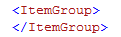
In the ItemGroup section of WDP project which looks like below:

image

Add the files which you would like to exclude from the SourceWebPhysicalPath like below

image

ExcludeFromBuild will allow you to remove these files even though they are present as part of the parent project.  After this step your item group should look as below:

image

In the similar fashion above you can remove other items which you do not need in the output

Step 3 - Removing items after Build

As you know folders like OBJ are produced during build process hence if you do not want them to appear in the output then they need to be removed after build.  to do this we need to add one more item to the above ItemGroup as below

image

Do note that this time we are using the property $(OutputPath) instead of the property $(SourceWebPhysicalPath)

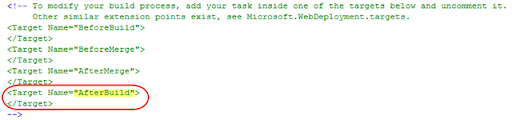
Now the last step is actually use the itemgroup value as part of the AfterBuild target.  Your WDP project file by default has these commented section as shown below

image

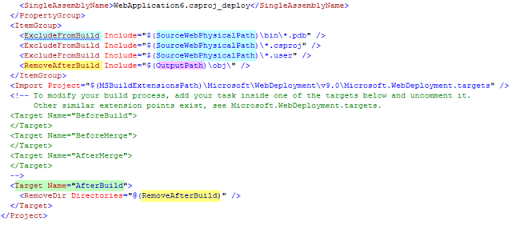
We need to uncomment the call to Target "AfterBuild" and call "RemoveDir" on the OBJ folder Item we declared in the ItemGroup above... This can be done as shown below:

image

Finally at the end your WDP project file will look as below:

image

Step 4 - Save WDP project file, and rebuild WDP

After the above changes to the WDP project file when you rebuild your WDP project you should have your output folder without PDB, Project file, user file or OBJ folder in it.

Hope this helps!!

Saturday, August 02, 2008

Web Deployment with VS 2008

On July 21st 2006, during ASP.NET Insider summit I had a chance to do a podcast with Wally McClure...  We discussed a bunch of items around Web Deployment with .NET 3.5 and VS 2008...  Some of the topics covered in the podcast are:

  • General Web Deployment Scenarios
  • Web Application Projects vs. Websites
  • Pre-compiling Web Projects (aspnet_compiler.exe)
  • Merging Web Projects (aspnet_merge.exe)
  • Web Setup Projects (MSI files)
  • Web Deployment Projects (WDP)
  • Microsoft Deployment Tool (MSDeploy.exe) 
  • Sql Publising Wizard
  •  

    You can view the podcast at: http://aspnetpodcast.com/CS11/blogs/asp.net_podcast/archive/2008/07/25/asp-net-podcast-show-120-deploying-web-applications-with-vishal-joshi.aspx

    Monday, March 03, 2008

    On Demand Webcast : Visual Studio 2008 for Web Developers

    VS 2008 brings a great deal of features for Web Developers...  As a part of VS 2008 launch I did a web cast on MSDN on Feb 26th 2008.  Below are few of the features that I did demos on, hope you will enjoy it:

    1. Multi-Targeting
    2. Split View & Nested Master pages
    3. CSS Features (Manage Styles, Apply Styles, CSS Properties & Summary)
    4. ASP.NET List View Control and Ajax
    5. Javascript Intellisense and Type inferencing
    6. Javascript Referencing & Commenting
    7. Calling Services (.asmx & .svc )from Javascript
    8. Javascript Debugging
    9. Web Deployment Projects (WDP) for VS 2008

    REPLAY URL : https://www.livemeeting.com/cc/mseventsbmo/view?id=1032369517&role=attend&pw=A6176DF3

    Sunday, February 24, 2008

    Webcast: New Enhancements for Web Developers in VS 2008


    Wanted to update you on a upcoming web cast that I am doing in support of Visual Studio 2008 launch event...

    Title: New Enhancements for Web Developers in VS 2008

    Date/Day: Tuesday, February 26th 2008

    Time: 11am to 12:30pm Pacific Standard Time (PST)

    Description :Get an overview of how Visual Studio 2008 takes web development to the next level. See highlights of the key new Web tools experiences in the Visual Studio 2008 product including support for multi-Targeting,  JavaScript enhancements, rich support for CSS standards, rapid development of data-bound web pages using LINQ To SQL, and more. Also learn about the new Web Application Project and Web Deployment Project enhancements to Visual Studio which adds an alternative Web application development, build and deployment models to the Visual Studio project system.  Also have a sneak preview of the work being done for Web Developers in out of band releases like ASP.NET MVC Framework.

    Registration URL:

    http://msevents.microsoft.com/CUI/EventDetail.aspx?EventID=1032369517&Culture=en-US

    Hoping you will be able to join!!

    Thursday, February 14, 2008

    Web Deployment Projects (WDP) 2008 Japanese Released

    Our Japanese & Redmond team have been working together and just released the Japanese version of Web Deployment Projects for Visual Studio 2008... Our Japanese friends have been patiently waiting for this release since the December 2007 CTP of WDP 2008 was released, so finally this RTW will help unblock a lot of people...

    You can read more about the ENU release at http://blogs.msdn.com/webdevtools/archive/2008/01/25/announcing-rtw-of-visual-studio-2008-web-deployment-projects-wdp.aspx

    You can download the JPN release from:
    http://blogs.msdn.com/webdevtools/archive/2008/02/14/announcing-japanese-release-of-web-deployment-projects-2008.aspx

    The announcement in Japanese:
    http://blogs.msdn.com/dd_jpn/archive/2008/02/14/7688137.aspx

    Hope our friends from Japan will enjoy it...