Showing posts with label Web Deploy. Show all posts

Wednesday, July 13, 2011

Documenting Key End-to-End Deployment Scenarios


The IIS Web Deployment Tool (Web Deploy) and the deployment features introduced in Visual Studio 2010 enable you to automate many deployment tasks, but we have heard you all that many common scenarios not yet documented fully. We are addressing this need by creating step-by-step walkthroughs that will guide you from beginning to end through scenarios that address common real-world needs.

UPDATE:  We just published the Enterprise Deployment Series which can be found at:

Interestingly, remaining of this blog post is not the documentation of the solution but actual articulation of problem statements. This post presents the first set of scenarios that we have identified and solicit your feedback to help us determine they are representative enough or not. If you have any feedback as usual you can post them here as comments or feel free to send me an email at Vishal.Joshi@Microsoft.com.

Scenario 1: Enterprise Deployment with Continuous Integration

In this scenario, a solution that includes multiple web application projects is deployed to test, staging, and production environments, using a continuous integration process for staging and production.

Target Environments

The TESTING environment consists of a server that runs IIS 7.5 and a server that runs SQL Server 2008 R2. The developer machine has a network connection to the test servers, and the developer uses one-click publish to deploy to testing environment.

STAGING consists of a web farm (2 servers running IIS 7.5) and a database server that runs SQL Server 2008 R2. The developer machine has network access to a TFS server that acts as a source code repository, and the TFS server has network access to the staging servers. (The developer machine does not have direct access to the staging environment, and the developer does not have administrative rights on the staging servers.) Team Build builds the Visual Studio solution, runs unit tests, and publishes to staging. Each time that Team Build performs build and deployment, it simultaneously creates a deployment package (web deploy .zip file) for use in deploying to production.

The PRODUCTION environment mirrors staging except that a firewall (or perhaps even different domains) prevents direct access for publishing from the TFS server to production. When a build is approved for production, the IT department uses the package created when TFS publishes to staging to deploy to the production servers.

The diagram below illustrates this scenario:

Enterprise_Scenario_Diagram

Enterprise scenarios may have a QA environment set up in a manner similar to staging; however, for the purposes of demonstrating how to set up deployment it's not necessary to include that here, because the process would be similar to the process for setting up staging.

Visual Studio Solution

The Visual Studio solution to be deployed consists of multiple web application projects, a class library project, and a unit test project. Deployment must take into account the following considerations:

  • One of the projects uses ASP.NET membership functionality, and the membership database must be deployed. Account information can be deployed to test but not to staging or production.
  • One of the projects uses a SQL Server database that is accessed using the Entity Framework (Database First, using an .edmx file). On initial deployment to any environment, only the structure (schema) should be deployed. For any database deployment after the initial deployment, data already entered online in that environment must be preserved.
  • The class library project creates an assembly for a custom control that is used in one of the projects. This assembly needs to be installed in the GAC as part of the deployment process.
  • The custom control gets a default value from the registry. The registry value needs to be different in each environment and needs to be updated when the solution is deployed. (This particular use of registry settings is not common, but updating the registry is a common need, and this provides a simple way of integrating a registry update into the scenario.)
  • The Web.config file contains settings that must be different for debug vs. release builds, and settings that must be different for different target environments.
  • One of the web projects includes a folder for log files. The deployment process must not copy files in this folder from source to destination and must not delete files from the folder on the target server.
  • IIS settings for error handling and authentication must be set up on the target server during deployment. For the test environment these can be the same as the settings on the developer machine, but for staging and production the settings are different.

Some additional deployment considerations apply only to the automated deployment from TFS for staging and production:

  • Deployment should occur only if the unit tests are successful.
  • The web projects need to be precompiled before deployment.
  • The IIS settings for staging and production are taken from IIS on the TFS server. (This is a limitation of the current release of Visual Studio and Web Deploy; when the walkthroughs are updated for the next release of the software, hopefully IIS will not be required on the TFS server (keeping fingers crossed Smile)
  • App_offline.htm must be set up at the start of deployment and removed at the end.
  • Deployment activities should be logged. When deployment completes or fails, email notifications should be sent to designated recipients.
  • If deployment fails, the previous deployment's package should be redeployed, or the current deployment should be retried.
Tasks Illustrated

The walkthroughs for this scenario would guide you through the following tasks"

  • Downloading the Visual Studio solution to be deployed.
  • Setting up the test server.
  • Using one-click publish to deploy to testing servers:
    • Initial deployment.
    • Redeployment without a database change (for example, an update to code in a web page).
    • Redeployment after making a database schema change.
  • Setting up staging and production servers.
  • Setting up the build server.
  • Three deployments to staging (initial, web page change, database change).
  • Three deployments to production (initial, web page change, database change).

For the Visual Studio 2010 version of the walkthrough, database updates will involve running custom SQL scripts as part of the deployment. The scripts will be created manually; tools such as TSData and Red Gate can be used to generate such scripts, but those tools will not be covered in these walkthroughs. Eventually we will look at smoothing this flow as well.

Scenario 2: Enterprise Deployment for MVC and Entity Framework Code First

This is a variant of the first scenario that differs from it in the following ways:

  • The web projects are MVC instead of Web Forms.
  • Entity Framework Code First is used instead of Database First (no .edmx file).
  • TeamCity is used instead of TFS.

Scenario 3: Enterprise Deployment for Web Site Projects

This is another variant of the first scenario that differs from it in the following ways:

  • The web projects are web site projects instead of web application projects or MVC.
  • Web Deployment Projects (WDP 2010) are used.
  • One-click publish is not available for web site projects, so a web deployment package is used for deploying to test.

For those of you who work in enterprise environments, do these scenarios adequately represent the kinds of challenges you face in deploying ASP.NET web applications? Are any key pieces missing? We cannot answer every question in these walkthroughs, but if there are other issues commonly faced by your team, we can add solutions for them to the walkthroughs as well.

Your thoughts and feedback are welcome.  Also I want to thank Tom Dykstra, Bilal Aslam & Sayed Hashimi on our team who will be helping on putting together a lot of this content for you.

FEB 2012 UPDATE:  The work on these scenario documentation has started happening.  The tutorials are still being written but the sample app with an initial draft of the first part of the tutorials is available on MSDN:

http://code.msdn.microsoft.com/ASPNET-Enterprise-Web-6b2ad7cf

(The tutorials are in Word docs in a folder in the sample project.)

They’ll be published on the ASP.NET site most likely in the next couple of months.

Thanks for reading!!

-Vishal

Sunday, January 16, 2011

Web Developers can feel like Kids in a Candy Store

On Jan 13th 2011, our team released a bunch of goodness for web developers. So much so that I as a web developer feel like a kid in Web Development Candy Store. As a web developer using Microsoft web stack, you might be wondering what technologies are applicable to you and when. This post is intended to give you a view of the Web Development Candy Store in a Q&A format, so let’s begin.

Q1. I just heard that there were tons of new goodies released, what is all the noise about?

A. Microsoft’s web team released a bunch of related technologies for web developers as a new year present. The key releases included ASP.NET MVC 3, IIS Express 7.5, SQL Compact 4, Web Deploy v2, Web Farm Framework, Orchard, Web PI 3 and WebMatrix. Depending on what your focus is many or all of these might be applicable to you.

Q2. I use ASP.NET Web Forms what is in for me?

A. We love WebForms and there are many things which are directly applicable to you. As an ASP.NET Web Forms developers IIS Express 7.5, SQL Compact 4, Web Deploy v2, Web PI 3 as well as Web Farm Framework might be very relevant.

Q3. What is IIS Express 7.5?

A. IIS Express 7.5 is a lightweight standalone web server built from the same code base of full IIS 7.5 (ships in Windows Server 2008 R2) but specifically tailored for local development purposes.

Q4. Did we not have Visual Studio Development Server (aka “Cassini”)? Yes. Then, why IIS Express 7.5?

A. We always use to get feature requests to support things like SSL, URL Rewrite, new mime types, IIS server configuration and other IIS 7 modules. Cassini’s code base is completely different and it cannot realistically mimic web server IIS. Web developers needed something which is more similar to real IIS during local web development within VS. Lot of the differences between development and production web server causes grief during actual deployments, hence IIS Express 7.5.

Q5. But wait, why could web devs not simply use full IIS instead of asking all these features for Cassini?

A. On flip side, we use to get request to have full IIS Web Sites run without admin privileges, people having different versions of IIS due to their local dev operating systems being different than web server operating system etc. IIS on web server needs to run as Admin, any IT guy will ascertain that and other hand some firms are against allowing full IIS on developer machines (which I hope changes over a period of time as the security issues which led people to take these steps in pre IIS 6 time frame are long gone). Anyways, IIS Express helps solves all these things plus works on all OS starting Windows XP and above. It is free and will have full integration with Visual Studio 2010 SP1. I anticipate it becoming best practice way of doing local web development pretty soon.

Q6. OK cool, is IIS Express 7.5 just for Web Forms?

A. No, we always try to invest in things which help Web Forms as well as MVC. This is one such investment which will help all Web projects within Visual Studio 2010 SP1 and above.

Q7. Why do you need Visual Studio 2010 “SP1” to support IIS Express 7.5?

A. Although IIS Express 7.5 is a standalone download, there was a lot of code written to integrate it within Visual Studio 2010 so that you can use it as seamlessly as you use “Cassini” today. As this work was done after Visual Studio 2010 was already released we had to put it as part of “Visual Studio 2010 SP1”.

Q8. I am using VS 2010 today; tell me how do I get IIS Express 7.5 working on my box.

A. Visual Studio 2010 SP1 is available as BETA release on MS Download Center. It is a relatively long install (will take around 30-40 mins) but once you have it IIS Express 7.5 integration bits will be installed with it. After you have VS 2010 SP1 then you can download standalone IIS Express 7.5 available in Web PI 3 (Web PI now supports a Search box so just search for IIS 7.5 Express) and you should be all set.

Q9. IIS Express 7.5 indeed sounds interesting, where do I learn more about it?

A. There is overwhelming amount of content on IIS Express 7.5 on web already but I can certainly simplify your search.

· IIS Express Article by ScottGu

· IIS Express Article by Sayed

· IIS Express FAQ

Q10. Is there a good comparison between full IIS and IIS Express?

A. Sure, you can find it on IIS.NET site.

Q11. What if I want the direct IIS Express MSI/EXE to auto install on all of web developer’s boxes across the organization?

A. Ideally you should use Web PI 3 pointing to the local feed but if you are automating the process then here is the link directly to MS Download Center.

Q12. I do not know much about Web PI 3 that you are referring to, what is it?

A. Web Platform Installer (Web PI) is a simple unified way to install everything you need related to Microsoft’s Web Platform. As a web developer this is a simple 2-3MB small tool which looks like below:

clip_image001

This can help you install framework, tools, servers, DBs, web applications etc etc without running around everywhere searching for links to download stuff. Trust me it is goodness.

Q13. Won’t it be a good idea to just have Web PI available within VS so that I don’t need to hunt around for it!

A. We thought so too, with VS 2010 SP1 you will have Web PI toolbar within VS. It is enabled when you are within any Web project or you can enable it by going to Views à Toolbars à Web Platfomr Installer. When enabled it looks like clip_image002. You can use Web PI toolbar to get other goodness that just released, like SQL Compact 4, Web Deploy v2, Orchard, MVC 3 etc.

Q14. Tell me more about SQL Compact 4?

A. SQL Compact or SQL CE is a embedded, free and light weight DB from Microsoft. It always use to ship but was never designed to work with Web. SQL Compact 4 is the first release where this DB was engineered to work with Web as well (along with other embedded scenarios).

Q15. What does it mean it was engineered to work with Web, what’s so different about Web?

A. Well, as you know in case of Web multiple requests can hit the server, there are multi-threaded environments and many shared web servers run in partial trust on hosted environments etc. This is quite different from early SQL Compact scenarios which had much more contrainst environment.

Q16. Did we not have SQL Express, why do I need SQL Compact?

A. If you are using SQL Express perhaps you do not need SQL Compact. For that matter if you are using SQL Server Developer edition or any other full edition you may not need SQL Compact 4 either. Both of SQL Express as well as SQL Server Developer edition and above have *almost* superset functionality of SQL Compact. SQL Compact is more meant for light weight usage, even lighter than SQL Express.

Q17. Can you elaborate what light weight scenarios SQL Compact 4 helps me with?

A. SQL Compact 4 requires no database installation, literally you do not need to install SQL Compact on your web servers, in case of SQL Express or full SQL Server you do. SQL Compact’s entire DB engine can simply go inside your web site’s “/bin” folder and the Database itself is a .SDF file which can go inside your “App_Data” folder. At runtime the SQL Compact will run in memory with your ASP.NET Application instead of a separate service which SQL Express & full SQL Server do. This means that you do not need to even purchase a database plan on your web hosting provider if you do not want to J

Q18. You said, I can deploy both SQL Compact 4 DB engine & DB with my web site. How exactly do I do this?

A. Deploying DB with your site is easy. Your App_Data folder can contain the .SDF file. Your web.config file contains the connectionString to that SDF file and when you copy your web site to the server your SDF file simply goes with it. The interesting part is the SQL Compact 4 DB Engine which has to go to your Bin Folder. VS 2010 SP1 has a feature which makes deploying DB engine with your site only a click away. Simply right click on your project and click “Add Deployable Dependencies”. This will bring up the below dialog:

clip_image003

Click “OK” and the right binaries, managed as well as native (x86 & x64) will go in your /bin folder. If you know whether your web server is going to be x86 or x64 then you can delete the redundant folder from your /bin saving you probably 1-2MB J

Q19. Do I need to learn new APIs to talk to SQL Compact 4?

A. No. SQL Compact 4 is “SQL Server” afterall, it uses the same ADO.Net and you can also use same ORMs like Entity Framework, EF Code First, NHiberate etc with SQL Compact 4. Just the connectionString in your web.config file changes and you are all set to use SQL Compact 4.

Q20. Free DB on client as well as server, easy to deploy, super light weight, same APIs as full SQL Server etc etc is all too good to be true, what is the catch with SQL Compact 4?

A. There are no catches as such, or maybe I want to rather call it as “a ceiling” up to which SQL Compact can stretch. For most small sites all of the advantages are good enough so they can use SQL Compact easily. Infact for few of my projects I have already started using SQL Compact 4 but I do not use SQL Compact for sites which actively cause DB size to increase. SQL Compact 4 does not support Stored procedures and the file limit for SQL Compact is 4GB. I personally use ORMs so the stored procedures don’t bother me much but the size limit to 4GB is what I use to choose between full SQL Server vs SQL Compact.

Q21. Once I deploy my DB on the server as SDF file, then ofcourse my app will modify it then how do I update it for my app’s V2?

A. Currently you have to update the Database manually, i.e. download it from the server and then edit it using Visual Studio 2010 Database tools or SQL Server Management Studio then re-deploy it to the server. This will mean that you will need to have some downtime on the server when you are making this update. Unfortunately, I do not have a better answer for you now L

Q22. Do all of the Visual Studio Database tools work with SQL Compact 4?

A. In Visual Studio 2010 SP1 we did all the work to enable Visual Studio tools like creating new SQL Compact SDF files, editing DBs, creating tables, editing table data, keys/index management, Entity Framework designer, Server/Database Explorer etc for all of Web Projects and Visual Studio SKUs (i.e. VWD Express also contains support for SQL Compact 4). This means you will need Visual Studio 2010 SP1 to take advantage of this all.

Q23. How do I get SQL Compact 4 working on my machine if I have VS 2010?

A. First get VS 2010 SP1 BETA from MS Download Center. As I mentioned earlier, it is a long install (will take around 30-40 mins) but once you have it SQL Compact integration bits with Web Projects be installed with it. After you have VS 2010 SP1 then you can download Microsoft Visual Studio Tools for SQL Server Compact 4 from Web PI 3 (click on Databases on the left).

image

Q24. Is it possible for me to start with SQL Compact and then decide to go to full SQL Server if I hit the ceiling?

A. Yes very much so. As the programming model is the same you can use SQL Compact 4 to begin with, and when your site grows in traffic/DB Size then you can move to full SQL Server. In fact that is the very feature which Visual Studio 2010 SP1 and Web Deploy v2 have. They help you to migrate from SQL Compact to SQL Express/full SQL Server.

Q25. Where do I learn more about SQL Compact 4?

A. There are several places to learn about SQL Compact 4. Start with:

· SQL Compact Team Blog

· Rob Tiffany’s post on SQL Compact 4

· ScottGu’s walkthrough on how to use SQL Compact 4 with ASP.NET Web Forms & MVC

Q26. What is Web Deploy?

A. Web Deploy is Microsoft’s web deployment backbone. If you are looking for Web Deployment solutions for your ASP.NET Webs and not thinking about Web Deploy then you are missing out the action. You can learn a lot more about Web Deployment with Web deploy at:

· Overview Post of Web Deployment

· IIS.NET

· Visual Studio Web Team blog

Q27. What’s new in Web Deploy v2 as opposed to v1?

A. From a existing VS user standpoint the big things that v2 of Web Deploy contains is:

· The ability to move SQL Compact 4 databases to full SQL Server.

· Tons of bug fixes around reliability and stability.

· Integration with IIS Express making it possible to deploy (package, publish etc) IIS Express based web sites seamlessly.

· Side by Side setup with Web Deploy v1.

· Backward compatibility of Web Deploy v2 to deploy to web servers which still are running on Web Deploy v1.

· Updated gacAssemly provider which allows deploying an assembly to GAC even if it is not in GAC on the source

Apart from this, there are bunch of enhancements which makes seamless deployments with hosting partners even easier. It also contains capabilities to deploy a SQL Lite Database. v2 also contains new features which will allow you to not only publish sites to remote locations but also bring them back to local box from hosting environments. In the process of bringing back the site from remote hosting location Web Deploy has to make sure that connectionStrings are modified, physical paths are modified and then when you publish again then they all that is restored on the server. We refer to this as Continuous Publishing and first visible use of the new APIs is in WebMatrix. Web Deploy v2 has bunch of other WebMatrix related integration work too. Bilal, PM for Web Deploy on our team is working on putting up formal documentation around all of the above plus more over next week or so.

Q28. You mentioned WebMatrix, what is it? Do I need it?

A. WebMatrix is a free web development tool which is elegantly designed and very inspiring to create website rapidly. It enables you to start with existing popular web sites like DotNetNuke, Gallery, Umbraco, Orchard in addition to PHP based sites like Wordpress, Drupal, Joomla and others. It is based on website development workflow of acquiring ready made apps (as mentioned above) to tweaking them, modifying their databases, search engine optimizing them and then seamlessly deploying them to a hosting provider.

If you are already a Visual Studio user then you perhaps don’t need WebMatrix. If you have not tried Web Development before then WebMatrix is really a great way to start web development. You can try out WebMatrix and learn a tons about it at http://microsoft.com/web

Q29. How do I find great web hosting providers?

A. I worked on a web site over past few months which recently released for this very purpose, it is called Web Hosting Gallery. On this site we display all of our hosting partners and the best hosting offers available on Microsoft Web platform. If you are looking for shared, virual or dedicated hosting offers then for sure check out Microsoft Web Hosting Gallery.

Q30. I deploy my Web Applications to my local web servers and have web farms of servers. Is there anything for me?

A. Yes, with this release we also released Web Farm Framework. Web Farm Framework also uses Web Deploy behind the scenes. Learn more about it at:

· Web Farm Framework post by ScottGu

· IIS.NET site

Q31. You also mentioned Orchard earlier. What is Orchard?

A. Orchard is a free open source CMS web site which also released as v1 on Jan 13th 2011. You can use it as a starting point to create your web site. It essentially has a ton of prewritten code for many standard things that you might want on your web site. You can learn more about Orchard at the Orchard Project website. There are great walkthroughs on using it in the documentation section too.

What is cool about Orchard is that it’s development happens completely in open on codeplex and you easily influence where you want it to go. You can start using Orchard or even contributing to it at http://orchard.codeplex.com/. Orchard has a gallery of community contributed extensions that you can add to your Orchard site to further enhance it for your personal needs. Check out the Orchard Gallery.

Finally Orchard is also written using ASP.NET MVC 3 which was also released along with all of the above we talked about.

Q32. What is new about ASP.NET MVC 3?

A. As you might be aware ASP.NET MVC is a programming model which focuses on clear seperation of concerns, helping you write web sites with full control over your HTML markup and using industry leading pattern of Model View Controller. You can learn about ASP.NET MVC at http://asp.net/mvc.

ASP.NET MVC 3 builds on top of the earlier two releases and is purely additive, which means that everything that you might have learnt about previous releases of ASP.NET MVC still applies and you can now take advantages of several new features of MVC 3. The top features of ASP.NET MVC 3 are:

The complete MSDN content map for ASP.NET MVC 3 is available at MVC Content map.

Q33. What is the best way to get started with ASP.NET MVC 3?

A. I would say the best place would be:

· Getting Started with ASP.NET MVC3 section on ASP.NET site

· ASP.NET Music Store Site Tutorial by Jon Galloway

Q34. What is important to know about Razor View Engine?

A. Razor View Engine is focused around the new Razor syntax whose goal is to make it very natural for programmers to write server side code within HTML markup. Razor pages come with extension .CSHTML (C#) or .VBHTML (VB). The design aspiration for Razor syntax was to minimize the number of keystrokes required to express yourself and I feel it stands very true to that aspiration. It is difficult to explain this in a small Q&A format but here is a sample with traditional ASP.NET nuggets:

clip_image005

When you write the same in razor it becomes:
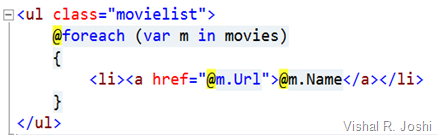
image

For lot of cases Razor syntax accomplishes this by automatically detecting the transition between markup and code for most part and for explicit transitioning all you have to do is simply start your C#/VB code with “@” character.

You should most certainly try to learn about Razor syntax at:

OR read ScottGu’s blog series at:

Finally, Razor comes with a reasonable number of helpers to automate common web tasks like image manipulation, videos, email etc etc. Community is creating a bunch of helpers to. Checkout some of the out of the box Web Helpers here.

Q34. Is Razor syntax supported in Visual Studio 2010?

A. Yes you should get full colorization, formatting and intellisense on Razor syntax on Visual Studio 2010. All the required bits to make this happen are included as part of ASP.NET MVC 3 installer.

Q35. Can I use Resharper with Razor syntax?

A. Yes you can. Many thanks to Resharper team for releasing Resharper 5.1.2 to make sure that you can continue to use Resharper goodness without letting go of colorization, formatting and intellisense within Razor pages.

If you have Resharper versions prior to 5.1.2 then you might have to choose between inbuilt Razor editor features or Resharper which obviously is not ideal, so please upgrade to Resharper 5.1.2 at JetBrians Download Center.

Resharper team is currently working on version 6 which will provide enhanced Resharper intellisense features for Razor syntax as well. If you want to try out early builds of Resharper v6 then check out JetBrian’s Early Access Program.

Q35. Can I use Razor syntax outside of ASP.NET MVC 3?

A. Yes, you can directly create ASP.NET Web Pages with Razor syntax without having to using the MVC 3. Simply create a Web Site and Add CSHTML or VBHTML files to it and it should work. There should also be able to create a new Web Site which is based on Razor syntax as shown below:

clip_image008

Q36. Tell me how to get ASP.NET MVC 3 with Razor Syntax?

A. As anthing else mentioned above Web PI 3 is an easy way to do so. But alternatively you can get ASP.NET MVC 3 from here. If you would like to get ASP.NET Web Pages with Razor Sytax they can be downloaded from here. Btw the second link also contains a book of Razor sytax which I highly recommend.

Q37. Where can I continue learning about ASP.NET MVC?

A. Good places to keep checking out in the future are:

· ASP.NET MVC Site

· ScottGu’s Blog

· Scott Hanselman’s Blog

· Phil Haack’s Blog

Q38. I also heard about NuGet, what is it?

A. NuGet, awared as #5 OSS project of 2010 by Black Duck Software, is a Visual Studio Package Manager solution to easily get free open source extensions for your projects. It not only works in VS Web projects but actually work in most of the projects within VS. The idea is that if you are creating something which is reusable then why not share it with the broader community. There are many open source libraries which have created NuGet packages which can be installed and used in your projects today. These NuGet packages do a bunch of things for you e.g. add files to your /bin folder, add project references, add web pages to your project, add to your web.config, etc; in-nutshell they make a new feature e.g. error logging with Elmah completely set up within your project by running a single command.

NuGet v1 also released with the rest of the things mentioned here and already has several hundreds of reusable packages in its gallery. Check out NuGet at http://nuget.org/, which NuGet install links as well as the package gallery. If you want to contribute to NugGet then check out Phil’s post on how to Upload to the NuGet gallery. If you want to check out NuGet source then go to it’s Codeplex page.

Q39. Is there anything for JavaScript developers?

A. Yes. We recently released JavaScript Editor extensions for VS 2010.  These are few highly demanded features by developers and we couldn’t wait for long to have them out there.  The Key features that these extensions contain are:

  • Brace Matching – Matches {}, (), [] in your code to easily navigate through files
  • Outlining/Code-Folding - Adds support for automatically creating outlining regions for JavaScript blocks.
  • Current Word Highlighting – Like C#/VB editors now JavaScript Editor now will also highlights usage of the current word (based on cursor position) throughout the document for improved readability
  • IntelliSense Doc-Comment <para> support – In earlier versions you might have seen  tremendously long never breaking lines of comments pop up as tool tips when you typed.  This was because we did not have any way to determine line breaks for xml comments.  With support of <para> elements in XML doc comments this becomes immensely more usable.

You can get all these extensions from VS Extensions Gallery

After you have installed the extensions you can also get the updated vsdoc files for jQuery with <para> tags which are available at jQuery 1.4.3 and 1.4.4

Q40. Is there a place where I can just go to learn about everything here at greater depth?

A. Yes. Our man Scott Hanselman has put together the best collection of all the official documentation for all of Microsoft Web Platform & Tools releases. Check out his Rollup Documentation.

Q401 I still have more questions about this release, where do I ask?

A. You can leave comments here, send me an email at Vishal.Joshi@Microsoft.com but if you would like to have tons of people look and chime in on your questions then ASP.NET Forums is a great place, so is Stackoverflow.

-Vishal

Friday, November 05, 2010

Team Build + Web Deployment + Web Deploy + VS 2010 = Goodness

I have to confess this is one of the most requested blog post in Web Deployment via either direct emails, comments on the blogs, twitter, in conferences etc and it has been completely my bad to have prolonged this as long as I have. As it is said - better late than never, so without any delay let us get started.

In this blog post I am hoping to cover the topics of setting up your web deployment using Web Deploy (MsDeploy) and Team Build. When we talk about automated web deployment with Web Deploy (I love our naming J) there are multiple aspects that come into mind, let us clear few of the concepts before we proceed with the walkthrough:

· Web Packaging – Web Packaging is the process of creating a .zip file which can contain your web content (pages, images, CSS, JavaScript files etc), databases, IIS Settings, Application creation, ACLs etc. From your Team Build you can easily create Web Packages which you can ask your server admin or Test team to pick up and install on you web servers for testing. With Web Packages (.zip files) you will also get a .cmd file created by VS 2010 which can be run to install the package. There is not a direct automation to run this command file from team build but you can easily hook up post build step to execute the .cmd file if you would like to automate the installation of the package as well.

· Web Publishing – Web Publishing is the process of directly taking the source application (in Team Build case the sources are hopefully in your TFS source repository) and directly pushing it to the destination web server. In this case a .zip file is not created but if you would like that for archival then that is possible as well. If you want your web servers to have your latest web application installed in Continuous Integration (CI) fashion then Web Publishing is the direction I would recommend.

Note - Web Publishing can only work when you have your Web Servers configured to accept Web Deploy request. There is an earlier blog post about Setting up your Web Servers for Web Deploy, without having your Web Servers setup the below walkthrough (Publish Section) will not succeed so please make sure that you have your Web Servers configured correctly before proceeding.

Step 1: Get your TFS Build Server and Source Code Control Set up

I am going to assume that you have a license for VS 2010 TFS environment setup. Below are the simple steps to have TFS setup using basic configuration (i.e. everything installed as shown belowJ)

clip_image002

Once the product has installed and you get a successful “Setup is complete” dialog, finish the installation and you will see a TFS configuration wizard. First let us configure Team Foundation Application Server and then configure the Team Build service as shown below:

clip_image004

The TFS Basic install is sufficient as it is the simplest setup option and honestly it does most of the stuff that I need. Honestly in my opinion it is so many times better than TFS 2008 which was much more complicated to set up. For nearly all of the screens just simply keep clicking next and eventually the set up wizard will finish and hopefully you will agree with me that this setup is indeed a breeze.

Once the server configuration is complete, start the wizard for to Configure Team Foundation Build Service and it will come up with a Welcome Screen below:

clip_image006

Again, click Next for each page and accept the defaults, before even you know you will have a functional TFS server ready to go. I know that the above explanation will sound like a joke but really TFS 2010 setup is as simple as that and it is difficult to complicate it unless you really require all the bells and whistles. I did have a loaded Microsoft software box but if you don’t then there might be some minor pre-requisites required but I am sure the setup wizard will let you know that J

Glitch: Now there is one glitch in this entire set up still which I need to call out for you. When you build your web projects, you need the Team Build service to have all the .targets files your projects needs. The TFS installation I showed above does not include all the targets files that comes with Visual Studio 2010. To get the necessary files on your machines, install Visual Studio on the same machine as your TFS server so your projects can build successfully. Now that certainly does not sound very nice so the alternate back door option is to go to %Program Files (x86)%\MSBuild\Microsoft\VisualStudio\v10.0 on your Visual Studio IDE box and copy the target files on your Team Build Server at the similar path. For Web deployment you will most likely only need “Web” and “WebApplications” folder but there is nothing wrong with having all the tasks and targets there just in case you need them later.

Step 2: Connecting to your TFS server from Visual Studio and getting your project into source control

On the home screen of VS 2010 you now have an option to Connect to Team Foundation Server or alternatively you can do so from the “Team” menu within VS too as shown below:

clip_image008

clip_image010

You will then see the “Connect to Team Project” dialog where you point to your TFS Server. If your server isn’t already populated in the server list drop down, you can add it clicking the “Servers…” button:

clip_image012

Once you are connected, you need to create a new Team Project from the File menu:

clip_image014

Give your team project a name and click through the wizard to create your Team Project and finish the wizard. Once your team project is created, you are ready to get your app into the source code control.

If you need further help in setting up your source code control and build server then check out the links below:

· TFS 2010 Installation Guide

· Using Version Control with TFS 2010

· Understanding basic Build with TFS 2010

Step 3: Get your app running and checked into TFS Source Code Control

Well you know how to get your app up and running so I will not dive into that J but just for reference of this walkthrough below the is app I am using. I created this Web App for TechEd US 2010 in New Orleans using MVC Music store sample on CodePlex. (You can watch the TechEd US 2010 video here) As you can see in the sample below it is working on my localhost.

clip_image016

The site is also checked into my TFS source code control as shown below:

clip_image018

To check your application to Source Code Control you simply need to right click it and the menu options will guide you from there.

Step 4: Connect to TFS using Team Explorer

On VS 2010 Team Explorer you will find a button on the top right which will allow you to connect to a team project. When you click the button and select your Team project your Team should similar to what I have below:

clip_image019

Step 5: Create a new Build Definition

A build definition instructs TFS on how to trigger the build. In this case we want deployment to accompany the Build too so we will create a new Build Definition and configure it accordingly. For that right click on the “Builds” node of the Team Project and click “New Build Definition”

At this point you will see the below dialog where you can name your build definition appropriately.

clip_image020

Step 6: Configure your Trigger in TFS 2010 Build Definition

Trigger configuration informs Team Build on when to fire a build there are several options as shown below and I will explain them at high level for you to be able to make the right call

clip_image022

· Manual – As the name suggests this mode allows the Build to be triggered manually as you desire, for demo purposes I am going to use this but ideally you want to explore other options also to determine what works best for you.

· Continuous Integration – This is classic celebrated CI model where every check in into the source code control will cause a build and hence resultant deployment that we would configure.

· Rolling Builds - Sometimes when working in massive teams CI can be disruptive as there are several check ins happening every other hour. In that case you can inform your dev team that there will be a build happening every X minutes and they should plan for that. During end game period of the project this configuration may help to have routine quick builds coming out.

· Gated Check-Ins - This was one of the highly requested features for teams who did not want any broken builds due to bad check-ins. This will ensure that only check-ins which merge & build successfully.

· Scheduled Builds – As name suggests you can also have builds coming out during regular times every day. This is the model which is used by larger VS and .NET teams in general, we too get our builds created on a nightly basis. The funny part is that I do not think that VS & .NET build configuration is as easy as TFS 2010 makes it for everyone else J

Step 7: Configure your Workspace which needs to be built

This is where you specify what you want to build. As shown below I have configured my Project folder as the build target.

clip_image024

Step 8: Provide Drop Location where you want your builds to be dropped

This is relatively a simple step for creating a UNC folder with correct folder permissions so that your TFS build (which typically runs under NETWORK SERVICE) has correct permissions to write to build output path. My setting looks as below:

clip_image025

Step 9: Setup the Retention Policy

Retention Policy simply informs how to save the builds in the drop folder mentioned above. I did not modify mine so it looks as below, although you might want to change these settings based on the disk space that you available:

clip_image027

Step 10: Configuring the Deployment Process

For this you have to go to the “Process” tab which looks as below:

clip_image029

Most of the items in these are self explanatory but I want to spend some time explaining a few which matter in our case:

· Automated Tests – TFS allows you to run the tests in Tests.dll automatically during each build so if you would like to have some unit tests run during build and deployment then this is a great place to mention that. There is also a flag to stop running the tests in the grid which you can set if you do not want to disturb your configuration of this property.

· MSBuild Arguments - This is the location where you need to specific the hooks to mention that you want to trigger deployment as part of the build.

o Web Packaging – For Web Packaging the argument you want to specify is simply:

/p:DeployOnBuild=True;

The above property is going to tell the Web Publishing Pipeline (WPP) to engage after the build is successful. At the default target which executes is Packaging you should not need to provide any other properties.

o Web Publishing – For Web Publishing the arguments you want to specify are:

/p:DeployOnBuild=True /p:DeployTarget=MsDeployPublish /p:CreatePackageOnPublish=True /p:MSDeployPublishMethod=InProc /p:MSDeployServiceUrl=localhost /p:DeployIisAppPath="Default Web Site/NewOrleansJazz" /p:UserName=domain\user /p:Password=myPassword

In this case because we want publishing with Web Deploy to happen we provide /p:DeployTarget value to be MsDeployPublish.

/p:CreatePackageOnPublish allows you to create a package before publishing, it will help you keep an archive of what you published on your local drops folder. Although do note that It will certainly slow down the deployment and eat your disk space so choose it as you see fit.

/p:MsDeployServiceUrl tells the WPP where the project needs to be published to. In the beginning of this post I had mentioned that you need to set up the remote Web Server for Publish, this is the place where it finally gets used. The URL format is typically https://ServerName:8172/MsDeploy.axd. As I am using localhost as my build as well as test server I do not need to provide the full URL (i.e. VS 2010 will complete it as needed) but since your test server is going to be different than build server in real world you will have to provide full URL.

[UPDATE: It was brought to my attention that I had missed a detail in this post which is certainly worth clarifying.  If you are using the Service URL by setting up the server as explained above then you will have to change MSDeployPublishMethod from InProc to WMSVC so the property should become /p:MSDeployPublishMethod=InProc  to /p:MSDeployPublishMethod=WMSVC  Note that if you are publishing to localhost VS can use Web Deploy APIs directly within the same process of VS hence I was using InProc as my option.  If you are publishing to a different server then InProc will not work and give you errors so please make the above change.  Apologies for missing this detail earlier.]

/p:DeployIisAppPath tells the publishing system the IIS Site Name/App Name that you want to publish to. E.g. Default Web Site/MVCMusicStore

/p:UserName=domain\user is the actual User Name which has access to the remote Web Server on which you set up the Web Deploy Publishing

/p:Password=myPassword is the actual Password for the User Name above

NOTE: Do note that the sample here can only publish to IIS 7 (Win2k8 and above), if you are running IIS6 or lower (i.e. Win2k3/ Win2k) then you need to follow slightly different process. Please drop a comment here and I will write a follow up post on that.

o File Copying – This will allow you to simply to a xCopy deployment without needing to setup any remote service

/p:DeployOnBuild=true /p:DeployTarget=PipelinePreDeployCopyAllFilesToOneFolder /p:_PackageTempRootDir=\\BuildServer\BuildDrops\MVCMusicStore /p:AutoParameterizationWebConfigConnectionStrings=false

/p:_PackageTempRootDir allows you to specify the remote server location on which you want xCopy to happen. Again the remote location will need permission to be writable by Team Build Agent which is running the deployment

/p:AutoParameterizationWebConfigConnectionStrings=false essentially tells WPP to not parameterize the Web.Config file since doing so will introduce replicable tokens within Web.Config which are used during Packaging & Publishing.

NOTE: File Copying was honestly never designed out of the box to be used from Team Build in such fashion but some people have been interested in using Web.Config Transformation during xCopy and hence I thought it was worthwhile mentioning this in the blog.

PS: Using properties which begin with underscore “_” is not typically recommended as they are considered private MSBuild variables by convention but in this case it is relatively easy way to accomplish the xCopy solution. Even in future versions of VS if this property changes I am hopeful there will be alternate/easier way to do this. In general if you can set up the Publishing on your web server using Web Deploy I think it will yield you longer term advantages and I think it is a worthwhile endeavor to take.

· Projects To Build - When you have only one web application and class libraries then it is easier to just have the Project (CSProj or VBProj) to build as shown in my example above, but if you have bunch of projects which all need to built then you might have to go with Solution Build option (.SLN).

Deployment for Web Apps is feasible at both Solution as well as Project build level although when it comes to Solution Build then you might want to make sure that the properties you are passing at Solution level will apply to all the projects in the solution which might not always the outcome you desire. In that situation all these properties can be set within the .csproj or .vbproj files too. You can do that by unloading your project file and in the top <PropertyGroup> section just add above properties as you like:

For e.g /p:DeployOnBuild=True can be added as <DeployOnBuild>True</DeployOnBuild>

Step 11: Trigger your Build Definition

Now that you have everything configured you can right click on the Build Definition and hit “Queue New Build”.. That will show you a dialog which you can simply hit OK on and you should soon get your Build ready and the site deployed as shown in my case below:

clip_image031

After a while when you check into the Completed section of the build you should see your new build lined up.

clip_image033

On inspecting the IIS and SQL Server you can see my sites & DBs are also deployed.

clip_image034 clip_image035

Finally on running the application it runs great too:

clip_image037

This was actually a combination of setting up my DB deployment settings too, to learn more about configuring your deployment in the right way check out TOC on Web deployment.

PS: If you get an error on TFS like below:

TF215097: An error occurred while initializing a build for build definition \TechEd-US-2010\MvcMusicStore: There was no endpoint listening at http://MyServer:9191/Build/v3.0/Services/Controller/1 that could accept the message. This is often caused by an incorrect address or SOAP action. See InnerException, if present, for more details.

Then most likely you do not have your Build Service running, you can enable it by going to Start à All Programs à Team Foundation Administration Console à Build Configuration.

Conclusion

Hopefully this will get you going with your automated web deployments. Please write back if you feel anything is missing or if you have any other questions. If you have questions like how would you configure what gets deployed, how to set up DB deployment, how to change web.config etc etc we have tons of articles on how to customize your deployment. You can look at a whole list of them at Overview of Web Deployment

Hope this helps

Vishal

Saturday, July 03, 2010

Web Deploy Parameterization in Action

A few weeks back I explained the key differences between Web.Config Transformation and Web Deploy (aka MSDeploy) Parameterization…  Before you read this post I recommend that you read Transformation vs. Parameterization post, it is tiny and will clear few fundamentals…

Automatic Parameterization

Before I dive in more let me clarify that if you are using VS 2010 then in common scenarios you may not even need to do custom parameterization, coz VS 2010 already parameterizes things like IIS Application Name, Application physical installation directory and connectionStrings… So when you actually create a web deploy .zip package you can easily build it once and deploy it several number of times by changing the parameters values…

Custom Parameterization

The typical scenarios where you will need to do custom parameterization is for scenarios like:

  • You have an appSetting  which needs to be changed by server admin at install time…
  • You are using a WCF Service and you want to change the end point at install time…
  • You have created re-usable web package for community apps and have bunch of questions to ask the users before they install the app (similar to all of the apps that you find in Application Gallery eg ScrewturnWiki, DNN, etc…)

Scenario

In today’s post I am going to use Parameterization with VS 2010 for changing an appSetting & WCF Service end point… Before we do that let us look at the web.config settings which we want to change at install time…

App Settings  - The Log Folder location here (“value” attribute) is something which I want my admin to be able to change at production install time to a shared location so that if my app is virtualized and put on a web farm then I have a common place to go and look at the log…

appSettings

WCF Endpoint Below is my WCF EndPoint URL (“address” attribute) which I would like my admin to change to the servers/sites on which the WCF Services will get deployed…

WCF endpoint

Install Time Experience

Installation of Web Packages can be done in couple of different ways:

We want to make sure that no matter which direction our IT Admin takes he/she gets an opportunity to provide values for the above two parameters…

Parameters.xml File format

As I explained in the earlier post Parameters.xml file can be passed to Web Deploy when your .zip Web package is being created and that allows Web Deploy to determine what items in your web should it mark as “changeable” at install time…  VS 2010 makes your life easier by allowing you to simply drop the Parameters file in the root of your web project and if a file with the name Parameters.xml is found in the root of your project it passes it to Web Deploy which then parameterizes your web…

The Parameters.xml file follows a specific format, the key attributes to note for each parameter that you declare within parameters.xml file are:

name  Required unique name to identify the parameter with e.g. “Service 1 endpoint address”

description – This text shows up in the UI of IIS Manager to help the user fill in the value so anything clarifying the parameter is cool…

defaultValue - Optionally you can specify a default value for a parameter so that while installing the package a user may know what kind of values are permissible…

scope – Regular Expression to determine what entities (files e.g. web.config, DBs, Web Deploy providers etc) does the parameter apply to

kind – There are several kinds of parameters but the key ones to remember are:

  • XmlFile – Use this for web.config, any settings XML files etc where you can make replacements using XPath
  • TextFile – Use this for non-XML file where you can make replacements by looking for fixed text or token within a file. e.g. you can put @@replaceme@@ in the a settings.ini file and during installation that text can be replaced

match -  This depends upon the parameter kind… For e.g. for XmlFile parameter the match expression would be a XPath… For TextFile the match expression could be @@replaceme@@ which you might pre-place in the file…

Declaring Parameters using Parameters.xml

Below is the content of Parameters.xml file that I dropped to the root of my MVC Application

<?xml version="1.0" encoding="utf-8" ?>
<
parameters
>

<
parameter name="Log Folder Location" description="Please provide a shared location where the app can write log files to" defaultValue="\\Logs\MvcApp\Logs\" tags=""
>
<
parameterEntry kind="XmlFile" scope="\\web.config$" match="/configuration/appSettings/add[@key='LogFolder']/@value"
/>
</
parameter
>

<
parameter name="WCF Service1 Endpoint Address" description="Please provide the Endpoint address for Service1 that this MVC App needs to call" defaultValue="http://localhost:61938/Service1.svc" tags=""
>
<
parameterEntry kind="XmlFile" scope="\\web.config$" match="//system.serviceModel/client/endpoint/@address"
/>
</
parameter
>

</
parameters
>


If you notice each of the Parameter above you can see that I am using XmlFile parameter kind with Xpath as the match syntax…  After adding this Parameters.xml file into my project my solution explorer looks as below:


parameters.xml


Now I can simply right click on my MvcApplication and hit “Build Deployment Package”…  The resultant .zip file should be created at obj\Debug\Package\MvcApplication1.zip…


Validating that Parameters really worked


  • Now to validate whether the parameters really worked you can very quickly open IIS Manager (Start –> Run –> InetMgr) and select your Default Web Site


  • You can now click the “Import Application” command on the right side bar and pass the newly created .zip package to it.


IIS Manager Import Application


  • On Hitting  next on the Import Application wizard you will be able to see the “Parameterization” screen which user will be able to pass values to the parameters.  Notice even our defaultValues provided in the Parameters.xml show up:


Parameters Import Application


  • I am now changing the value of these variables as shown below:


image


  • When I now go ahead and finish the wizard by clicking “Next” and go ahead and inspect the Web.Config file in the deployed location, I can see that the changed parameter values were applied to the web.config file seamlessly…


Parameterized Web.config


  • Also do note that in the process above “Parameters.xml” will also get deployed with your web application, in reality you do not need that file… To avoid that file from getting deployed you can go to its properties (select the file and hit F4) and set “Build Action” = None as shown below:


Build Action None


There is a ton more power of parameters.xml file that you can explore via Technet Article on Web Deploy Parameters or IIS.NET Articles about Parameters.xml but for scenario like ours the above information should hopefully suffice…


Thanks for reading :-)


-Vishal