Saturday, October 04, 2008

Exclude Files and Folders from WDP Output

Web  Deployment Projects (WDP) allows you to pre-compile your web into binaries and further also allows you to merge the assemblies produced in the format that you like.

In my earlier posts I had talked about various WDP features and the latest release of WDP for VS 2008.  You can read more about this at:

http://vishaljoshi.blogspot.com/2008/01/visual-studio-2008-web-deployment.html 

By default in the WDP output you will find project files (.csproj/.vbproj), user files (.user), .PDB, obj folders and other artifacts which are not required for web to run.  It is pretty easy to get rid of these files by following these simple steps:

Step 1 - Open WDP project file for editing

Open WDP project file by right clicking on the WDP project and clicking "Open Project File"

image

Step 2 - Exclude .pdb, .user, .csproj/.vbproj files from Build

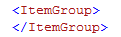
In the ItemGroup section of WDP project which looks like below:

image

Add the files which you would like to exclude from the SourceWebPhysicalPath like below

image

ExcludeFromBuild will allow you to remove these files even though they are present as part of the parent project.  After this step your item group should look as below:

image

In the similar fashion above you can remove other items which you do not need in the output

Step 3 - Removing items after Build

As you know folders like OBJ are produced during build process hence if you do not want them to appear in the output then they need to be removed after build.  to do this we need to add one more item to the above ItemGroup as below

image

Do note that this time we are using the property $(OutputPath) instead of the property $(SourceWebPhysicalPath)

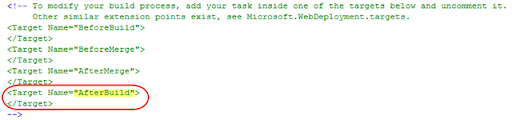
Now the last step is actually use the itemgroup value as part of the AfterBuild target.  Your WDP project file by default has these commented section as shown below

image

We need to uncomment the call to Target "AfterBuild" and call "RemoveDir" on the OBJ folder Item we declared in the ItemGroup above... This can be done as shown below:

image

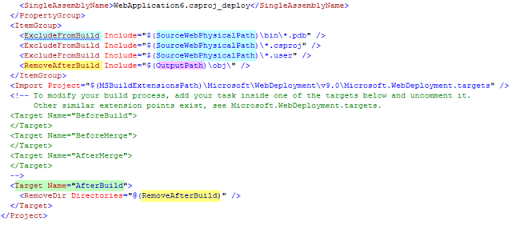
Finally at the end your WDP project file will look as below:

image

Step 4 - Save WDP project file, and rebuild WDP

After the above changes to the WDP project file when you rebuild your WDP project you should have your output folder without PDB, Project file, user file or OBJ folder in it.

Hope this helps!!

Friday, August 22, 2008

Web Application Projects - Publish Options

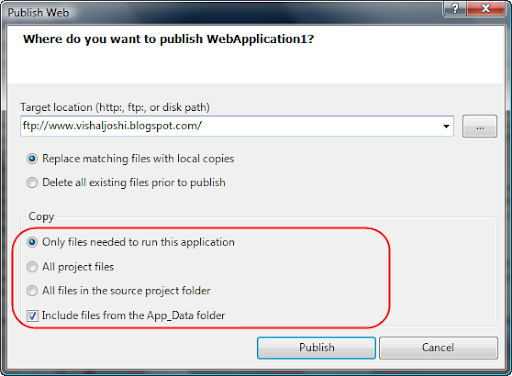
In Web Application Projects (WAPs) we have the following Publish Dialog box.

image


It has the target location text box which takes destination to be HTTP (which uses Front Page Server Extensions (FPSE) behind the scenes), FTP, or File System.

Publish settings also allows you to have a clean install or just incremental updates.  Although what is interesting to notice are the various Copy options.  Let us try to understand what these mean:

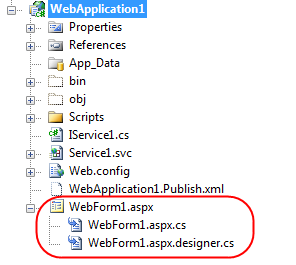
  • Only files needed to run this application - In a WAP we usually have a Project file, User File,  Bin folder, Obj Folder, ASP.NET pages, User Controls, WCF and Web Services etc.  ASP.NET Pages and other similar files have two additional artifacts in a WAP project as shown below:

image When you build the WAP project the sources from both the .aspx.cs as well as .aspx.designer.cs files are taken and compiled into the intermediate output folder (i.e. OBJ folder) and then finally moved to the (BIN folder)...   

You do not really need the Project Files (.csproj/.vbproj); User File (.user)  to run your web neither do you need any of the code behind or designer files as they are compiled into your Bin folder.  At the same time you also do not need the OBJ folder as that is just the intermediate folder VS uses before produces the final output in the BIN folder.  Based on this rationale VS removes all those files from the publishing process and only publishes the files which are required to run your application (which are your .aspx and other similar markup files), your referenced DLLs and your bin folder.

  • All Project Files - Based on the above discussion it is apparent that your code behind and designer files are part of your project, so are your .user and .csproj/.vbproj...  If you select this option then your entire project with these files is published to remote location.  You can usually use this option to move your working project to any remote location and get working on it without having to do a physical copy of select files.  If you want to share your project with your friends over FTP this is a good option to use. Do note Publish feature does not publishes OBJ folder as it is not a folder that a user should really be worried about, it is just for temporary compilation use.
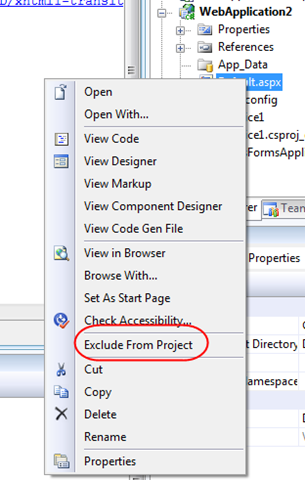
  • All files in the source Project Folder - Many a times users chose to exclude files from their projects by choosing the "Exclude From Project" command

image

This command essentially removes the artifact from the Project File, although do note that these files are still present in your source project folder.

Apart from this many a times users want to add help files, read me files, references docs (e.g. requirements doc) and other misc items in their project folder while they do not really want to publish these artifacts most of the time.

By choosing "All files in the source Project Folder" you can take all these files (excluding OBJ) folder and transfer it to any remote location via HTTP, FTP or simple disk IO to a UNC location.

The above three options kind of provides all the dials for a user to choose the appropriate publish option applicable to them.

  • Include files from the App_Data folder - App Data folder might potentially contain huge files and sensitive data, hence it is given a special status and you can choose whether or not you would like to publish your App_Data folder or not.  It is selected by default as VS assumes that you need the Data to run your application but if you really do not have anything in the App_Data folder or if you are hoping to use SQL Server in production (as opposed to MDF files & SQL Express during development) then you should go and uncheck this box.

Hope this summary of "Publish" feature for Web Application Projects helps...

Wednesday, August 06, 2008

Can't Go to Beijing? - Enjoy some cool Olympic Games with MS Popfly

clip_image001

clip_image003

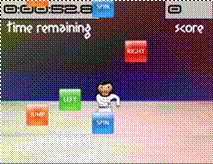
Spin, jump and twirl through the air without ever leaving your chair!

To Play:

http://www.popfly.com/users/Team/Gymnastics


clip_image005

clip_image007

Dive through the water and hit the target – harder than it looks!

To Play:

http://www.popfly.com/users/Team/Diving


clip_image009

clip_image011

Mirror your teammates movements with this synchronized swimming game!

To Play:

http://www.popfly.com/users/Team/Synchronized%20Swimming

clip_image013

clip_image014

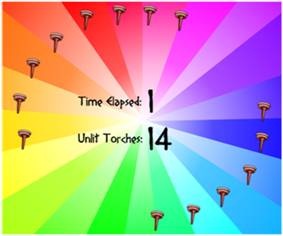
Try to light all 14 torches by clicking on them!  Watch out, they’re fast!

To Play:

http://popfly.com/users/team/light%20the%20torches


clip_image016

clip_image017

GOOAAAL!!!

Pick countries to go head-to-head in this game of Foosball Soccer!

To Play:

http://popfly.com/users/team/soccer

clip_image019

clip_image020

Ready… Set… Go!  It’s the 100-meter dash, pick your country and hurdle across the Finish Line to Victory!

To Play:

http://popfly.com/users/team/track%20and%20field

clip_image022

clip_image023

Pick your targets carefully, aim, and fire your arrows in this addicting game of Archery!

To Play:

http://popfly.com/users/team/archery

clip_image025

clip_image026

Help Rocket Chicken score his longest Long Jump and win a Gold Medal!

To Play:

http://popfly.com/users/team/long%20jump

clip_image028

clip_image029

Test your ‘Strength’ by keeping the barbell off the floor and trying not to turn red in the face!

To Play:

http://popfly.com/users/team/weightlifting

clip_image031

clip_image032

Forget Tyson vs. Holyfield, this is the real Boxing match of the century: my Xbox versus your Playstation.  It’s Battle of the Game Consoles!

To Play:

http://popfly.com/users/team/boxing

Hope this will be fun!!

-Vishal

Saturday, August 02, 2008

Web Deployment with VS 2008

On July 21st 2006, during ASP.NET Insider summit I had a chance to do a podcast with Wally McClure...  We discussed a bunch of items around Web Deployment with .NET 3.5 and VS 2008...  Some of the topics covered in the podcast are:

  • General Web Deployment Scenarios
  • Web Application Projects vs. Websites
  • Pre-compiling Web Projects (aspnet_compiler.exe)
  • Merging Web Projects (aspnet_merge.exe)
  • Web Setup Projects (MSI files)
  • Web Deployment Projects (WDP)
  • Microsoft Deployment Tool (MSDeploy.exe) 
  • Sql Publising Wizard
  •  

    You can view the podcast at: http://aspnetpodcast.com/CS11/blogs/asp.net_podcast/archive/2008/07/25/asp-net-podcast-show-120-deploying-web-applications-with-vishal-joshi.aspx

    Friday, July 11, 2008

    MSDeploy - Beta 1/Go Live Released


    We recently released Beta1/Go Live version of "Microsoft Web Deployment Tool (aka MSDeploy.exe) ".  MSDeploy is a very useful tool for creating web packages which can be used to move your web application from developer boxes to servers.  It can be used to replicate servers in web farm environments too.

    Download Location:  You can download MSDeploy.exe from the below location:

    http://iis.net/downloads/default.aspx?tabid=34&g=6&i=1602

    Earlier I had written about the Technical Preview release of MSDeploy here.  Apart from the features I had mentioned in the above post following are other key features worth noting are:

    MSDeploy Remote Agent: MSDeploy comes with a remote agent service.  This service can be optionally installed with MSDeploy and usually is intended to be installed on the server side.  MSDeploy on your Dev/Test box can talk directly to the remote agent on the server and help move your IIS6/IIS7 web to equal or higher version of the webs on the server.

    Below is an example of how you can move an IIS 6 site from one machine to another.

      MSDeploy.exe -verb:sync -source:metakey=lm/w3svc/1,computerName=VJWin2k3 -dest:metakey=lm/w3svc/2

    Web Archive/Package:  MSDeploy can actually take a snapshot of your app from the local machine and move it to what we call as Archive Directory.  This will allow you to eventually take the Archive Directory on a different machine and use MSDeploy command line with elevated privileges to install your web on the server.  This can potentially solve a very common problem of developers not having admin rights on the server.   Developers in this scenario can run MSDeploy on your local IIS and create archive dir for their web.  This can be done from command line in the following way:

    image

    (command: msdeploy -verb:sync -source:appHostConfig="Default Web Site" -dest:archiveDir="V:\Vishal\Archive")

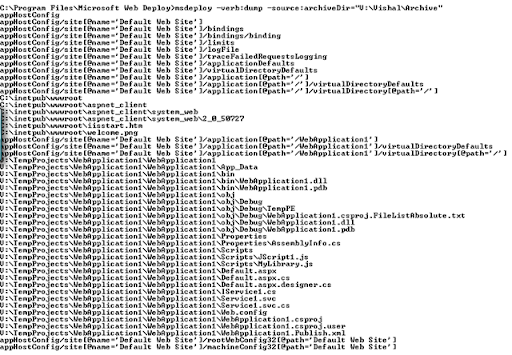
    This Archive dir can then be shared with the server Admins who can examine the content of the archive dir by executing the following command:

    msdeploy -verb:dump -source:archiveDir="V:\Vishal\Archive"

    image

    Now the admins can actually install the website from this archive package on to the production server.  This can be done by executing a command like below:

    msdeploy -verb:sync -source:archiveDir="V:\Vishal\Archive" -dest:appHostConfig="Production Web Site"

    image

    On executing this command the "Production Web Site" will get installed (as shown below) and will be stopped by default.  Admin can then turn it ON as appropriate.

    image

    I thought that apart from talking about the above feature referencing the New Features of this release from the "Read Me" file would be useful, so here are the extracts from the Read Me file...

    "What's New in this Release

    • PowerShell Support. PowerShell cmdlets are included, allowing you to use the Microsoft Web Deployment Tool conveniently with PowerShell. For more information about how the PowerShell cmdlets work, see the Help file as well as the Microsoft Web Deployment Tool Walkthroughs.

    • Enhanced Dependency Support. The dependencies that are checked for a web site or server can now be viewed on IIS 7.0 as well as IIS 6.0. They can be turned off on a granular level, such as disabling the drive space dependency check while still running the other dependency checks, or disabling the check for a single ISAPI script map. Additionally, when you view dependencies, you will be able to see the “trigger” for the dependency (what location(s) in configuration caused the Microsoft Web Deployment Tool to say that the module/component is a potential dependency).

    • Help file included in Setup. You can now see the full list of verbs, parameters and other detailed information about the Microsoft Web Deployment Tool in our .chm Help file, which will be included when you install the tool."

    In the future posts on this topic I will write more about various other features of MSDeploy and how they can serve some of your web deployment needs.

    Hope this was useful!!

    Thursday, June 26, 2008

    Seattle/Redmond/Bellevue Nerd Dinner - July 22nd, 2008


    Event details

    Seattle/Redmond/Bellevue Nerd Dinner - July 22nd, 2008

    Date and time:
    Tuesday, July 22, 2008
    6:30 PM - 9:00 PM

    Hosted by:
    ScottHa

    Are you in the King County? Are you a huge nerd? Perhaps a geek? No? Maybe a spaz, dork, dweeb or wonk. Maybe you're in town for an SDR (Software Design Review) or the ASPInsiders meeting. Quite possibly you're just a normal person.

    Regardless, why not join us for some Mall Food at the Crossroads Bellevue Mall Food Court on July 22nd around 6:30pm?

    If you want to come and share something with the group, please do! We're language and technology agnostic and always eager to learn about new stuff.


    Location:
    Crossroads Bellevue Food Court (http://www.crossroadsbellevue.com/restaurants/index.htm)
    15600 NE 8th St, Bellevue, WA 98008-3927, United States

    Get driving directions


    Add to your calendar

    Friday, May 30, 2008

    TechEd 2008, Orlando, FL & Web Development Features


    Simon and myself are doing a talk at TechEd 2008... The primary agenda of the talk is going to be as below:

    • Visual Studio 2008 & .NET FX 3.5
      •    Web Application Project, Website & Multi-targeting
      •     The design Surface & CSS
      •     ListView server control and ASP.NET AJAX
      •     JavaScript Intellisense enhancements
    • Visual Studio 2008 SP1 & .NET FX 3.5 SP1 (Beta)
      •     JavaScript Formatting  & 3rd Party Frameworks
      •     ASP.NET Dynamic Data
      •     ASP.NET AJAX enhancements
    • Out of Band Previews (OOBs)
      •     ASP.NET MVC Preview 3 (Model View Controller)
      •     Visual Studio Web Deployment Projects

    The session details are:

    Session code: WUX306: A Lap Around the Newest Features in ASP.NET and Microsoft Visual Studio 2008 for Web Developers

    Session Day/Time: 6/3/2008 10:30AM-11:45AM


    If you are coming to TechEd then we will look forward to seeing you there...

    Thursday, May 22, 2008

    ReSharper v 4.0 beta for VS2008 is out

    I just now receieved an email from Jet Brains team informing that ReSharper v 4.0 beta for VS 2008 is out... Below is the verbatim email in case anyone of you was interested...

    "I just wanted to let you know that ReSharper 4.0 beta for Visual Studio 2008 is now available for a test drive at:
    http://www.jetbrains.com/resharper/beta.html?nlrs

    In addition to enhanced productivity features, ReSharper 4.0 beta offers several new features for C# 3.0 including:

    - New code analysis, context actions and quick-fixes;
    - New refactorings (such as Convert to Extension Method, Convert to Automatic Property, Convert Anonymous Type to Named);
    - Updated IntelliSense.

    Final release of ReSharper 4.0 is coming soon! If you would like to learn more about upgrade availability, please contact me directly."


    Some of you had reported some bugs in VS that ReSharper was causing some failures for you... Please go ahead and try this version, I am guessing those issues must be resolved here...

    Monday, May 12, 2008

    Visual Studio 2008 SP1 Beta Released


    Just today we released Visual Studio 2008 SP1 beta...  VS 2008 SP1 beta is truly a feature packed release for Web Developers...  From enhancements in WCF space to including WAP (Silverlight and MVC with download) in VWD Express there are tons of things you can do with VS 2008 SP1...

    John Dundon has written a very detailed post about the release on our team blog below:

    http://blogs.msdn.com/webdevtools/archive/2008/05/12/visual-studio-2008-sp1-beta.aspx

    Also ScottGu has put forward a much more broader blog post about SP1 beta on his blog below... Do take time and read through the these two posts...

    http://weblogs.asp.net/scottgu/archive/2008/05/12/visual-studio-2008-and-net-framework-3-5-service-pack-1-beta.aspx 

    If you have question, queries or feedback do not hesitate to write to me at Vishal.Joshi@Microsoft.com

    Dynamic Data's new Code Gallery SP1 Version Released


    Our team just released new version of ASP.NET Dynamic Data in Code Gallery.  This version of Dynamic Data release works on VS 2008 SP1 and also contains the new Blinq wizard for Dynamic Data.  You can read more about it at: http://code.msdn.microsoft.com/dynamicdata.

    Code Gallery is a new model that our team is using to share early previews of our work in Dynamic Data.  This allows our team to share the latest developments with the community as soon as they meet the minimum quality bar.  Usually we would release something only after it goes through rigorous quality bar but this model allows community to view and provide feedback while we are still completing our work on the feature...  Hope you will enjoy looking at this more transparent model of technology releases from Microsoft...

    Tuesday, May 06, 2008

    Computer World survey ranks MS Web Development higher than Google, Yahoo & Facebook

    Web 2.0 developers rank MSN/Live higher than Google, Yahoo and Facebook

    http://www.computerworld.com/action/article.do?command=viewArticleBasic&articleId=9082558

    The top 7 web-based developer programs ranked:

    1. Microsoft
    2. Google
    3. Yahoo
    4. eBay
    5. Amazon
    6. Facebook
    7. PayPal

    Monday, March 24, 2008

    New French Coding4Fun site released

    image

    New and exciting fun place to learn coding for French speaking friends...  Click here to go to Coding4Fun...

    Tuesday, March 11, 2008

    Upgrading Projects from ASP.NET MVC Preview 1 to Preview 2 (MIX 2008)


    If you previously had ASP.NET MVC Preview 1 (CTP 1) and had already created a few projects on it then you might have to take this additional step to convert your project to ASP.NET MVC Preview 2 (MIX 2008) [After installing MVC Preview 2 (Resources here)].

    In ASP.NET MVC Preview 2 we introduced a special MVC Project flavor GUID for MVC Projects.  Some of the special MVC project behaviors described in my previous post "Tooling Features Overview"  may not function as expected e.g. new 'MVC' node under the 'Web' node for 'Add new Items Dialog Box' may not show...

    image


    To make the project features to function as expected in Preview 2, open the MVC project file (.csproj/.vbproj) of the project you created using MVC Preview 1.  Look for 'ProjectTypeGuids'... You will find the below piece of code...

           <ProjectTypeGuids>{349c5851-65df-11da-9384-00065b846f21};{fae04ec0-301f-11d3-bf4b-00c04f79efbc}</ProjectTypeGuids>

    Replace the above with:

    <ProjectTypeGuids>{603c0e0b-db56-11dc-be95-000d561079b0};{349c5851-65df-11da-9384-00065b846f21};{fae04ec0-301f-11d3-bf4b-00c04f79efbc}</ProjectTypeGuids>

    When you reload/reopen your project your MVC Preview 2 functionality will be available in the projects you created MVC Preview 1.  Do note this in addition to other steps mentioned in the Readme Document for ASP.NET MVC Preview 2 which goes into greater details of upgrade scenario.

    Google's 9 Principles of Innovation


    This is worth a read:

    http://www.fastcompany.com/fast50_08/google_marissa-mayers-9-principles-of-innovation.html

    Friday, March 07, 2008

    ASP.NET MVC Framework Preview 2 (Mix 2008) Resources

    I am attempting to compile the relevant resources for ASP.NET MVC Framework Preview 2 at one place so that you will not have to keep searching around...


    ASP.NET MVC Preview 2 Download Location:
    Preview 2 Download (English-US) - Microsoft.com download location to get the latest MVC bits...

    ASP.NET MVC Documentation:
    Home Page - Asp.Net home page where you can find latest updates on ASP.NET MVC Framework in general...
    User Documentation - The official Microsoft user documentation on ASP.NET MVC Framework...
    Readme File - Contains a ton of information on how to install the preview 2 and how can it play well if you already have MVC Framework Preview 1, Silverlight etc...

    ASP.NET MVC Learning
    Forums - There is a ton of activity on ASP.NET MVC Framework forums, this is a great way of getting your questions answered...
    Videos - There are some great quick start videos on ASP.NET MVC Framework available here, we will be adding more videos here going forward to do keep checking

    ASP.NET MVC Blogs
    Scottgu's Tutorials Root - Scottgu has a bunch of very walk-through on ASP.NET MVC Framework here...
    ASP.NET Tooling Overview - In this post I have explained the tooling features for ASP.NET MVC Framework...
    MVC Unit Test Framework Integration - In this post I have explained how you can integrate a new test framework like NUnit, MBUnit, xUnit etc into your MVC Application.
    NUnit & Rhino Mocks Integration - In this post Joe has taken a NUnit and Rhino Mocks framework as an example and he has created a Test Project Template for you to download... I will highly encourage you to check this out...
    Phil Haack's Blog - Phil keeps writing interesting posts about ASP.NET MVC Framework... It would be nice to routinely check his blog too...
    My Blog - I also intend to keep posting ASP.NET MVC Framework articles on my blog regularly so you might want to check that out too...
    Scott Hanselman's Blog - Scott has some ASP.NET MVC Zen stuff on his blog too, do find time to check that out...

    ASP.NET MVC CodePlex Source Code
    http://www.codeplex.com/aspnet - CodePlex Home Page for ASP.NET
    MVC Preview 2 Source Code - CodePlex location to download MVC Preview 2 Source Code


    Hope this helps...

    Monday, March 03, 2008

    On Demand Webcast : Visual Studio 2008 for Web Developers

    VS 2008 brings a great deal of features for Web Developers...  As a part of VS 2008 launch I did a web cast on MSDN on Feb 26th 2008.  Below are few of the features that I did demos on, hope you will enjoy it:

    1. Multi-Targeting
    2. Split View & Nested Master pages
    3. CSS Features (Manage Styles, Apply Styles, CSS Properties & Summary)
    4. ASP.NET List View Control and Ajax
    5. Javascript Intellisense and Type inferencing
    6. Javascript Referencing & Commenting
    7. Calling Services (.asmx & .svc )from Javascript
    8. Javascript Debugging
    9. Web Deployment Projects (WDP) for VS 2008

    REPLAY URL : https://www.livemeeting.com/cc/mseventsbmo/view?id=1032369517&role=attend&pw=A6176DF3

    Sunday, February 24, 2008

    Webcast: New Enhancements for Web Developers in VS 2008


    Wanted to update you on a upcoming web cast that I am doing in support of Visual Studio 2008 launch event...

    Title: New Enhancements for Web Developers in VS 2008

    Date/Day: Tuesday, February 26th 2008

    Time: 11am to 12:30pm Pacific Standard Time (PST)

    Description :Get an overview of how Visual Studio 2008 takes web development to the next level. See highlights of the key new Web tools experiences in the Visual Studio 2008 product including support for multi-Targeting,  JavaScript enhancements, rich support for CSS standards, rapid development of data-bound web pages using LINQ To SQL, and more. Also learn about the new Web Application Project and Web Deployment Project enhancements to Visual Studio which adds an alternative Web application development, build and deployment models to the Visual Studio project system.  Also have a sneak preview of the work being done for Web Developers in out of band releases like ASP.NET MVC Framework.

    Registration URL:

    http://msevents.microsoft.com/CUI/EventDetail.aspx?EventID=1032369517&Culture=en-US

    Hoping you will be able to join!!

    Tuesday, February 19, 2008

    Free Microsoft Software for Students

    Microsoft announced an unparallel program called "Microsoft Dreamspark which will offer free Microsoft Visual Studio 2008, Microsoft Expression Studio and Windows Server 2008 free to students...

    You can read more about this announcement at http://channel8.msdn.com/Posts/2047/

    Enjoy!!

    Monday, February 18, 2008

    ASP.NET MVC Test Framework Integration

    Previously I gave an overview  of new tooling features for ASP.NET MVC Framework that we are hoping to make available during MIX 2008 timeframe.  You can read more about Overview of MVC Tooling Features for MIX 2008 here. 

    Goals: ASP.NET MVC Framework is Microsoft's implementation of MVC framework which is hugely popular in the industry for best practices and conventions.  In lines with best practices one of the goals of this new ASP.NET framework is to enable easy unit testable web applications.  To ease unit testing and to make it part of our regular application development workflow Visual Studio is introducing integration of unit test projects with ASP.NET MVC Application.  Many in the community are already familiar with and are using test frameworks liked Visual Studio Unit Test, NUnit, MBUnit etc.  If you have Visual Studio Unit Test framework on your machine (i.e. in Visual Studio 2008 SKUs Professional and Above) then on creation of ASP.NET MVC Web Application you will automatically be prompted to create a test project.   Not only that, due to the popular community request Visual Studio will now also provide a mechanism to extend this test framework system to integrate external unit testing frameworks like NUnit, MBUnit, xUnit etc.

    Today I will be walking you through this new Test Framework integration for MVC Projects. Our goal today is:

    • To understand how to create test project templates
    • To understand how registration works for test project framework and how to register a custom test project template

    At the end we want to get to a point where your test framework of choice shows up in the drop down when you try to create a MVC Application (like 'NUnit' does in the figure below):

    (Fig 1: Create Test Project Dialog Box)

    Applies To:  This article applies to Visual Studio 2008 with ASP.NET MVC Framework Mix 2008 CTP installed.  This documentation is pre-release documentation intended to provide insights to the community on the work being done by MS on ASP.NET MVC Framework, we are still in development phase so please do note that this is subject to change, but we believe this is very close to what you can see during MIX timeframe.

    Video:  I have also created a screen cast (approx 30 mins in length) which covers the concepts of this post in detail, we will be making it available here soon...

    Step 1: Creating Test Project Templates : There is a very succinct article on MSDN on how to create Project Templates.    You can find this article at http://msdn2.microsoft.com/en-us/library/s365byhx.aspx.  Although the process may vary depending on the type of unit test framework and mock objects you choose, I am summarizing the process in context of MVC Test Project Template which I created using NUnit framework and Rhino Mocks library.

    • Create a new class library project with the Code Language of your choice, give it a good reusable name which will apply to your test project template.
    • Add reference to "System.Web.MVC", "System.Web.Abstractions" and "System.Web.Routing" dlls in your class library project.  These DLLs will ship along with ASP.NET MVC Framework in the MIX 2008 CTP.
    • Download required Test frameworks (NUnit, MBUnit etc)
    • Download required Mock object libraries (Rhino mocks, Type mocks etc)
    • In the class library project add the right references to to the test framework and mock objects which you want to use.
    • Make sure that you make all of the above references dll's  "Copy Local" property to "True" (Select the referenced DLL and hit F4 to access the property in the Property Grid)
    • Add required folders and classes to test an MVC Application.  You can pre-populate whatever tests you like, but at the minimum if you would recommend matching the default MVC Application template that ASP.NET MVC Framework will ship with.  In order to match the default application template use the following structure:
      1. Create a "Controller" folder under the project root and add "HomeControllerTests" class to it.  Add unit tests to cover "About" and "Index" actions
      2. Create a "Routes" folder under the project root and add "RouteTests" class to it.  Add unit tests to cover the two default routes that will come with ASP.NET MVC Framework.
    • Build your project so that the required binaries are present in the bin (note: my screen cast has this step missing and hence I get some unresolved references when I instantiate the template)
    • Go to File-->Export Template wizard and follow its easy directions.  The project template is usually created in the user's VS directory (the wizard will point you to the location).
    • Remove the template.zip from the user specific directory and move it to %Program Files%\Microsoft Visual Studio 9.0\Common7\IDE\ProjectTemplates\Language\Test\Locale
    • Close all the instances of Visual Studio and open the command prompt (Start --> Run type cmd)
    • Navigate to the IDE folder on the command prompt (cd %Program Files%\Microsoft Visual Studio 9.0\Common7\IDE) and type devenv /setup, hit enter
    • This will take some time but should setup your newly created project template within Visual Studio .  If you now open VS 08, then in New Project dialog box you should be able to see your template show up under C#/VB-->Test directory.

    Step 2: Understanding Test Project Registration: We are introducing a very easy registry based registration model for your test project templates.  Please refer the registry structure below:
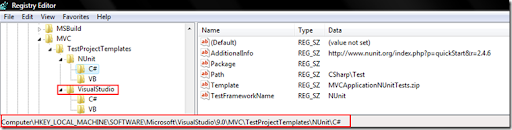
    image

    (Fig 2: Test Framework Registry Info)

    We have a new MVC key under Visual Studio 9.0 registry location as highlighted above.  As you can see above I have NUnit and VisualStudio as my available test frameworks.  This is what is showing up in the  screen shot of "Create Test Project" dialog box in Fig 1 above.  If you would like to add more test frameworks please go ahead and create one more key under 'TestProjectTemplates' key.

    On the right side you see various string values, let me go ahead and explain what each one of these mean:

    • AdditionalInfo:  You can enter a URL for more information on the Test Framework here.  It is hopefully going to be used by 3rd parties who will be creating Test Project Templates.  This link shows in the Fig 1 as "AdditionalInfo" link
    • Package:  This is a pointer to the VS package that you may want to use in case you are adding UI elements or doing advanced functionality with your Test Project.  Visual Studio will be using this information to pull out localized resources when we localize MVC Test Project Template for Visual Studio
    • Path:  The Test Framework selection of VS expects that your test templates are registered with Visual Studio and are located some place under standard VS Project Templates location (i.e. %Program Files%\Microsoft Visual Studio 9.0\Common7\IDE\ProjectTemplates\. The Path value mentioned here is actually the location under this standard VS Project Templates path. 
    • Template:  This is the actual zip file name which was created in the Step1 above.
    • TestFrameworkName: This is the name that will show up in the drop down of Fig1: above.  In order to localize the URL of AdditionalInfo or name of TestFrameworkName we will provide a special syntax like "#1209:NUnit".  This will indicate to Visual Studio to use resource # 1209 from the Package above for the localized string but if nothing is available then use the default "NUnit".

    Also one point to note over here is that VS Test Framework selection system will create a test project for the same language as your primary MVC Application Project. The same registry strings that we just discussed above can be replicated at the top node (e.g. 'VisualStudio') that I have highlighted in the Fig 2 above.  I would recommend having that replicated as it allows Visual Studio to fall back on this template in case your primary MVC Application is of languages  like 'IronPython' etc.  In nutshell that is the default template for that particular test framework within VS.

    Summary: On completing the steps above, when you go to File--> New Project --> Language --> Web and try to create a new "ASP.NET MVC Web Application" project then the dialog box presented in Fig1: will show up with your newly registered Test Framework in the drop down. 

    Hope this will get you unit testing your projects more and more...!!

    Vishal R. Joshi | Program Manager | Visual Studio Web Developer

    Sunday, February 17, 2008

    Tooling Features Overview of ASP.NET MVC Framework for MIX 2008

    There has been a tremendous positive response on ASP.NET MVC Framework from the community since we released the December 2007 CTP of ASP.NET Extensions.  With MIX 2008 coming closer our teams have been super busy in trying to bring out value additions to ASP.NET MVC Framework.  ScottGu, in his ASP.NET MVC Road-map post, recently introduced the new MVC features coming up with MIX preview.  He had mentioned that with this MIX release ASP.NET MVC will get much better Visual Studio 2008 integration and support.  My post today is to outline these integration points and support within Visual Studio.

    Features:  During December 2007 preview of MVC we just had project templates to support MVC development within Visual Studio, since then there have been some improvements which are as below:

    Project Template Filtering and Naming: MVC Project templates will now be filtered based on .NET Framework version and will be available only when you select Framework version 3.5.  You can now also name your projects and solutions as per your choice which was not possible in the Dec 2007 CTP.

    Test Framework Options: In Dec 2007 CTP we had 'MVC Application' project template and also had 'MVC Application and Test' project template.  We now do not expose the 'MVC Application and Test' project template instead we have a cool new Test Framework options dialog which shows up as soon as you click okay on you MVC Application creation.  This test framework dialog assumes that you want to create your test project in the same language as your primary MVC Application and so it does not show you that option.  TheTest Framework dialog box will look like below:

    image

    When you select your Test framework and click okay Visual Studio will create a multi-Project template with the Test Project already having reference to your primary MVC Application.  In my follow up post on this topic will learn about the way 'Test Framework Options' dialog box works behind the scenes and understand the way by which we can extend it to use external 3rd party testing frameworks.

    'Add New Items' Dialog Box:   The new 'Add New Item' dialog box for MVC Applications will show a "MVC" node under the "Web" node as shown below.  This will allow you to locate your MVC item templates pretty easily:

    image

    ASP.NET MVC framework (without any extensibility customizations) requires you to suffix your controller names with "Controller".  Visual Studio will now help you achieve this mundane task by reminding you about it and 'by default' naming it correctly in your project.

    Making Routes more Testable:    We have also gone ahead and changed global.asax to make your routes much more testable by default.  The new global.asax will look something similar to below:

    image

    You can very easily now call RegisterRoutes externally to test your routes.

    Getting Designer.cs/.vb Files Back:  In December 2007 CTP our view pages did not have the .designer.vb and .designer.cs files attached to them, many of you asked us to get that in so that server control useage would become easier.  In the MIX 2008 CTP every View Page, Master Page and Content Page associated with MVC development will come with a pre-created designer.cs/vb file.

    image

    Debugging Settings:   We have now made some default debugging settings so that your MVC application will debug no matter where you hit F5 in your solution explorer.  You will definitely have option to modify this behavior in the property pages of your MVC Application.

    Removing 'View in Browser' & 'Add a Content Page' Commands:  If you right click on .aspx pages within an MVC Application you will not see 'View in Browser' command.  This command has been intentionally disabled as in case of MVC application we want that the calls made are not handled directly to .aspx pages but rather get routed via a controller, which in turn will produce ViewData and redirect to the right View Page.  "Add a content Page' command was also removed from Master Pages in MVC application as creation of View Pages is expected to be location specific depending on the controller and 'Add a Content Page' was not directly applicable in such scenarios.

    New Look And Feel:  MVC Application right off the shelf will now also have a much more CSS friendly  and pretty UI which you can start customizing and converting into your real world application.  I am attaching a screenshot of how ASP.NET MVC Application will possibly look like as soon as you hit F5 on this new template.

    image

    Hope these features help you with using ASP.NET MVC Framework.  In follow up posts on the ASP.NET MVC topic, I will write back about customization of Test Framework dialog box.  In the meantime hope this gets you up to speed with our efforts around ASP.NET MVC Framework.

    Thursday, February 14, 2008

    Web Deployment Projects (WDP) 2008 Japanese Released

    Our Japanese & Redmond team have been working together and just released the Japanese version of Web Deployment Projects for Visual Studio 2008... Our Japanese friends have been patiently waiting for this release since the December 2007 CTP of WDP 2008 was released, so finally this RTW will help unblock a lot of people...

    You can read more about the ENU release at http://blogs.msdn.com/webdevtools/archive/2008/01/25/announcing-rtw-of-visual-studio-2008-web-deployment-projects-wdp.aspx

    You can download the JPN release from:
    http://blogs.msdn.com/webdevtools/archive/2008/02/14/announcing-japanese-release-of-web-deployment-projects-2008.aspx

    The announcement in Japanese:
    http://blogs.msdn.com/dd_jpn/archive/2008/02/14/7688137.aspx

    Hope our friends from Japan will enjoy it...

    Friday, February 08, 2008

    New Hot-Fix Visual Studio Web Developer now available
     

    We just released a hot-fix for VS 2008 which includes a ton of value added features...  We would had loved to have many of these covered within VS 2008 itself but as you can imagine it is not always possible to delay release to get everything in...

    The key idea over here is  to be able to provide incremental value over the product frequently and be agile in responding to customer suggestions... With all these value added releases coming out many have said that there are manageability concerns, but I would recommend looking at this as ala carte service, everyone does not need to constantly upgrade if you are not facing any of these issues daily, with VS 2008 SP1 all of this will be rolled up any ways...

    The key issues that this hot-fix will address:

    HTML Source view performance

    • Source editor freezes for a few seconds when typing in a page with a custom control that has more than two levels of sub-properties.
    • “View Code” right-click context menu command takes a long time to appear with web application projects.
    • Visual Studio has very slow behavior when opening large HTML documents.
    • Visual Studio has responsiveness issues when working with big HTML files with certain markup.
    • The Tab/Shift-Tab (Indent/Un-indent) operation is slow with large HTML selections.

    Design view performance

    • Slow typing in design view with certain page markup configurations.

    HTML editing

    • Quotes are inserted after Class or CssClass attribute even when the option is disabled..
    • Visual Studio crashes when ServiceReference element points back to the current web page.

    JavaScript editing

    • When opening a JavaScript file, colorization of the client script is sometimes delayed several seconds.
    • JavaScript IntelliSense does not work if an empty string property is encountered before the current line of editing.
    • JavaScript IntelliSense does not work when jQuery is used.

    Web Site build performance

    • Build is very slow when Bin folder contains large number of assemblies and .refresh files with web-site projects.

    Know more and download this hot-fix

    You can read more and download the release from our team blog here

    Friday, February 01, 2008

    MS Web Deployment Tool - Technical Preview Released

    We recently released MS Web Deployment tool (msdeploy.exe)... This is really a very handy tool to manage migration and deployment for your IIS based applications and web servers...

    At a very high level this tool can do one of the following things:

    1. Migrate IIS 6 applications & servers to IIS 7....
    2. Synchronize & take a snapshot you II6 or IIS7 web
    3. Analysis of installed IIS6 features
    4. Do whatif analysis of your product...

    This tool can traverse through and take a snapshot of your IIS web or web server. While traversing this tool takes snapshots of following:

    • Registry settings
    • Directory & Files
    • GAC Assemblies
    • COM Objects
    • Web, root web, app host & machine config
    • Certificates

    This information is then used to synchronize between servers... Interestingly I feel it is a great way to create a test or dev box snapshot... Well you can download and read lot more about the tool at the below email:

    http://www.iis.net/downloads/default.aspx?tabid=34&g=6&i=1602

    Friday, January 25, 2008

    Visual Studio 2008 Web Deployment Projects (WDP) Releases to Web

    Just some time ago I made an announcement on our team blog about release of WDP 2008... It has been a very exciting journey to reach at this point...

    We had received an enormous participation for December 2007 CTP and community had provided us with a lot of interesting feedback... We had to balance out between features and timeline as usual... There are many customers who were not able to move ahead with Visual Studio 2008 installations because of unavailability of WDP 2008 and we did not hold so many folks from using VS 2008 hence releasing early was definitely important...

    That said, I think the current version of WDP 2008 is a fine balance of speed to market and features... In fact I think this release has quite a few value added features:

    • New Features of Visual Studio 2008 Web Deployment Projects are as below... You can read in detail about these features on the post which announced December 2007 CTP of VS 2008 WDP (Click here to go to the December 2007 CTP post)
      • Migration from WDP for VS 2005 to WDP for VS 2008
      • Replacing WDP output only if Pre-Compilation succeeds
      • Creating IIS Applications
      • Using aspnet_merge.exe version which is installed with Visual Studio 2008
    • Core WDP Features

    To find out more about the release visit the link below:

    http://blogs.msdn.com/webdevtools/archive/2008/01/25/announcing-rtw-of-visual-studio-2008-web-deployment-projects-wdp.aspx

    At the end I feel really proud to to call out the efforts of the heros behind WDP, my team members... Alison Lu has done a great job of testing WDP and reproducing every possible scenario that we heard from blogs, forums or connect system... Wendy Wei our dev on WDP got to the bottom of multiple issues that were raised... Bill Hiebert is our Architect and is always the support mechanism of the team... Anna Lidman is our Release Manager and makes our release process so smooth that we practically have forgotten the pains of going to the web... Tim McBride is our Dev lead and John Dundon is our test lead on WDP and have always been great partners to work with...

    I hope you enjoy this release of WDP as much as we have enjoyed releasing it and hope it makes your pre-compilation and deployment challenges easier to deal with...

    Happy Deploying!!

    Thursday, January 24, 2008

    Register for Beta Exam 71-571: Microsoft Windows Embedded CE 6.0, Developing

    You are invited to take beta exam 71-571: Microsoft Windows Embedded CE 6.0, Developing if you have experience using Windows Embedded CE. If you pass the beta exam, the exam credit will be added to your transcript and you will not need to take the exam in its released form. The 71-xxx identifier is used for registering for beta versions of MCP exams, when the exam is released in its final form the 70-xxx identifier is used for registration.
    By participating in beta exams, you have the opportunity to provide the Microsoft Certification program with feedback about exam content, which is integral to development of exams in their released version. We depend on the contributions of experienced IT professionals and developers as we continually improve exam content and maintain the value of Microsoft certifications.

    71-571 : Microsoft Windows Embedded CE 6.0, Developing counts as credit towards the following certification(s).

    · MCTS: Windows Embedded CE 6.0 Developer


    Availability

    Registration begins: January 24, 2008

    Beta exam period runs: January 29, 2008– February 18, 2008

    Receiving this invitation does not guarantee you a seat in the beta; we recommend that you register immediately. Beta exams have limited availability and are operated under a first-come-first-served basis. Once all beta slots are filled, no additional seats will be offered.

    Testing is held at Prometric testing centers worldwide, although this exam may not be available in all countries (see Regional Restrictions). All testing centers will have the capability to offer this exam in its live version.

    Regional Restrictions: India, Pakistan, China


    Registration Information

    You must register at least 24 hours prior to taking the exam.
    Please use the following promotional code when registering for the exam: EMBCE
    Receiving this invitation does not guarantee you a seat in the beta; we recommend that you register immediately.

    To register in North America, please call:•

    Prometric: (800) 755-EXAM (800-755-3926)

    Outside the U.S./Canada, please contact:•

    Prometric: http://www.register.prometric.com/ClientInformation.asp


    Test Information and Support

    You are invited to take this beta exam at no charge.
    You will be given four hours to complete the beta exam. Please plan accordingly.
    Find exam preparation information: http://www.microsoft.com/learning/exams/70-571.mspx


    Frequently Asked Questions

    For Microsoft Certified Professional (MCP) help and information, you may log in to the MCP Web site at http://www.microsoft.com/learning/mcp/or contact your Regional Service Center: http://www.microsoft.com/learning/support/worldsites.asp.

    •What is a beta exam?

    •Where can I learn more about the registration process?

    •Where can I learn more about the beta exam invitation process?

    •Where can I learn more about the new structure of Microsoft Certification?

    •Who do I contact for help with this beta exam or other MCP questions?

    Saturday, January 19, 2008

    Tips & Tricks: Web Server Settings for Web Application Projects now can be stored per user as well as per project

    Web server settings, which are accessible inside Web Application Projects (WAPs) property pages (Web section)  allow you to specify settings associated to to Visual Studio Development Server or IIS.  Many a times in a team development environment it is preferred that these settings are shared across the teams providing consistency; at the same time many other teams prefer that these settings be developer specific.

    To support both of these scenarios in Visual Studio 2008 the web server settings now has an additional checkbox as highlighted below:

    image

    By default this check box comes checked and it implies that these settings will be stored in the project file (i.e. .csproj or .vbproj) and when opened in an XML editor will look as below :

    image

    When the check box above is unchecked then the settings are transferred to .csproj.user / .vbproj.user file located in the project folder and "SaveServerSettingsInUserFile" node value is changed to True in the project file...  This setting is especially useful when a team wants to allow per developer settings while checking in the project files in a source control system like TFS or VSS.

    If you are using Visual Studio 2005 then we have created a hotfix to support this model. The explanation above still holds true for VS 2005, although in VS 2005 you will not have the property pages checkbox to make the change to "SaveServerSettingsInUserFile" property.  You will still be able to make the change manually in .csproj and .vbproj file.  You can read more about this in the KB Article 942844.   Hope this will help...

    Technorati Tags: Web Development,VWD,Visual Studio,tips and tricks,Development Server,ASP.NET

    Thursday, December 20, 2007

    Tips & Tricks: Start-Up Options and Instances of ASP.Net Development Server in a Multi-project Solution

    If you have more than one project in your solution you can use following options of solution properties to set your start up actions...  You can get the below dialog by right clicking your solution and going to its properties:

    image 

    If you have more than one Web project (either Web Site, WAPs or both) in your solution and choose to start only one of it, you can do so by setting "Single startup project" above (or also via  Project context menu "Set as StartUp Project" in solution explorer)...  Although, even after doing so when you start debugging your application using ASP.Net Development Server you will see multiple instances of ASP.Net Development Servers in your system tray as shown below:

    image

    There is an important point to note here that a single instance of ASP.NET Development Server cannot handle more than one Web Application/Site...  Ideally if you need this kind of functionality you should be using IIS for your debugging instead of ASP.NET Development server...

    There are instances when you might have many web applications or web sites in the same solution and you may be actually debugging only one of them...  In such scenario it might not be desirable to have multiple instances of ASP.NET Development Server running...  VS provides an explicit setting in the property grid of web application/site called Development Web Server - "Always Start When Debugging" which is set to True by default...  If you set this Property to be False only one web server instance will be created for the start up web project...

    You might want note that in that same debug run, you will not be able to debug any other non-IIS based Web Application/Site in the solution who has this property set to "False"; but if you really want to debug just one application at a time you may not have to worry about it anyway...