Sunday, May 02, 2010

Xml Document Transforms (XDT) for any XML file in your project

There have been several requests floating around to be able to use XDTs (the technology behind Web.Debug.Config/Web.Release.Config) with other XML files within the project…  To make that feasible I wrote a XmlDocumentTransform.targets  file which can generically transform any XML file using the standard Web.Config Transformation syntax introduced with VS 2010…

Learn more about XDT & Web.Config Transformation here…

Now to get started first download XmlDocumentTransform.targets file from my Skydive…

Follow the below simple steps to get transformation working for any well formed XML file in your project…

  • Step 1: Save the downloaded XmlDocumentTransform.targets to %ProgramFiles%\MSBuild\Microsoft\VisualStudio\v10.0\Web\XmlDocumentTransform.targets

image

NOTE: I would highly encourage you to make a copy of the Microsoft.WebApplication.targets file as backup before you do Step 2 below, as if this file is modified incorrectly then your VS 2010 instances might start showing funny problems which will be virtually impossible to debug and the only option left with you will be to repair/uninstall-install VS 2010… (i.e. proceed at your own risk :-))

  •  Step 2: Put following line of code in Microsoft.WebApplication.targets file just before closing of the Project node i.e. before </Project>...  
    <Import Project="$(MSBuildExtensionsPath)\Microsoft\VisualStudio\v10.0\Web\XmlDocumentTransform.targets" Condition="Exists('$(MSBuildExtensionsPath)\Microsoft\VisualStudio\v10.0\Web\XmlDocumentTransform.targets')" />
    The Microsoft.WebApplication.targets file is located at %ProgramFiles%\MSBuild\Microsoft\VisualStudio\v10.0\WebApplications... 

image  
NOTE: Changing the above targets file will allow you to use this functionality with all the Web Application Projects (WAPs), if you just want to change this for the current project then you can put the same Import node in .csproj or .vbproj as well...  If you use per project model then you can also check in this file into source code control and have your team use it seamlessly…

  • Step 3: Open your .csproj/vbproj file and insert the below property in <PropertyGroup> section  <AllXmlsToTransform>Settings.xml;app.config</AllXmlsToTransform>

image

 NOTE: The Settings.xml or app.config can be replaced with the name of Xml files you want to transform…

  • Step 4: Insert <OnAfterTransformWebConfig>TransformXml;</OnAfterTransformWebConfig> similar to #3 above but do not modify the TransformXml; text here…  This is the actual hook which ties in your project to this generic XDT system...  After making the Step 3 & Step 4 changes your project file should have below content…

image

  • Step 5: Create Setting.Debug.Xml or similar files and put XDT syntax in them... You need to make sure in the .csproj/.vbproj file of yours you have the DependentUpon property is set like the example below:
        <Content Include="Configuration\Settings.xml" />
        <Content Include="Configuration\Settings.Debug.xml">
          <DependentUpon>Configuration\Settings.xml</DependentUpon>
        </Content>
        <Content Include="Configuration\Settings.Release.xml">
          <DependentUpon>Configuration\Settings.xml</DependentUpon>
        </Content>

image

NOTE: The above will allow your solution to look pretty, i.e. just like web.debug.config and web.release.config files show nested under web.config, your *.$(configuration).* files will show nested under your parent file too…

With the above 5 steps you are all set to use XDT with any of the deployment models covered in the Overview of Web Deployment Post…  In a way above steps harness the power of Web Publishing Pipeline (WPP) extensibility model and you can do several other extensions like above if you are familiar with MsBuild sytax…

SAMPLE:   The remainder of the post is just showing you the steps to test whether the changes you made worked or not (i.e. the remaining half of the post is just playing with what you already accomplished in the first half)… :-)

  • To test the above target file I created the below MVC 2.0 project structure:

image

  • Once you put DependentUpon node in your project file you will have to click the  “Show All Files” icon on the solution explorer for VB Projects to see Settings.Debug.Xml
  • My Settings.xml file looked as below:

image

  • My Settings.Debug.xml file looked as below:

image

  • To test out I tried simple “file system” publish (Right click on project and say Publish)… The new WAP Publish dialog for me looked as below:

image

  • After publishing my C:\TestPublish folder looked as below:

image

  • Note that Settings.Debug.xml was removed from my final publish location as it is not required for my web to function and the content of Settings.xml file were transformed and looked as below:

image

TeamBuild/Commandline Approach: You can also use your new transformations from TeamBuild/MsBuild by using the below command (from VS 2010 Command prompt if you are trying locally):

MsBuild MyXDTTestProject.csproj /t:TransformXml

The output of the command line transform should look as below:

image

As specified above your transformed XML will be stored in obj\$(configuration)\Settings.xml… 

As such feel free to open the XmlDocumentTransform.targets file which you download, I have tried to put as much comments as I could to make it readable…  If you go through it I am sure you will be able to do many other cool things out of it…

-Vishal

Monday, April 26, 2010

Xml Document Transform (XDT) Snippets for VS 2010

During my PDC talk I had shown some of the snippets that can come handy while using Web.Config Transformations…  This post is intended to share the XDT snippets and instructions on how to install them to use them with VS 2010…

image

  • After this the XDT snippets will be available for you to use within any XML file within VS 2010…

To know how to use XDTs for Web.Config file please check out the post about Web.Config Transformations

Few interesting points about Transforms & Locators which are worth noting to do pretty powerful stuff with your XML are:

  • Transforms  - Transforms act on a XML node i.e. from XDT engine standpoint the node on which a transform is found is plucked out of the document and passed as a node to the Transform itself (e.g. “SetAttributes” Transform)… The Transform class internally implements the logic of modifying the node with its own special logic (i.e. setting attributes in case of “SetAttributes” Transform) and returns back the node to the engine…  The XDT engine then replaces the new node into the document…  The engine also passes the handle of the parent node to the transform which the transform can then play around with (e.g. “Insert” Transform receives a new node as well as the parent node and has the DOM code of inserting the new node under the parent…)

image

  • Locators – XDT usually traverses through the XML document and constructs the XPath all along e.g. when it hits the add node under connectionStrings in web.config it has already constructed the XPath (/configuration/connectionString/add)…  Locators help with narrowing down the XPath so that the correct node can be picked up… Check out the example below:
   <connectionStrings>
<add name="1stDB"
connectionString="Data Source=Server1;Initial Catalog=DB1;Integrated Security=True"
xdt:Transform="SetAttributes" />
<add name="2ndDB"
connectionString="Data Source=Server2;Initial Catalog=DB2;Integrated Security=True"
xdt:Transform="SetAttributes" xdt:Locator="Match(name)"/>
</connectionStrings>


Based on the standard logic of XPath traversing XDT will always pick up the first “add” node i.e. one with 1stDB in the example below… That may not be always desirable…  In XDT we could have implemented the logic to do special things for appSettings & connectionStrings but then that would have made XDT specific to web.config instead we implemented Locators which now allows XDT to be general purposes XML transformation engine…  In the above example if we use a Locator called xdt:Locator=”Match(name)” on the 2ndDB then as soon as the XDT engine encouters a locator it calls the class implementing it (i.e. “Match” and allows it to play with the XPath that is being generated… In this case the match locator will help construct the XPath as /configuration/connectionString/add[@name=’2ndDB’]


xdt:locator


The high level takeaway here is that when you play around with the snippets for XDT keep the above concepts for Transforms & Locators in mind and with the quick snippet explanations of each transforms and locators you should be able to very easily use all of them… If you encounter any issues plz feel free to reach out…


Thanks!!


-Vishal


Friday, April 16, 2010

Web Deployment Projects Released to Beta (WDP for VS 2010)


Our team recently released WDP for VS 2010… The key features to note for WDP for VS 2010 are:

  1. All the core features of WDP 2008
  2. Migration from WDP 2008 to WDP 201o
  3. Multi-Targeting support in WDP 2010
  4. Support Web Deploy Packages in the WDP project..

You can read more about the above features on our team blog at Visual Web Developer Team Blog

Download WDP 2010 Beta by clicking here!!

The guidance around using WDP 2010 is

  • Use it if you want to migrate to VS 2010 and are currently using WDP for VS 2008
  • Use it for TeamBuild/MSBuild based deployment of Web Site Projects in VS 2010…
  • Use them for Web Application Projects (WAPs) if you feel it is extremely important for you to pre-compile/merge your projects… If not then you can use Web Deployment features built into VS 2010

Hope this helps!!

-Vishal

Thursday, April 15, 2010

Web Deployment Demos, Slides & Videos for VS 2010 launch

I have been dormant for ever, have been keeping busy on a very exciting project… Anyways April 12th 2010 was a big day with VS 2010 formally launching…  Few days back I asked Twitter whether people needed a ready made talk to talk about VS 2010 Web Deployment as part of the community launch events of VS 2010 and got a lot of asks for the content so here it is… 

Titles & Abstract I would recommend you do not use are below… :-)  The reason I say that is coz VS 2010 & Web Deploy are way more exciting than the way I present here; so get creative and make a fun abstract & title…  The only reason I have them descriptive is so that you know what are the key items to put in there…

Title: Web Deployment with VS 2010 & Web Deploy

Abstract: Web deployment is not as easy as it should be; whether you are deploying to a shared hosting environment or to your company’s web servers there are a lot of manual steps involved.  Check out how new VS 2010 and Web Deploy can help you deploy your web along with its dependencies like databases and IIS settings to any environment with just One Click Publish.  Also check out how  you can transport your entire web in a single .zip file and finally hear all about the web.staging.config, web.release.config etc  and the simple transformation syntax in them to create web.config per deployment configuration… Finally also learn how you can automate your Web Deployments using Team build so you no more have to worry about daily builds and setting up of environments…

Video:  Check out the video at http://microsoftpdc.com/Sessions/FT56, this should prep you up on what are the talking points…

Demos & Slides: You can download it from my SkyDrive

If you have any questions/thoughts on the content you can feel free to write comments here or reach me at @VishalRJoshi 

Hope this helps!!

-Vishal

Tuesday, November 24, 2009

Web Deployment Painkillers: VS 2010 & MS Deploy

Last week I did a talk at the PDC 2009 and the talk is now available to view online live at

www.microsoftpdc.com/Sessions/FT56

The abstract of the talk was “Learn about next generation of ASP.NET Web Deployment with tips & guidance on how you can reuse and extend the technologies available with VS 2010 to build a hassle free web deployment solution for your team. See how to use VS 2010 and MS Deploy to assist with with creating virtual directories in an automated fashion, setting up app pools correctly, uploading only the changed content, replicating servers in web farms, modifying Web.config files for testing/staging/pre-Prod/UAT/Production environments, setting up team build environment or deploying databases.”

Hope you will enjoy it!!

-Vishal

PS: Btw, the presentation deck is available to download at Web Deployment Painkillers… Feel free to use it the way you like…

Saturday, October 31, 2009

VS 2010 Beta 2 Read Me Items for Web Deployment

There are some known issues/bugs related to VS 2010 Web Deployment features in VS 2010 Beta 2 Read Me… I can imagine reading the entire Beta 2 read me file can be daunting so I thought I can just copy paste the ones related to Web Deployment here…

DB Deployment will fail if the Database Name is longer than 127 characters

Description: If you are using latest VS 2010 Web Deployment Features and trying to deploy your database using the Deploy SQL property page then at times you might get error from VSMsDeploy task. 

There might be several reasons for the failure including connection and authentication issue but a current bug in the product does not allow you to script schema/data from a database (typically SQL Express MDF file) if the file path is longer than 127 characters.  In the OS like XP or Win2K3 the default path for the VS project & its default ASP.NET Login/Profile DB could be something like C:\Documents and Setting\... \Visual Studio 2010\Projects\MyProject\App_Data\ASPnet_DB.mdf... This path can potentially exceed 127 characters and result into Deployment failure...

Workaround: The easy work around is to have the project copied to a location where the path will not exceed 127 characters for e.g. C:\MyProject\App_Data...  This issue will eventually be resolved in the product...

Some VS 2010 Web Deployment Features will not work if VS 2010 is installed on Vista RTM instead of Vista SP1

Description:  If you are using the new Web Deployment feature set in VS 2010 and are using the below features which integrate with MSDeploy:

then you will have to use Vista SP1 instead of Vista RTM as your OS.

Workaround: MsDeploy requires features which are built inside Vista SP1 and hence trying to run Web Deployment features on Vista RTM fails.  This is a required dependency so you will have to use Vista SP1 as your OS for VS 2010.  Do note that you can still use any other operating system like XP, Win2K3, Win2k8 R2, Win7 etc to install VS 2010 and use the Web Deployment features, it is just advised that any of the OS versions that you use are updated with the latest Service Packs so that all the required dependencies are in place.

MsDeploy.exe.config file will be required to run Web Deployment on machines with .NET 4.0 only

Description: If you installed VS 2010 on a clean machine which does not have .NET 2.0 (e.g Win2K3)  and are trying to use the VS 2010 Web Deployment Features then when you run the deploy.cmd file to install your web package you might receive error stating "Msdeploy.exe -.NET Framework Initialization Error Unable to find a version of the runtime to run this application."  This is due to the fact that VS 2010 comes with only .NET 4/CLR4 and and CLR 4 does not allow CLR 2.0 executables to run  without having an explict exe.config file…  If you are using other .NET 2.0/3.0 or 3.5 exes on a box with just .NET 4 then you might face similar issues with those EXEs too…

Workaround: You can easily work around this by going to "%Program Files%\IIS\Microsoft Web Deploy" (& additionally also on "%Program Files (x86)%\IIS\Microsoft Web Deploy" folders and create following msdeploy.exe.config file in there

<configuration>
<startup useLegacyV2RuntimeActivationPolicy="true">
<supportedRuntime version="v2.0.50727" />
<supportedRuntime version="v4.0" />
</startup>
</configuration>


This issue will be fixed in the future releases of the product.


-Vishal

Wednesday, October 21, 2009

How to ensure placeholder folders are created during VS 2010 Web Deployment

During many web deployment scenarios developers want to be able create place holder folders where eventually their log files or runtime generated files like XMLs, Images etc will be stored…

With VS 2010 Web Deployment there will be a small work around required for you to be able to deploy place holder folders…  Before I go about explaining the work around let me call out that if you do not know about VS 2010 Web Deployment features it might be worth while to check out the blog series about VS 2010 Web Deployment at Overview Post for VS 2010 Web Deployment

Anyways, as VS 2010 Web Deployment is completely based on MSBuild based Web Publishing Pipeline (WPP) lot of deployment depends upon the MSBuild constructs…  One of the key features which is also supported using MSBuild based constructs is the ability to exclude Files and Folders from deployment.  I am hoping to write blog posts on both of these topics at some point but currently without going into the details consider following:

There is a file/folder structure like C:\MyWeb\Foo\Bar\myfile.htm…  VS 2010 will allow you to exclude or include myfile.htm or folder “Foo” from Web Deployment… If you now chooses to include myfile.htm but chooses to exclude “Foo” folder then the WPP will get into unwanted complex state for potentially trivial gains…

That is the reason most of the include, exclude, delete etc operations are done at the File level rather than at Folder level… So when you are excluding a folder from deployment  behind the scenes a bunch of files under that folder are getting excluded and the end result is the folder being excluded too… The above explanation is not exactly how it translates into code but is more for understanding purposes…

Anyways, this design decision causes the side effect that if there are no files in a folder then the folder does not get deployed as well… By now I imagine you must have figured out the work around too :-) Ya! just put a place holder file even if it is empty.txt in your place holder folder and it will get deployed too !!

If this causes you a lot of grief then do write back with your scenarios so that we can try to understand and analyze them individually…

Also do note that whether you are creating a web package or doing 1-Click Publish the same rationale applies as ultimately same WPP is executed behind the scenes for both…

-Vishal

Monday, October 19, 2009

How to debug the selected page inside selected project all the time?

As you might already know http://connect.microsoft.com is a way to open bugs/request suggestions on various Microsoft products… One of the repeated suggestion I see for Web Development within Visual Studio is the ability to hit F5 on any .aspx page within a solution and have it be treated as the “Start up page”…

It is pretty common to set a fixed page as a start up page within a Web Project…You could do that simply by right clicking the page of your choice and setting “Set as Start Page” as shown below:

Set As Start Page

The above will fix your start page to be “Default.aspx” and no matter what you select within the project, Default.aspx will start when you hit F5…

You can make the active selected page as your start up page by going to the Project –> Properties –> Web  and choosing the “Current Page” as your “Start Action”

Current Page Start Action

There is a similar option for Web Site Projects too, although the interesting ask comes up when you have more than one web project in your solution and you want to debug current page from the project you have currently selected…

Most people right click on their project and click “Set as StartUp Project” every time they want to change the project they are debugging  (as shown below):

Set as StartUp Project

Although there is a well kept secret in Visual Studio, which is worth noting…  You can actually right click on your “Solution File” and click “Set Start up  projects…”

Set StartUp Projects...

This will bring up the below dialog:

StartUp Projects

In this dialog you just need to select the radio button which says “Current Selection” and this will automatically make the project you are in as the start up project…

Effectively by choosing “Current Selection” for the Start Up Project and the “Current Page” for Start Action,  you can now very easily debug the project + web page of your choice simply hitting F5…

-Vishal


Monday, October 12, 2009

Server specific Web.config sections replacement with WDP

In this post I am hoping to explain how you can change your web.config settings per different server environment using Web Deployment Projects (WDP) for VS 2005 or VS 2008…

First of all let me start with the fact that WDP for VS 2005 as well as WDP for VS 2008 are build configuration aware… In fact, special effort was made in WDP 2005 & WDP 2008 to allow configuration specific settings…

That is the reason when you look at the WDP UI you can see configuration specific dropdowns as shown below:

WDP Property Page

You can create one build configuration per your server environment eg. “Testing”, “Staging” , “Production” etc and configure all of your WDP settings per build configuration pretty easily… Learn more how to manage configurations per build environment

Next I want to change connectionStrings section in side the web.config for “Testing” server and “Release” server… The original connection String section in my web.config file looks as below:

<connectionStrings>
<add name="vishal-db" connectionString="Data Source=vijoshi-DevBox; Initial Catalog=vishal-db; Integrated Security=True"/>
</connectionStrings>


  • For “Testing” environment I would like to change my Data Source to be vijoshi-Testing


  • For “Release” environment I would like to change my Data Source to be vijoshi-Release


To accomplish this I am going to add two configuration files to my project named connectionString.Testing.config and connectionString.Release.config… After adding the two files my solution explorer should look as below:


image


The content of connectionString.Testing.config file will look as below:


<connectionStrings>
<add name="vishal-db" connectionString="Data Source=vijoshi-Testing; Initial Catalog=vishal-db; Integrated Security=True"/>
</connectionStrings>

Notice that the connectionString.Testing.config only contains connectionStrings section (as opposed to original web.config which may contain many other sections) … Similar to the above example in connectionString.Release.config file I will only change the Data Source to vijoshi-Release…


After these two files are added I can now open my WDP configuration and go to the “Deployment” node and check the “Enable Web.config file replacement”…  After this the only thing I need to do is write connectionStrings=connectionString.Testing.config  as shown below…


connectionStrings=connectionString.Testing.config


After this when I build my WDP project the connectionStrings section will be replaced by the content of the connectionString.Testing.config…


Also now I can modify the Configuration from “Testing” to “Release” and set the Web.config file section replacements section to look as below


connectionStrings=connectionString.Release.config 


This way you can also modify the other config sections each in a new line of the text box shown above…


Hope this will help…


-Vishal

Thursday, October 08, 2009

Live Meeting: Simplifying Deployment With the Web Deployment Tool (MSDeploy)

One of our MVPs Sayed Ibrahim Hashimi is doing a Live Meeting  MVP TV talk on : Simplifying Deployment With the Web Deployment Tool (MSDeploy)

You are invited to join the talk which is scheduled for

Wednesday, October 14th, 2009 | 4:00pm – 5:00pm (PDT, Redmond time)

Abstract

Deploying ASP.NET Websites has always been a challenge and different teams have used different approaches to overcoming those challenges. Microsoft has offered some support for making deployment easier in the past. For instance they first introduced Web Deployment Projects for Visual Studio 2005, and also have a version for 2008. Web Deployment Projects do greatly simplify the process of calling the aspnet_compiler and aspnet_merge tool but even though their title states “Deployment” they had no support for physically deploying the site. Now Microsoft has introduced the Web Deployment Tool, also known as MSDeploy. MSDeploy will bridge the gap between taking a web site and physically deploying it to its destination. With MSDeploy you can easily and very effectively perform tasks such as pushing an ASP.NET site (Web site, Web Application Project, ASP.NET, etc) from one machine to several other machines. This is achieved by the target machines having the MSDeploy Remote Agent Service installed and running. You can sync two different Web Sites that are hosted in IIS, you can create a web package (simply a .zip file) and use that as your source, you can sync two different folders, and many other options. Another compelling feature of MSDeploy is that it will be integrated into Visual Studio 2010. From Visual Studio 2010 you can compile your ASP.NET Web Application Project and then create the Web Package which contains all your content files plus IIS settings. This one file will full describe your web.

Live Meeting Information

Join the meeting.
Audio Information
Computer Audio
To use computer audio, you need speakers and microphone, or a headset.
Telephone conferencing
Use the information below to connect:
Toll-free: +1 (866) 500-6738
Toll: +1 (203) 480-8000
Participant code: 5460396

Please join 10 minutes prior to the start time.

First Time Users:
To save time before the meeting, check your system to make sure it is ready to use Microsoft Office Live Meeting.
Notes

Troubleshooting
Unable to join the meeting? Follow these steps:

1. Copy this address and paste it into your web browser:
https://www.livemeeting.com/cc/mvp/join

2. Copy and paste the required information:
Meeting ID: PR7D6Z
Entry Code: A5128ML0Y0D
Location: https://www.livemeeting.com/cc/mvp

If you still cannot enter the meeting, contact support

Note

Microsoft Office Live Meeting can be used to record meetings. By participating in this meeting, you agree that your communications may be monitored or recorded at any time during the meeting.

Hope this helps!!

-Vishal

Monday, September 28, 2009

Do you think building Web sites should be easier, faster and fun?

If you answered “Yes” then it might be interesting to you that there is an opportunity on our team for a person who has passion for making web development easier and exciting for everyone…

[NOTE: I have received a tons of resume already on this posting, thanks to everyone for sending your resume and showing interest… As there are several resumes to look into I will probably try to spend reasonable time over the weekend and respond whether the resume fits the needs of the job or not… Thanks again for your interest…]

This job posting is the unofficial job posting  describing a person whom I am looking to refer to my team to consider for an official job posting which exists somewhere on Microsoft.com… :-)

Our team is chartered with building Web Developer Tools based on web standards and so we are looking for someone who knows HTML, CSS, JavaScript/AJAX…

We would love if this person knows PHP and/or ASP.NET too… If you know someone who loves building Web Sites and is passionate about web development technologies then please pass on the word…

The person will most likely have to relocate to Redmond, WA and would work as a Program Manager (PM) within Microsoft…  Considering that I am inviting folks who are not familiar with Microsoft jargons let me write couple of lines about being a PM… :-)

As a PM, this person will have to be the voice of The Web Developer, an advocate of the web developer to the rest of the team so that the right technologies can be created…

Before I joined Microsoft I use to be some species of a developer i.e. I wrote code almost everyday so being a PM worried me coz it felt like I will not be writing code anymore… Well that is not true, a PM typically needs to represent the customer, in this case the customer is a Web Developer so as a PM, this person should be able to behave like a Web Developer… In short, this person will have the liberty to be amongst the first people to try out new web developer tools & technologies and hence can code as much as he/she likes :-)

Now, many will start asking questions about how many years of experience does one need to have, how much salary will be given, how proficient should one be with Visual Studio and .NET, Is knowing ASP.NET or ASP.NET MVC important; well lot of that will depend upon the person and I do not have finite answers to any of these… !!

But,  at this point I just want to ask simple but important questions to the potential candidate…

  • Are you passionate about web development and have a vision of how it can be made much easier, faster and fun…?
  • Have you developed real world web sites which are up and running on the internet/intranet…?
  • Are you a person who believes in web developer community and contributes towards it in someway, may it be blog, open source code, forums, articles, books, twitter etc
  • Do you like speaking in front of a big audience at conferences and talk about the future of web development and doing coolest demos on web development?
  • Do you understand what are the gaps in web development today in PHP/ASP.NET and what needs to be done to fix those?

If you answered “Yes” to the questions above send me an email with your resume and some background about the above at FirstName.LastName@Microsoft.com or call me at +1-425-705-2031 and we can talk…

-Vishal

PS: Comments for this blog post have been closed, you can feel free to send me your questions/concerns directly via email…

Raghuraman & Amit – Although my email is already up there at various places but I still changed this based on your recommendation :-)

Tuesday, September 22, 2009

Overview Post for Web Deployment in VS 2010

In past few months I and my team have written several blog posts on VS 2010 Web Deployment features… In VS 2010 there was a lot of investment made in Web Deployment and over next few months we will be writing more on the subject…

Below is the list of all the posts for easy reference:

Overview of VS 2010 Web Deployment

Web Packaging (Put your web into a .zip file)

Web.Config Transformation (Change Web.Config files per deployment environment)

Database Deployment

Web Publishing (Push you web from one machine to another)

Tips & Tricks for Web Deployment

Walkthroughs

Hope you will enjoy the VS 2010 Web Deployment features…

Thanks,

-Vishal

Friday, August 28, 2009

All for that small Drop Down Box – Part 3

I wrote couple of posts describing how Web MultiTargeting (Web MT) works in VS 2010… You can find those posts at:

Today  I hope to cover few other things related to MultiTargeting that the team focused on during VS 2010 and ASP.NET 4 cycle…

Silverlight MultiTargeting

VS 2010 will allow you to develop Silverlight (SL) projects seamlessly…  SL has got its own runtime versions like SL 2.0/3.0 and eventually there will be SL 4.0 too…  SL development has been possible with VS 2008 where you might have your Web Projects using SL 2.0 or 3.0 and now when VS 2010 comes out is is obvious that developers will expect smooth migration and upgrade for their VS 2008 SL projects into VS 2010…

So in VS 2010 there will be functionality available to upgrade your SL projects to SL 3.0… As SL has different versions it becomes important for VS 2010 to support MultiTargeting between different SL versions… Do note that these version are completely independent of .NET FX versions…

We have talked about Web Projects supporting .NET 2.0/3.0/3.5 as well as .NET 4… In addition to this it is now important for each of these Web Project to support different versions of SL… Thus when you create a new SL project there will be a drop down in the new project creation wizard which allows you to choose what version of SL do you want to target as shown below:

Silverlight New Project

On selecting Silverlight Application when you click “OK” then the below wizard will show up which will allow you to target the available Silverlight versions in your project…
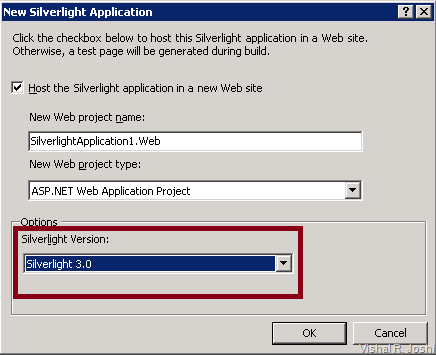
Silverlight MT

SL MT also uses the Reference assemblies infrastructure that we discussed during Part –1 of this post…  You can find that SL also has its own set of “Reference Assemblies” as shown below:

SL Reference Assemblies

This actually brings up an interesting point to note that Reference Assemblies infrastructure is pretty extensible and can be used for Frameworks which are technically outside of .NET Framework too…

ASP.NET MVC

As you know ASP.NET MVC 1.0 was released on top of VS 2008… Then eventually the support for VS 2010 was also provided…  VS 2010 will fully support ASP.NET MVC just like it supports Web Application Projects or Web Site Projects… There will be upgrade options available from VS 2008 MVC projects to VS 2010 MVC Projects… 

MVC projects can MultiTarget based on project references i.e. if you have reference to MVC 1.0 your intellisense will work for 1.0 and if you have reference to MVC 2.0 your intellisense will work for 2.0…  If your hoster does not support ASP.NET MVC just yet you can just select the reference to MVC assemblies and in the properties mark “CopyLocal” to True which will copy the MVC assemblies into your BIN which you can just simply deploy to the server along with your project (as shown below)…

CopyLocal

Multiple Frameworks in same Solution

If you have read Web MultiTargeting posts (Part 1Part 2) you already know by now that there is a lot happening with respect to toolbox filtering, property grid filtering, context sensitive markup intellisense, JavaScript intellisense, C#/VB intellisense,  IIS App Pool management, web.config etc… 

If someone has a big solution with several web projects, few class libraries, few web services etc, it is very likely that they will not update all of their project at the same time to .NET 4… So VS 2010 needs to make sure that things don’t break even if there were multiple projects in a single solution and all of them were targeting different .NET Framework Versions (with few Silverlight projects with multiple versions into the mix :-)) …

There were various stress scenarios which were tested and optimized for in this area… In fact we have something called as “Overall Goodness Factor (OGF)”… OGF is a subjective adhoc test which needs to be performed on a regular basis by various people across the the team to understand how the product is behaving…  As most of the folks in our teams are developers (even if their title don’t say so :-)) they do reasonable job in playing around with various real world projects… This particular OGF covering stress scenario was always hard to execute, coz every time we had to set up this complex project structure from ground up and play around with it to make sure VS 2010 is actually performing correctly… Btw, the OGF report is sent out pretty broadly across the division for features like MT so if  any team’s OGF was not “Good” it use to become the the center of everyone’s attraction across the division (not in a good way :-))… In short there was enough motivation provided to get things right!!

Making sure all Web Stack Features Work

As Web MT operates relatively in the lower layers of VS 2010 and ASP.NET 4 stack a small issue in MT surfaces as a big issue somewhere else… Although this is very much assumed and expected but the MT team had to specifically write Automation tests to ensure other features within the products like Dynamic Data, AJAX, Web Deployment, Build/Compilation, Debugging, WCF, Web Services etc etc continues to perform while targeting any .NET Framework version…

Most of the time we did not face a lot of issue in this area, but nevertheless something which is worth mentioning…:-)

Target Framework Moniker & Profiles

As we talked about earlier “Reference Assemblies” which are laid down on the disk at %Program Files%\Reference Assemblies folder are meta data only assemblies… By default there are Reference Assemblies folders created for Silverlight versions and .NET Framework versions (e.g. 2.0, 3.0. 3.5 & 4)… VS 2010 architecture runs using a concept called as “Target Framework Moniker” which describes where reference assemblies should be picked from the disk…  The target framework Moniker looks something like below:

".NETFramework,Version=v4.0,Profile=ServerCore"

  • Target Framework Identifier (“.NETFramework” in above example)
  • Target Framework Version (“Version=v4.0” in above example)
  • Profile Name (“ServerCore” in above example)

Based of this information VS 2010 will pick up “Reference Assemblies” which in turn will allow VS 2010 to control the behavior across the board in the IDE (i.e. on toolbox filtering, intellisense, property grid filtering etc etc)…

When Profile Name in the target framework Moniker is present then VS 2010 looks under the framework for the presence of the Profile definition (Think of “MT Profile” as a SUBSET of the full .NET framework)
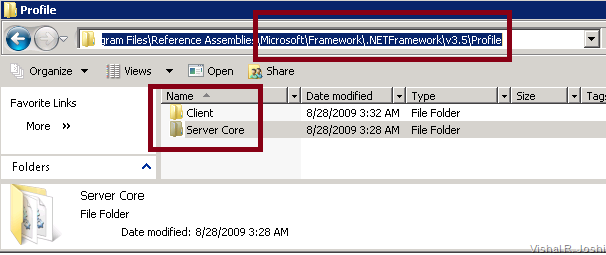
Profile Folder

When Profile Name in target framework Moniker is missing then the full frameworks are picked up… i.e. “.NETFramework,Version=v4.0” will pick up reference assemblies for the full .NET 4 Framework… 

Profiles are interesting coz in the future there might be platforms and servers which do not need full .NET Framework but only subset of it… VS 2010 can ensure that projects developed using a specific Profile will not land up accidentally consuming the larger surface area of .NET framework which might be absent on the destination… Eventually Mobile development can have its own profile and so can Windows Client development have its own… Anyways, the key point is that “Profiles” are a reusable way to provide MultiTargeting support with Visual Studio and will be expressed via the “target framework moniker”…

You might be wondering where is this target Framework Moniker physically visible… Well the answer is complicated but what is important to note is that starting .NET 4 ASP.NET web.config  schema will support a special attribute called targetFramework=”4.0” as shown below:

TargetFrameworkMoniker

Following things are worth noting about this attribute:

  • The attribute resides on the compilation node of the system.web attribute of the web.config…
  • This attribute was introduced in ASP.NET 4 and it is not supported for .NET 2.0/3.0/3.5 webs (as they shipped before the concept of Reference Assemblies and Profiles was introduced)… i.e. do not try to code something like “targetFramework=v3.5” in VS 2010  it will not work :-)
  • “targetFramework” attribute is just a short form of “targetFrameworkMoniker”…
  • “targetFrameworkMoniker” was the attribute which was earlier used in VS 2010 Beta1 but in final VS 2010 release it will be renamed to “targetFramework”…
  • targetFramework=”4.0” is same as targetFramework=.NETFramework,Version=v4.0”
  • If there was a profile then that could be added to targetFramework too e.g. targetFramework=”.NETFramework,Version=v4.0,Profile=ServerCore" (btw, Profile=ServerCore" is just a made up name by me, it does not exist :-))
  • Post VS 2010 Beta1, targetFramework will not be a required attribute at runtime for ASP.NET 4… But, it is required for VS 2010 to support correct MT behavior within IDE so I strongly encourage you to not delete that attribute from your web.config file… Its, just a little attribute it means no harm :-)
  • As targetFramework attribute is optional at runtime, if it was missing from web.config and the web was deployed under .NET 2.0 App Pool in IIS then ASP.NET will assume the web to be 2.0 Web… If the web was deployed on .NET 4.0 App Pool in IIS then ASP.NET will assume that the web is .NET 4 web… 
  • targetFrameworkMoniker, which was  the VS 2010 Beta1  equivalent of targetFramework attribute was a required attribute  i.e. if that was absent you would get an error as below:

“The application domain or application pool is currently running version 4.0 or later of the .NET Framework. This can occur if IIS settings have been set to 4.0 or later for this Web application, or if you are using version 4.0 or later of the ASP.NET Web Development Server. The <compilation> element in the Web.config file for this Web application does not contain the required 'targetFrameworkMoniker' attribute for this version of the .NET Framework (for example, '<compilation targetFrameworkMoniker=".NETFramework,Version=v4.0">'). Update the Web.config file with this attribute, or configure the Web application to use a different version of the .NET Framework.”

The solution for the above error in VS 2010 BETA 1 is to add below attribute under compilation node of the web.config file

targetFrameworkMoniker=.NETFramework,Version=v4.0”

Anyways, I guess now you know a lot more about a single attribute within web.config than you would ideally like to, so let’s move on :-)

Retargeting between Framework Versions

I intentionally kept this piece towards the end coz now you know a whole gamut of things that happen around Web MT within Visual Studio for a single project… The nice part is that VS 2010 will allow you to simply go to your project properties and use that retargeting drop down box shown below to flip your Framework version between 2.0, 3.0, 3.5, 4 or any of the Profiles that might be installed on your box… And as soon as you retarget IDE will frantically start doing a bunch of things behind the scenes and within no time will reload your project and get you all set on new Framework of your choice…

image

If you choose to down target your project from say .NET 4 to .NET  3.5 you will get a bunch of errors when you build, the primary reason for that is that VS 2010 cannot simply wipe out source code from your code files, it does not really know what code you wrote and tweaked painstakingly and suddenly loosing it all might be scary… But anyways, the chances of people moving from .NET 4 to 3.5 are very few so most people do not ever experience the errors… Even if you see retargeting errors most of the time the solution is all about deleting some new 4.0 specific code which is pretty easy to do…

Anyways, in the image above you will also see a tons of extra frameworks, we have not yet made progress beyond 4.0, so most of them are not real… :-) They are all the test profiles and frameworks that MT team created painstakingly to make sure MT really works in whatever difficult situation we will throw at it…  So, when VS 2010 ships all the test frameworks will be gone and all you will see are few Frameworks is that small Drop Down Box…. :-)

-Vishal

The remaining posts in the Web MultiTargeting Series are:

Tuesday, August 25, 2009

All for that small Drop Down Box – Part 2

Web MultiTargeting (Web MT) for VS 2010 has been a great journey of fine technology and a tons of learning for me in person, I am sure everyone in the team feels very similar (although some may add “+ lot of pain” into the mix :-))…  Yesterday, I published some of the details around what Web MT offers web developers in VS 2010… You can read it at:

All for that small Drop Down Box – Part 1

I covered approx 10 different features of MultiTargeting in the previous post, today I am going to time box myself to a couple of hours to write as much as I can and then see if we need Part –3 of this series in few more days or not… :-)

Anyways, let us get started!!

Filtering Markup Intellisense

One of the essential benefits of working within IDE like Visual Studio is that you get your code colorized correctly and intellisense keeps showing up as and when you need it…  Before working on many of these feature areas I often use to take things like keywords getting colorized and intellisense showing up etc pretty much for granted, now I don’t, now I appreciate that ultimately everything is a text pad before it becomes as fancy as VS 2010 code editor is… :-)

The MT team did a reasonable amount of work to make sure that when you go about typing <asp: in HTML editor of VS 2010 and you start getting intellisense as below:

markup intellisense

then that is actually customized to the correct ASP.NET version… Imagine if folks got <asp:ListBox in .NET 2.0 project (where ListBox control is not supported) and they started using the ListBox only to find out when the web project is deployed it will not work…  Well, VS 2010 will not show you <asp:List Box in .NET 2.0 project but in order to do that there was work done to filter out the mark up from intellisense which does not apply in a particular framework… After we got the filtering working then the team was assigned to do some more work to make sure that the design was refined in a way that it did not adversely impact performance…

Correct JavaScript Intellisense

You must have already heard that VS 2010 gives great JavaScript intellisense support… In fact in VS 2010 there was a lot of work in this area (out side of MT work) to ensure that you get intellisense everywhere, hopefully I will write about that also in a different post but whether or not I do I am sure you will start noticing the difference in JavaScript intellisense in VS 2010 over VS 2008…

Anyways, for now what is interesting to know is that for Microsoft AJAX the JavaScript files are embedded inside the assemblies like System.Web.Extensions etc…  The AJAX support has only been growing in every .NET framework release and it is one of the reasons why people move from .NET 2.0 to 3.5 and will hopefully move to .NET 4 too… 

You might recollect the reference assemblies discussion from my Part 1 post and that reference assemblies are meta data only assemblies… You might also recollect that VS 2010 process loads only .NET 4 and then reference assemblies are used to mask .NET 4 features in lower level targets like .NET 2.0/3.0 and 3.5… 

Now the AJAX JavaScript files are embedded inside assemblies and they actually differ from framework to framework…  If VS 2010 would use the embedded JavaScript files from .NET 4 assemblies all the time then .NET 2.0/3.5 projects would land up consuming some JavaScript functions which may not be available in that framework…  Due to such scenarios the Reference assemblies actually always contain embedded resources (even though they do not actually contain the source code implementations)… Web MT team worked on getting these embedded resources from the correct reference assemblies and feeding to the JavaScript intellisense engine to ensure that you get correct AJAX intellisense when you are using Microsoft AJAX feature sets…  It was kind of cool to see even JavaScript intellisense get target aware, I hope folks who use a lot of Microsoft AJAX will be able to appreciate this :-)

Special support for AJAX Control Toolkit (ACT)

It is funny that we land up calling AJAX Control Toolkit as “ACT”, I guess not many web developers using and contributing to ACT don’t do so!!  Anyways, ACT 1.0 was an out of band release (i.e. it did not ship as part of .NET 2.0) and offered various controls and extenders which are used by many many web developers…  Eventually ACT 3.5 and now community previews of recent ACT release are becoming available…  When you download and use ACT then you get controls and extenders in your toolbox and your web controls get options to add or remove extenders (e.g. A TextBox control can have a ColorPicker extender)… When all this things come together in VS 2010 there are a lot of possibilities like what if you have .NET 2.o project what kind of ACT should be made available, what if you have ACT 1.0 as well as ACT 3.5  on your box how should VS 2010 react to it, what should be allowed and what should be prevented via errors and intellisense so that web developers do not land up getting their webs into a bad state… ACT in itself with all its combinations keeps several members of our QA team busy for extended period of time… Their goal is  that things should just work and web developers should remain blissfully unaware of the complexity behind the scene… 

Actually the entire MultiTargeting feature in a way is like that “If you as a developer never realized MTs existence throughout your project lifespan--> from creation, to editing to deployment in production, to end of maintenance life then it is “mission accomplished” for us:-)”…  It feels like working in the entertainment industry, making movies everyday and contributing in the category of work which is pivotal but does not have an Oscar category associated with it!!  As long as our movie is loved by the people watching it we will be happy and satisfied, so in short the ask from you is “Love VS 2010 and .NET 4”  it is indeed great!!

Support for 3rd party controls

Ensuring that 3rd party controls from likes of Infragistics and Dundas work seamlessly across framework versions (based on how they are designed) was also important… Some people want to be able to not keep buying same control over and over again after upgrading their framework version (sounds familiar :-))…  There is a reasonable amount of work done in verifying controls from many of our partners and also working with many control vendors to provide them with the guidance on how to work within VS 2010 to make sure things continue to work find when people migrate their projects into VS 2010…  The central MT team across the division worked together to come up with a guidance document for control vendors to integrate into VS 2010, even this simple blog post series is long enough so I will leave to you to imagine how much information must be poured into that document which will be used by various companies to build controls which will work within VS 2010…  You will be surprised on how versioning, licensing and naming is done by various partners… Ensuring that nothing of this broke in VS 2010 was not easy…:-)

ASP.NET Compilation System

With .NET 4 running in VS 2010 process the ASP.NET Compilation System used is also .NET 4… Before we talk more about this let me tell you what ASP.NET Compilation System does – it is the system which actually takes the web pages, parses the various ASP.NET related syntax present inside the HTML e.g. <asp:GridView etc and converts that into code… It also pulls out all of the inline C# or VB code out of your web page and calls the correct C#/VB compiler on it… This is the core ASP.NET Compiler which runs inside of Visual Studio…

Now imagine that the ASP.NET Compiler within VS 2010 was required to be made target aware… What I mean by that is when you are targeting .NET 2.0 and you have .NET 4.0 syntax in your web then the compiler needs to throw an error which shows up in your VS 2010 error list which you can then double click and you are taken to the line on which there was an error…  This actually is the same kind of error reporting mechanism that happens even when there is a typo in source code… In essence ASP.NET 4 compiler needs to get into the “correct framework mode” to provide the accurate error messaging and to avoid any type bleeding from happening…

There are also MT implications on C# and VB compilers which I will possibly cover in a separate post… In any case trust me that making compilation system target aware is a significant endeavor…

IIS Application Pool Mappings

As you know we have Visual Studio Development Server (aka Cassini) that is used to debug/run your project within VS without needing IIS…  I talked a little bit about this in my previous post… The other possibility for running and debugging your app is by using IIS on your local box itself…

VS allows you to create a WAP or a Web Site which uses IIS instead of Cassini… Even here MT needs to intervene; if you are creating a .NET 2.0 IIS Web then VS 2010 needs to go access IIS and create Virtual Directories, IIS Apps and map them to the correct App Pools running in correct target frameworks… Simply put VS 2010 needs to put .NET 2.0 project in .NET 2.0 App Pool and .NET 4 project in .NET 4 App Pool…  I wish it was just limited to this but there are instances when correct App Pools are not available and then VS 2010 needs to go and create them for that framework… Sometime the project is mapped to use .NET 2.0 App Pool and now it is being upgraded to .NET 4… In this scenario VS needs to go and change the IIS App to use the correct App Pool too…

VS 2010 actually uses IIS 6 Metabase APIs to make these changes and even when you are using IIS 7.0 or 7.5 VS 2010 continues to use the same Metabase APIs and hence if you are using IIS as your development server with VS 2010 with Vista/Win7 you will need to have IIS 6 Metabase Compatibility Layer turned on in Control Panel –> Programs–> Turn Windows Features On/Off  as shown below:

metabse compatibility

It is not only when VS 2010 flips/flops Virtual Directory App Pools when this compatibility layer is used… It is also used when IIS App is created for the first time, in short it is used every time you use IIS based web project within VS 2010…

In all honesty, in VS we could write code to get rid of the IIS 6 Metabase compatibility dependency and instead start using IIS 7 configuration system API but there was a lot work needed to do that we could never get to completely finishing it on time… :-( I totally understand that it is going to be an inconvenience to have the compatibility layer enabled and I apologize for the same but I hope that you will recognize the fact that we do have the intent to finish the work but just from cost and schedule standpoint we could not fit this work into VS 2010…

Anyways, I have reached at the end of my stipulated couple of hours of time to write this post… I assumed that if I give myself couple of hours to write then the content will be at reasonable reading length without making everyone bored, it will also ensure that I do not start writing gibberish :-)

I certainly have more inner workings to tell you about Web MT but I guess that the content is interesting enough to deserve “All for that small Drop Down Box - Part 3”…!!

So until then please do feel free to let me know if any of this is any good to anyone reading :-)

-Vishal

The remaining posts in the Web MultiTargeting Series are: